









Before generative AI’s breakout year in 2022, nobody really thought about it. The average organization used just 2 AI tools in 2023, and jumped up to 7 by 2025. Today, 80% of employees use AI at work.
But more tools doesn't mean more productivity. It’s finding the right AI tools to empower your human work that matters most.
We tested dozens of AI productivity tools across writing, scheduling, project management, automation, and more. This guide covers the 19 that saved us measurable time without adding complexity to our workflows.
How we evaluated these tools
We took a hands-on, experience-first approach to evaluating every tool on this list.
For the tools our team actively uses at Reclaim (such as ChatGPT, Claude, Notion, Grammarly, Cursor, and Reclaim.ai 😊), we reflected on how each one fits into our daily workflows and looked outside our existing stack for the AI tools we should be considering. We drew from months of real usage across product, marketing, engineering, and ops.
For AI tools we don't use day-to-day, we tested them against our own use cases. Specifically, how well they handled async collaboration, integration with the rest of our virtual-first stack, output quality on real tasks, and whether they saved time or created new busywork.
Our review lens
The 19 best AI productivity tools
| Tool | Category | Best for | Free tier | Starts at | |
|---|---|---|---|---|---|
| AI assistant | Overall AI assistant | Yes | $20/mo | ||
| AI assistant | Research & writing quality | Yes | $20/mo | ||
| AI Calendar | Productivity | Yes | $10/seat/mo | ||
| Knowledge mgmt | Knowledge management | Yes | $20/mo (full AI) | ||
| Writing | Writing & editing | Yes | $12/mo | ||
| Research | Source-grounded research | Yes | Free | ||
| Automation | Workflow automation | Yes (limited) | $19.99/mo | ||
| Meetings | Meeting transcription | Yes | $16.99/mo | ||
| Project mgmt | Project management | Yes | $10.99/mo | ||
| Video/audio | Video & audio editing | Yes | $16/mo | ||
| Presentations | Presentations | Yes (limited) | $10/mo | ||
| Coding | AI-assisted coding | Yes (limited) | $20/mo | ||
| Image gen | Image generation | No | $10/mo | ||
| Task mgmt | AI task planning | Yes | $5/mo | ||
| Meetings | Meeting notes | Yes (30-day history) | $14/mo | ||
| AI email management | Yes | $8.25/mo | |||
| Design | AI-powered design | Yes | $12/mo | ||
| Video comms | Async video communication | Yes | $15/mo | ||
| M365 suite | Microsoft 365 users | Yes (Copilot Chat) | $30/mo |
1. ChatGPT – best overall AI assistant
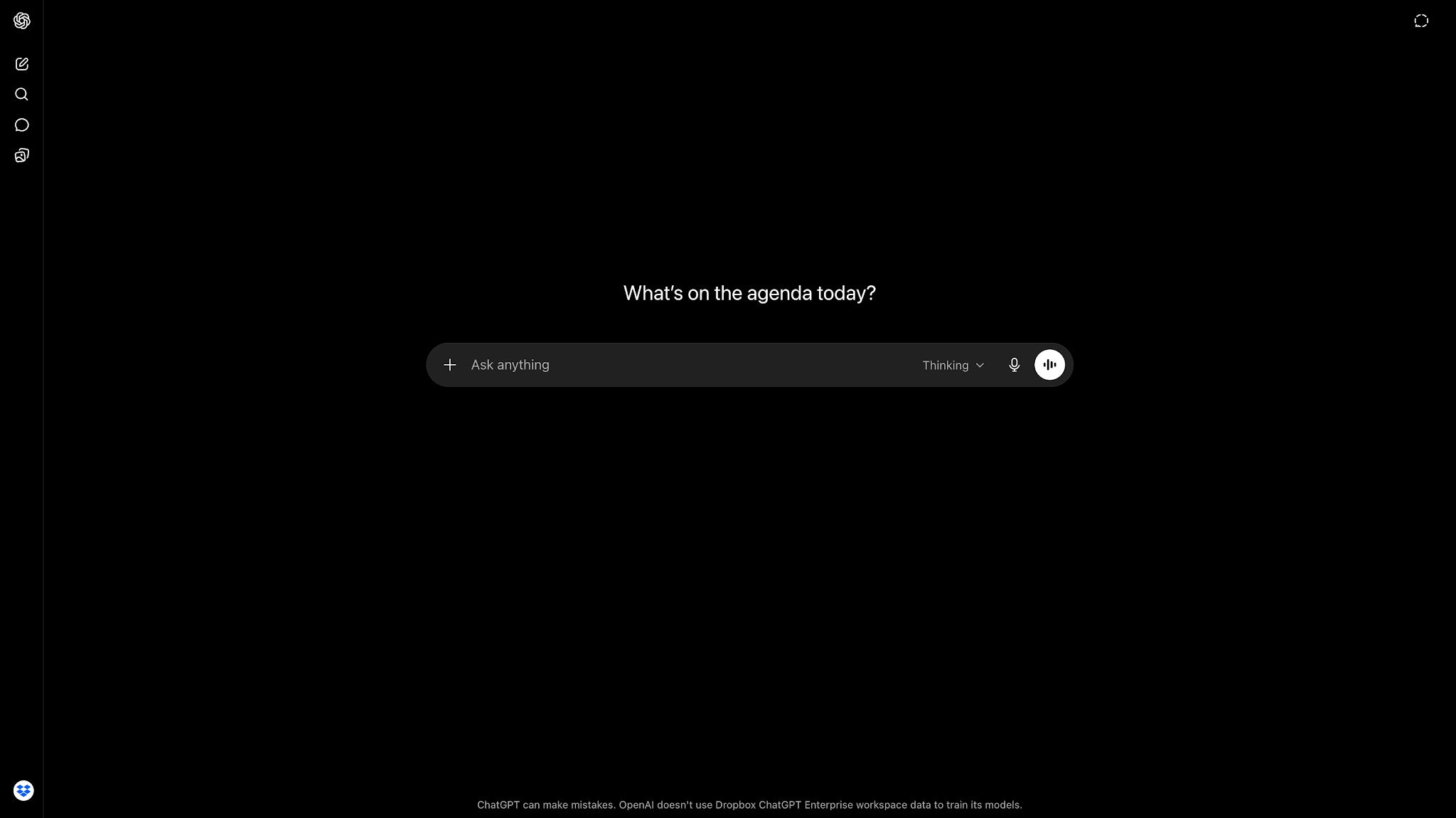
ChatGPT is OpenAI's conversational AI assistant and the most versatile productivity tool on this list. It handles writing, analysis, brainstorming, coding, image generation, and research in a single interface. For most knowledge workers building an AI workflow, it's the default starting point.
Why we like it
ChatGPT is usually our go-to when we need to get a draft together quickly. Need an email reply, copy variants, or a summary of a 30-page PDF? It takes the friction out of getting started, and the results are actually usable. In fact, one study found people finished writing tasks 40% faster with ChatGPT, and our experience matches that. Features like Canvas (which lets you edit with full version history), different models for speed or depth, and Custom GPTs you can train for your brand voice make it even more versatile.
That said, you still have to watch out for made-up facts and hallucinations as ChatGPT can sound confident even when it's guessing. We’d recommend a manual fact-check before publishing any of its outputs. If your work needs bulletproof citations, NotebookLM or Claude are safer bets (we've got a roundup of AI assistant apps for that).
Key features
- GPT-5.5 Instant, Thinking, and Pro models for speed vs. deep reasoning
- Canvas for collaborative long-form writing and code editing
- Memory and Projects for persistent context across conversations
- Custom GPTs for building task-specific assistants
- Connectors to Google Drive, Gmail, Outlook, GitHub, and more
- Voice mode, image generation, web browsing, file analysis, and agent mode in one assistant
Pros
- Broadest feature set of any AI assistant
- Custom GPTs and connectors allow deep personalization
- Memory and Projects keep context across long-running work
Cons
- Hallucination risk on factual claims requires verification
- Free tier is limited, especially for newer models
- Can produce generic output without specific prompting
ChatGPT pricing: Free → Paid plans start at $20/month
2. Claude – best for research & writing quality
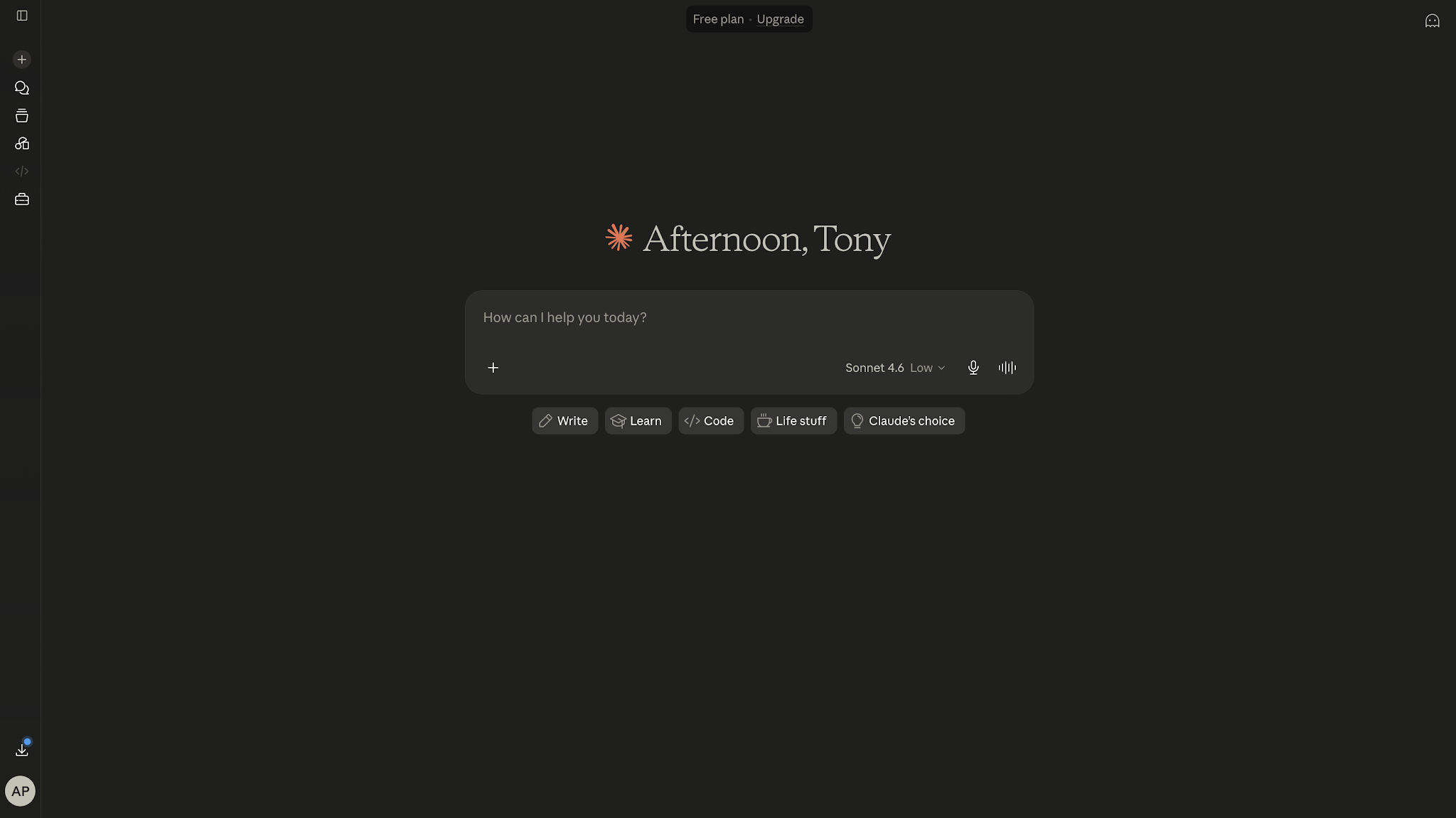
Claude is Anthropic's AI assistant, and it consistently produces the most thoughtful, well-structured writing of any model we've tested. Where ChatGPT is a generalist, Claude is the tool you choose when the quality of the output matters more than the speed.
Why we like it
Claude is the one we turn to when "good enough" isn't going to cut it. The writing comes out more natural than ChatGPT's, with phrasing that's a bit more thoughtful and fewer of those rhythmic tells that make AI prose easy to spot. The majority of Claude usage leans toward augmenting work (collaborating with the user) rather than fully automating it, mostly in writing, editing, and technical tasks. Artifacts (the side panel where Claude builds docs or code you can read and tweak before pasting anywhere) is a feature we genuinely missed in other tools. Projects keep your brand voice and context across sessions, and the context window stretches to 1M tokens on Sonnet 4.6 and Opus 4.7, enough to feed it an entire report or codebase at once.
Claude can be more cautious than ChatGPT and sometimes refuses prompts that are clearly fine, and the free tier limits kick in faster. For factual accuracy, we still run things through Perplexity, NotebookLM, or a manual source check.
Key features
- 1M-token context window on Sonnet 4.6 and Opus 4.7 for large document and codebase analysis
- Artifacts for interactive outputs (documents, code, visuals)
- Projects for saving persistent context across conversations
- Claude Code for terminal-based pair programming (included in Pro)
- MCP connectors for Google Workspace, GitHub, Notion, Slack, and more
- Computer Use for letting Claude operate apps and browsers (API/preview)
Pros
- Higher-quality writing with more natural tone
- Massive context window for document-heavy work
- Artifacts reduce friction for creative and technical output
Cons
- Free tier has stricter daily usage limits than ChatGPT
- Smaller third-party app ecosystem than OpenAI (though MCP is closing the gap)
- Can be overly cautious in responses (safety guardrails)
Claude pricing: Free → Paid plans start at $20/month
3. Reclaim.ai – best for productivity
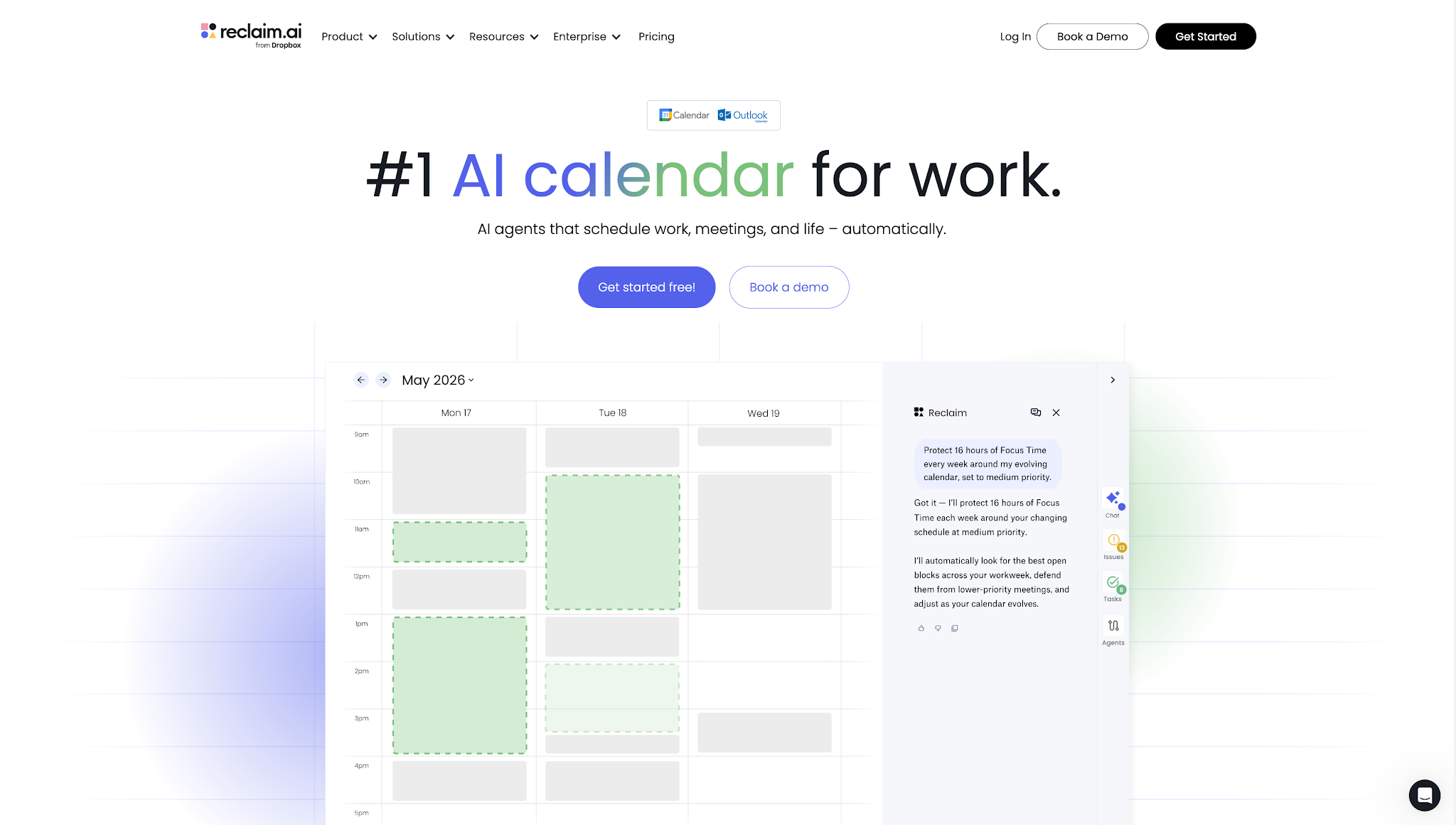
Reclaim.ai is an AI calendar app that automatically defends your time, optimizes your meetings, and improves your work-life balance. Simply activate AI agents around your goals: schedule focus time every day, build new habits, protect breaks, or improve the quality of my meetings. They work for you 24/7 to continuously optimize your schedule to save you 7.6 human hours/week.
Why we like it
Reclaim is our product, and every person on our team uses it daily. The problem it solves is one any knowledge worker recognizes. Average meeting load has hit 17.1 meetings per week, and "not enough time for focused work" was the top reason people cited for burning out. Reclaim 2.0 hands the calendar over to a set of AI agents that do the scheduling work no one wants to do. Deep-work hours stay defended even when the week looks impossible. Daily routines keep showing up on the calendar without you scheduling them. And decompression time slots in after the external calls where you actually need it.
The 2.0 chat layer lets you talk to Reclaim directly. Tell it what you need and the change shows up as a draft in Preview Mode, where you accept or reject it before anything touches your live calendar. Its integrations pull task context from the project tools your team already uses (Jira, Asana, Linear, Notion, Todoist), and the new MCP support means Claude, ChatGPT, or Cursor can read your Reclaim data directly.
Key features
- Agentic chat for natural-language calendar actions (analyze your week, cancel or reschedule, find time, build new habits)
- Preview mode that stages every action for human approval before it goes live
- Habits, Focus, and Buffer agents for routines, deep work, and decompression time after meetings
- Smart Meetings that auto-find the best time for all attendees
- Task syncing from Asana, Jira, Linear, ClickUp, Notion, Google Tasks, and Todoist
- Calendar Sync to mirror events between work and personal calendars (multi-account Google and Outlook)
- Time tracking and team analytics for workload visibility
- Enterprise security: SOC 2 Type II, GDPR, CCPA, and Data Privacy Framework, with SSO and SCIM on Business and Enterprise tiers
Pros
- Runs on your existing Google Calendar or Outlook Calendar (no new system to learn)
- Preview mode keeps a human in the loop on every AI action
- Adapts your schedule automatically as priorities change
- Analytics reveal where your time actually goes
Cons
- Calendar-domain focused; not a general workflow builder like Zapier or a cross-app agent platform like Lindy
- Reclaim 2.0 is new, so some pieces will keep changing post-launch
- Best ROI assumes a meeting-heavy workday; light, solo schedules see less impact
Reclaim.ai pricing: Free → Paid plans start at $10/month
4. Notion AI – best for knowledge management
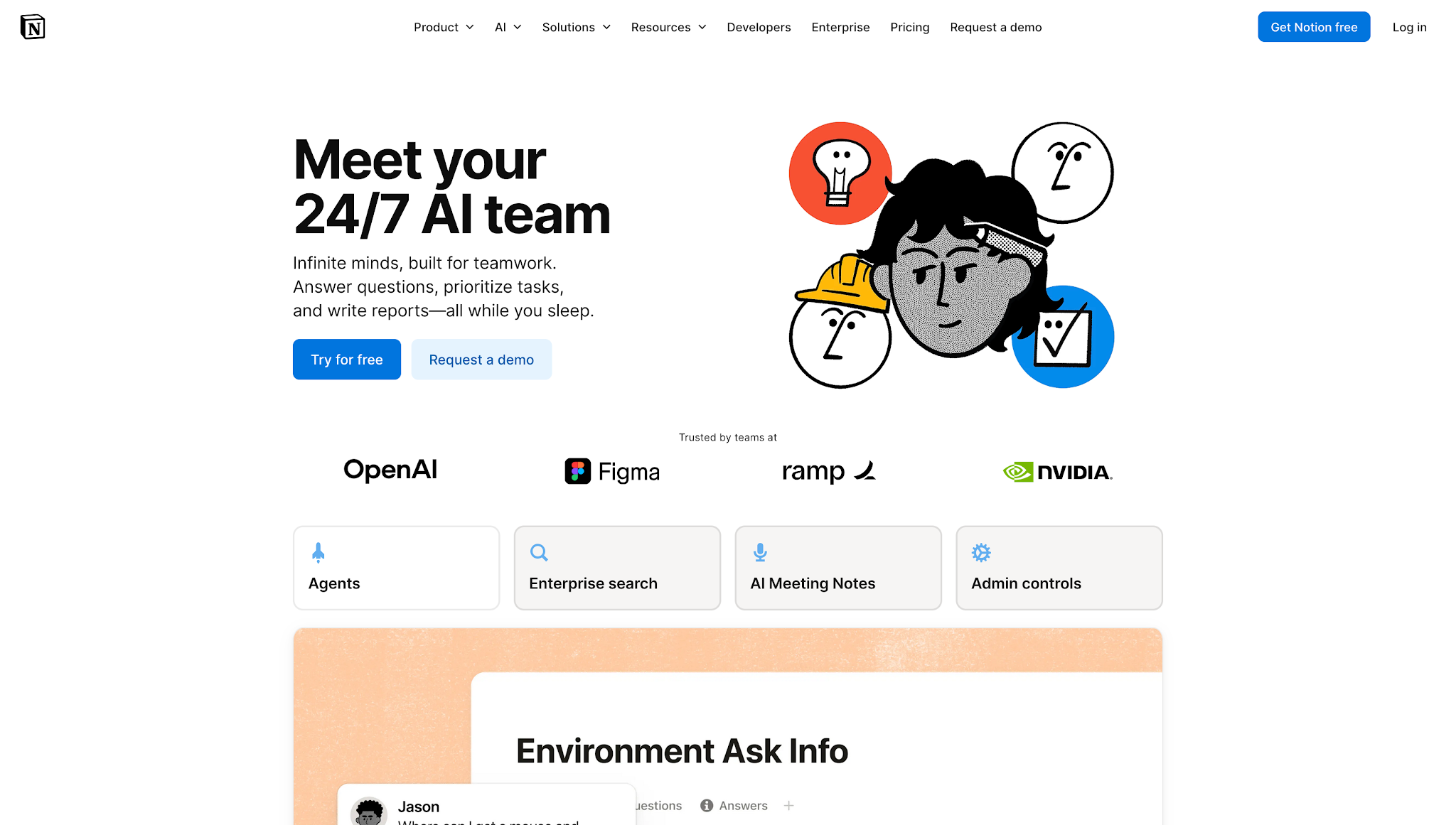
Notion AI adds an AI layer to Notion's all-in-one workspace, letting you draft content, summarize databases, answer questions across your docs, and automate repetitive formatting tasks without leaving the tool where your knowledge already lives.
Why we like it
Notion AI is one of those tools where the value is hard to pinpoint on a feature list because it's cumulative. Before we were acquired by Dropbox, our team wiki, project trackers, and meeting notes already lived in Notion. So the AI layer compounds across every search and every block we'd otherwise be retyping. Ask Notion (formerly Q&A) pulls sourced answers from your own docs and databases, with citations linking back to the source pages, and AI Meeting Notes turns calls into structured recaps inside the workspace.
Nothing the AI does is destructive, either. Every generated paragraph or autofilled database property is a normal Notion block you can accept, regenerate, edit inline, or roll back through version history. Still, Notion folded the standalone AI add-on into its main plans in May 2025, so the full AI feature set (AI Agents, Ask Notion, AI Meeting Notes, Enterprise Search) now requires the Business plan at $20/month. If you're not already a Notion shop, the case collapses fast.
Key features
- Ask Notion for workspace-wide Q&A with citations
- AI writing assistance (draft, summarize, translate, improve)
- AI Meeting Notes that capture and structure calls inside the workspace
- Custom AI Agents and Enterprise Search on Business and Enterprise plans
- Built into the same environment as your docs and projects
Pros
- Context-aware: AI draws from your actual workspace content
- No copy-pasting between tools for AI-assisted writing
- Useful for both individual and team knowledge management
Cons
- Only valuable if you're already a Notion user
- Full AI feature set now requires the Business plan ($20/month)
- Writing quality falls short of dedicated tools like Claude
Notion pricing: Free → Paid plans start at $10/month
5. Grammarly – best for writing & editing
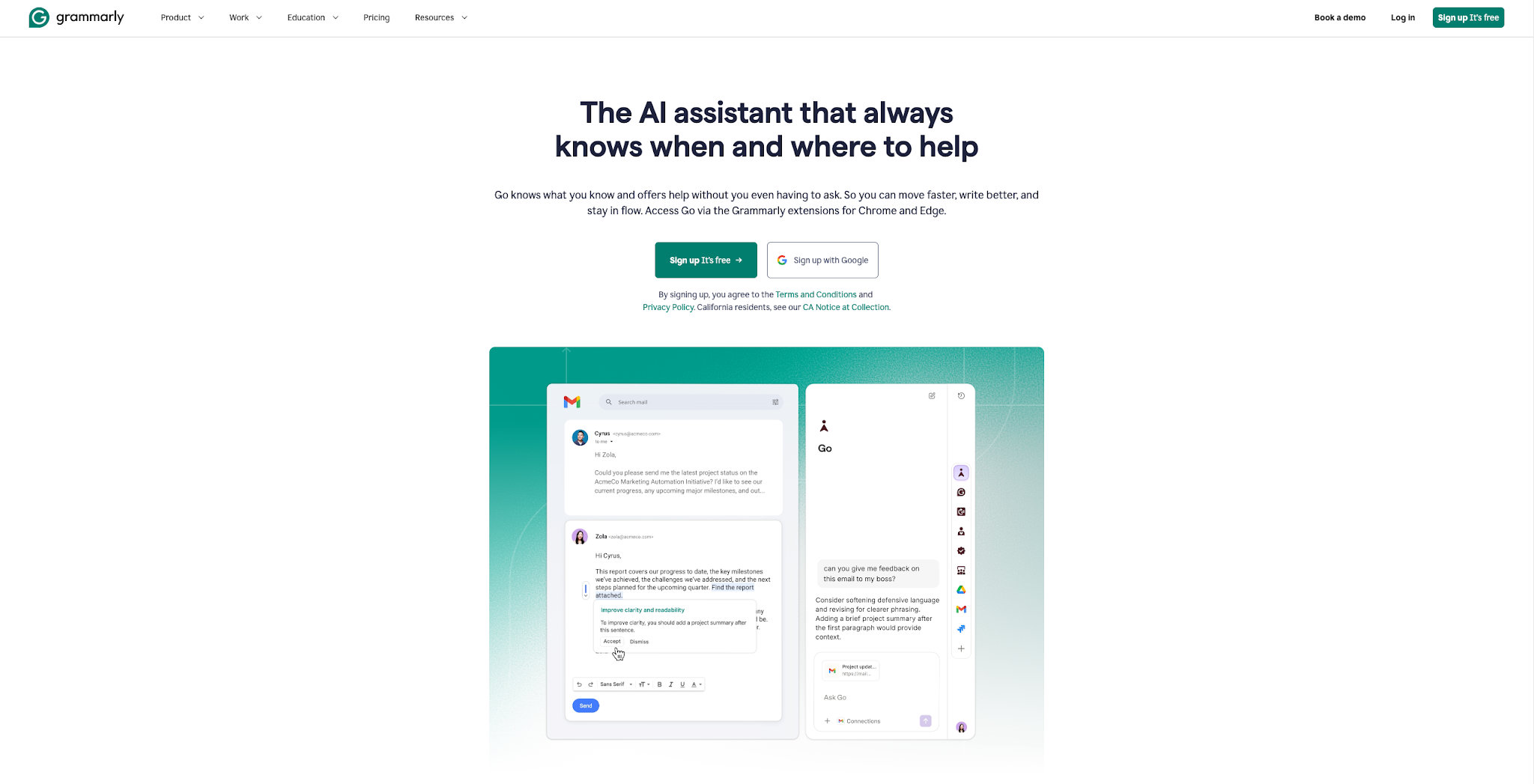
Grammarly is an AI writing assistant that catches grammar and style issues in real time wherever you write, across your browser, email client, and desktop apps. Its AI features extend to paragraph rewriting and brand voice enforcement.
Why we like it
Grammarly is the tool in our stack that you almost forget is there. It quietly runs in the background of every place we write: Google Docs, Slack, Gmail, the CMS, and even the LinkedIn composer. The value compounds across hundreds of small edits a day. GrammarlyGO handles paragraph rewrites and tone shifts. Brand Voice flags deviations from the team's defined style across whatever anyone is shipping. Grammarly's published customer stories range from 2–4 hours saved per week per user (Emplifi) to 7,000+ hours saved org-wide (Zoom). Those numbers track with our "small edits, big aggregate" experience more than any one dramatic moment. Our honest read: Grammarly is a polish layer, best paired with a from-scratch drafting tool like ChatGPT or Claude. And the suggestions can be aggressive enough to flatten an individual's voice if you accept them on autopilot, which is why we tell new team members to read before accepting.
Key features
- Real-time grammar, spelling, and clarity corrections
- GrammarlyGO for AI-powered rewriting and drafting
- Tone detection and formality adjustment
- Brand voice and style guide enforcement
- Works across 1M+ apps and websites
Pros
- Ubiquitous: works wherever you type
- Brand voice feature maintains consistency at scale
- Catches errors that spell-check misses (tone, clarity, conciseness)
Cons
- GrammarlyGO outputs can feel generic without good prompting
- Premium pricing is steep for individual users
- Suggestions can be overly aggressive, flattening personal voice
Grammarly pricing: Free → Paid plans start at $12/month
6. NotebookLM – best for source-grounded research
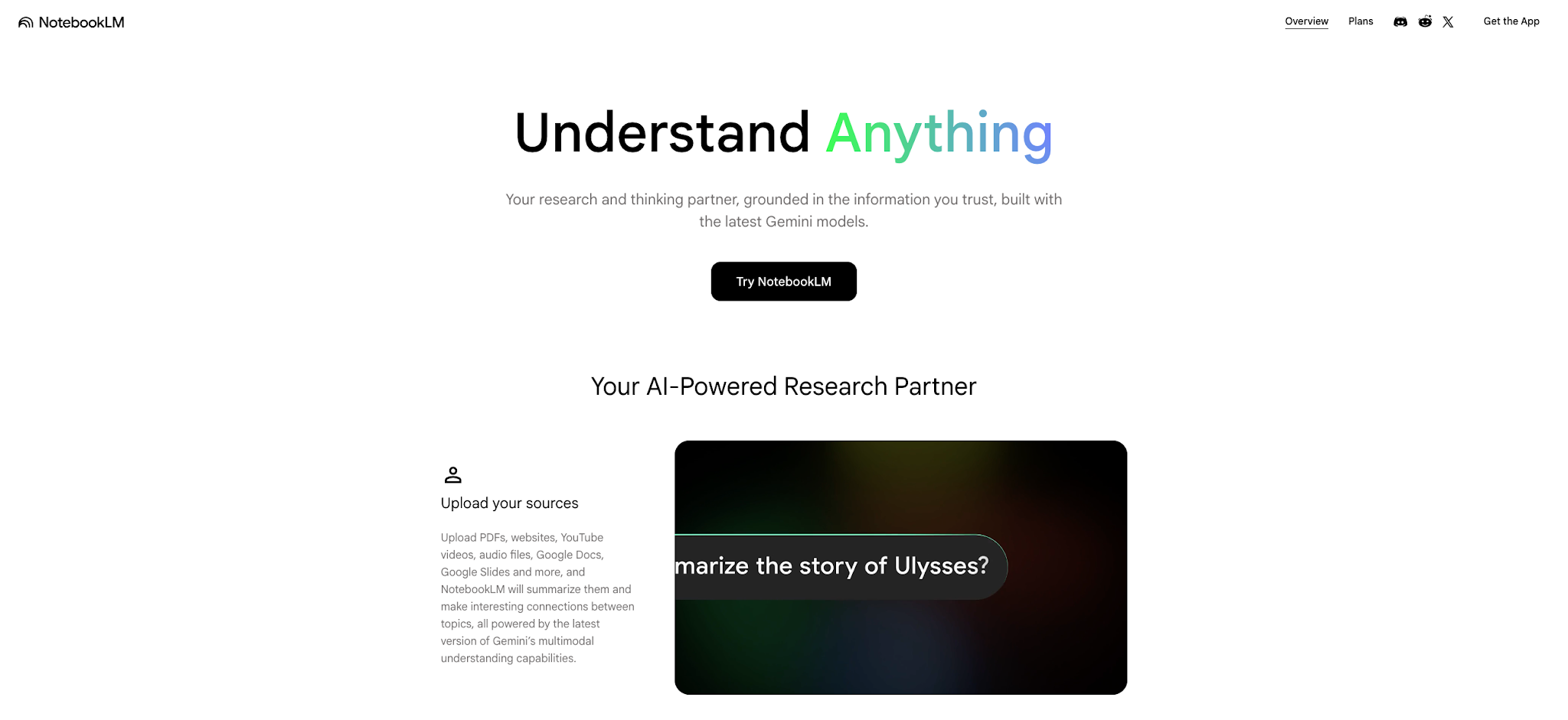
NotebookLM is Google's AI research tool that lets you upload documents, PDFs, websites, and audio files, then ask questions, generate summaries, or create AI-generated podcast-style audio overviews grounded entirely in your sources. Unlike general-purpose chatbots, NotebookLM never makes things up from its training data; every answer is tied to the materials you provide.
Why we like it
NotebookLM has one defining property that sets it apart from a general-purpose chatbot: it won't make things up from its training data. Every answer is grounded in the sources you upload, with passage-level citations you can click through to verify. We tested it against the same competitive-research set we'd normally hand to Claude (six SERP competitors for this article plus a stack of internal trends reports). The source-anchored answers came back noticeably cleaner and easier to defend. Audio Overview is the feature most reviews underplay. Upload a 50-page report and NotebookLM generates a podcast-style conversation between two AI voices walking through the key points. It sounds gimmicky until you absorb a dense strategy doc on a 15-minute commute. The limits are real, though. NotebookLM only works on sources you provide. It's a closed system by design, so unlike Perplexity or one of the AI assistant apps we cover separately, you have to bring the materials. There's also a 50-source / 500,000-words-per-source cap per notebook and no integrations with other productivity tools yet.
Key features
- Source-grounded Q&A that cites specific passages from your uploads
- Audio Overviews and Video Overviews that turn documents into listenable or watchable summaries
- Mind Maps that visualize how topics across your sources connect
- Support for PDFs, Google Docs, Slides, web URLs, YouTube videos, and audio files
- Study guides, FAQs, briefing docs, and infographics auto-generated from your sources
- iOS and Android apps for research on the go
Pros
- Zero hallucination risk: answers are grounded in your uploaded sources
- Audio, Video, and Mind Map outputs are unique ways to absorb dense material
- Generous free tier with a Google account
Cons
- Won't search the web for you; you must provide the sources
- Limited to 50 sources per notebook and 500,000 words per source
- No integrations with other productivity tools yet
NotebookLM pricing: Free → Paid plans start at $7.99/month
7. Zapier – best for workflow automation
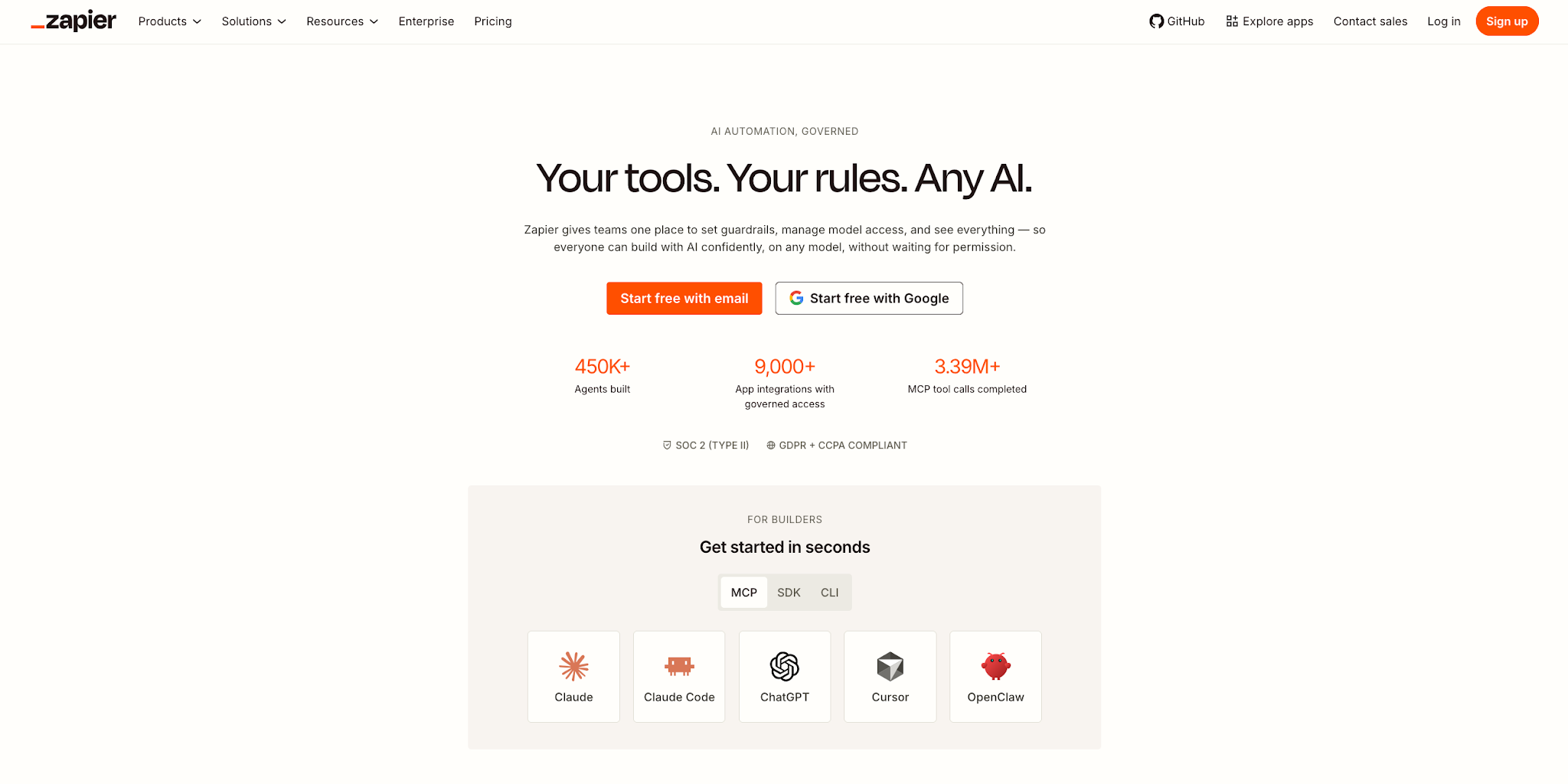
Zapier connects over 8,000 apps and automates workflows between them using AI. It turns repetitive multi-step processes (lead routing, data entry, reporting, notifications) into automated flows that run without human intervention.
Why we like it
For a virtual-first team running on a sprawl of SaaS, every new tool creates more manual coordination, and Zapier is built to absorb that overhead. The average organization uses approximately 7 AI tools, and the gap between any two of them is where the busywork lives. We built three real Zaps end-to-end against that backlog: routing form submissions, syncing CRM data, and posting weekly summaries. What sets Zapier apart from chat-based AI is the difference between "make this task faster" and "delete the task entirely." Copilot generates a workflow from plain English. Agents handle multi-step autonomous work across apps. Tables gives you a lightweight database for the data your automations depend on. One thing to know before you scale up: pricing is tied to task volume, so a couple of high-traffic Zaps can move you up a tier quickly. And complex flows can be tricky to debug when a flaky third-party integration is the source of the trouble.
Key features
- 8,000+ app integrations for cross-tool automation
- Copilot for building Zaps with natural language descriptions
- Agents for autonomous, multi-step AI workflows
- Tables for structured data storage and management
- Paths, filters, and conditional logic for complex workflows
Pros
- Connects almost everything to everything else
- Copilot lowers the bar for non-technical users
- Agents can handle work you'd otherwise do manually
Cons
- Complex automations can be difficult to debug
- Pricing scales with task volume, which adds up fast
- Some integrations have limited actions compared to native features
Zapier pricing: Free → Paid plans start at $19.99/month
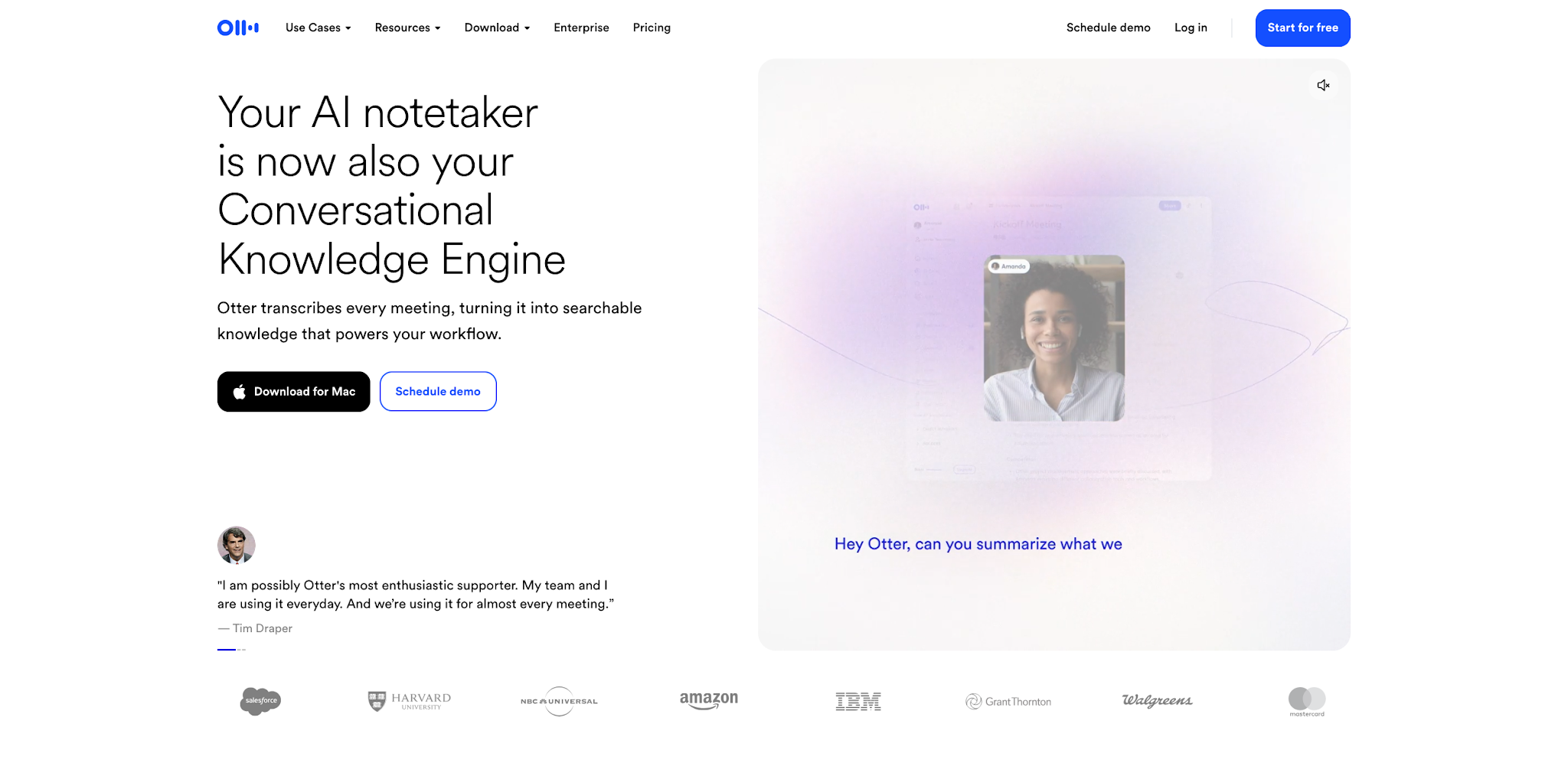
8. Otter.ai – best for meeting transcription
Otter.ai automatically records, transcribes, and summarizes meetings in real time. Its OtterPilot feature joins your calls as a participant, captures everything said, and generates action items, summaries, and searchable transcripts when the meeting ends.
Why we like it
We tested Otter against a string of our weekly product reviews and design syncs, comparing its auto-generated summary and action items against a human-written recap of the same meetings. The average professional spends nearly 40% of their time in meetings. You can't always skip those meetings, but you can at least walk away with usable artifacts. What we liked about Otter is how close the automated output lands to "ready to share." OtterPilot joins Zoom, Google Meet, and Teams calls as a visible participant, captures the full transcript with speaker identification, and turns the result into structured summaries organized by topic and action item. The feature we kept coming back to was keyword search across past meetings. Worth knowing the alternatives: Fireflies is similar with more CRM-focus, and Granola (see #16) takes a no-bot approach for the calls where a visible recording bot would change the dynamic. Otter produces the richest automated output of the three. The cost is the bot in the room. Some attendees go quieter when they see "OtterPilot" in the participant list.
Key features
- OtterPilot auto-joins and records Zoom, Google Meet, and Teams calls
- Real-time transcription with speaker identification
- AI-generated meeting summaries and action items
- Otter AI Chat for asking questions across your full meeting history
- Sales Agent for live coaching and CRM sync to Salesforce or HubSpot (Enterprise)
- Integrations with Slack, Notion, HubSpot, Salesforce, and MCP-connected tools
Pros
- Fully automatic once configured (joins meetings for you)
- AI Chat turns months of past calls into a queryable knowledge base
- Summaries and action items save post-meeting follow-up time
Cons
- OtterPilot joining as a visible participant can be distracting
- Transcription accuracy drops with overlapping speakers or accents
- Free tier has limited transcription minutes
Otter.ai pricing: Free → Paid plans start at $16.99/month
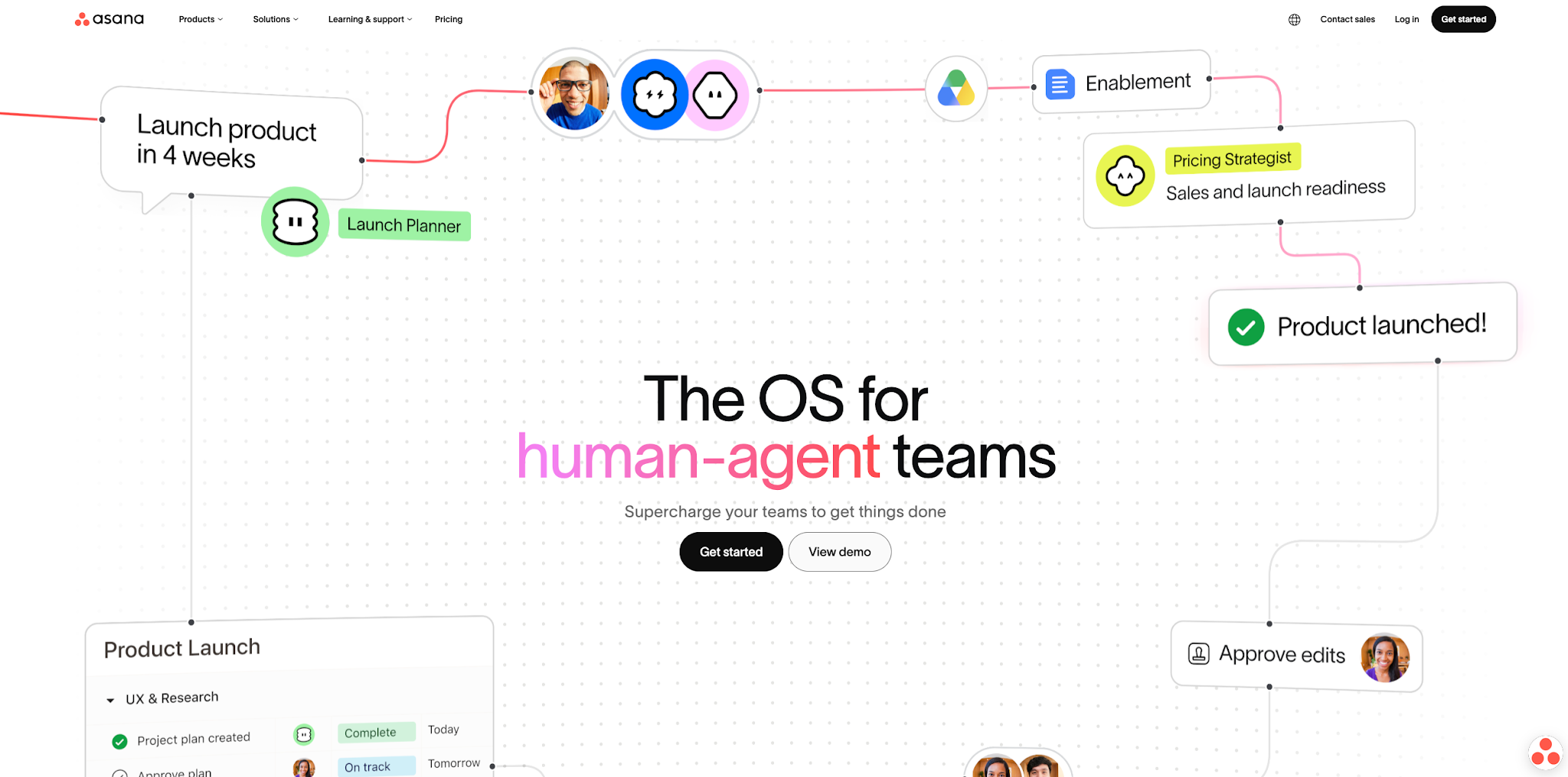
9. Asana – best for project management
Asana is a project management platform with AI features that help teams plan, track, and manage work across projects, portfolios, and goals. Its AI capabilities include smart status updates, automated task creation, and workflow recommendations.
Why we like it
Why does Asana keep earning its slot in our stack? Because when a project crosses three teams and a half-dozen handoffs, AI suggestions only help if the underlying project structure is strong. And Asana's structure is the strongest of any tool we tested. Goals cascade from company objectives down to individual tasks. Portfolios surface the health of every project in one dashboard. Asana AI (which now includes AI Studio) rides on top of that scaffolding, generating subtasks from a project scope, rolling up status updates from task data, and pulling workflow recommendations from your team's patterns. Every suggestion lands as an editable draft, so a human is always approving what goes out. The trade-offs are real, though. Asana has a steeper learning curve than something like Trello, and the most useful AI features (Goals, portfolios, AI Studio at higher credit limits) sit behind the Advanced tier. See our best goal tracker apps for more on the objective-tracking space.
Key features
- List, Board, Timeline, and Calendar views
- Goals with progress tracking and milestone mapping
- Portfolios and Workload for cross-project visibility and capacity planning
- Asana AI and AI Studio for status updates, smart suggestions, and workflow automation
- AI Teammates that act as autonomous agents for routine project work
- 200+ integrations including Slack, Google Workspace, and Microsoft Teams
Pros
- Strong project structure with multiple view options
- Goals and portfolios create organizational alignment
- AI features reduce status reporting overhead
Cons
- Steeper learning curve than lighter tools like Trello
- Goals, portfolios, and the most useful AI features require the Advanced tier
- Can feel heavy for small teams or solo users
Asana pricing: Free → Paid plans start at $10.99/month
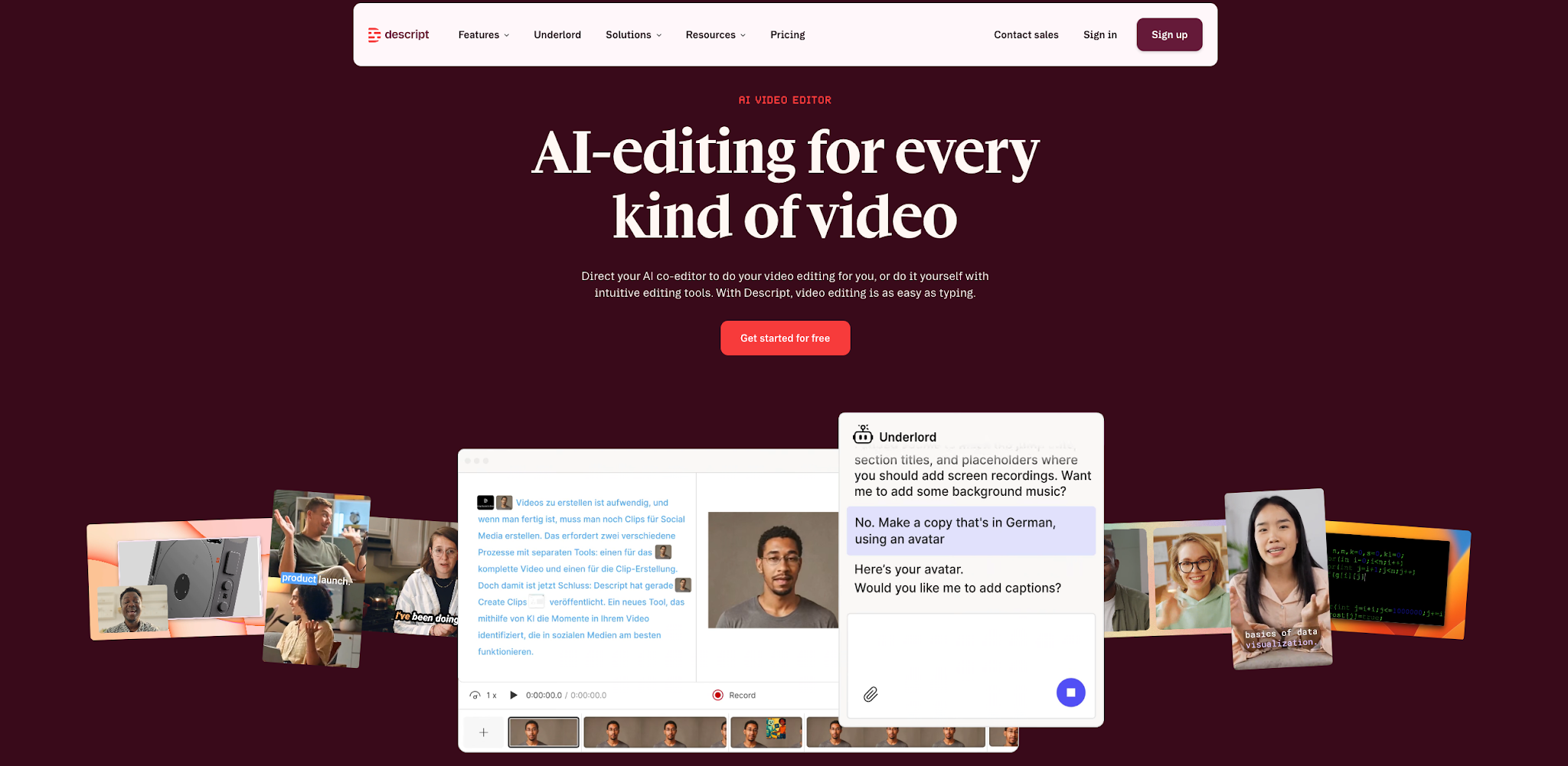
10. Descript – best for video & audio editing
Descript lets you edit video and audio by editing text. Upload a recording, and Descript generates a transcript. Edit the words in the transcript, and the video cuts automatically. It turns video editing from a specialized skill into a writing task.
Why we like it
Descript changes what video editing feels like. We took a 20-minute internal Loom and cut it down to a 4-minute share-out, same source, same goal. The whole experience came down to editing a transcript. Delete a sentence in the text, and the corresponding video segment disappears with it. For anyone who thinks in words first, that's a completely different mental model, and it makes video accessible to people who'd never open a traditional editor. The AI features earn their keep on the everyday irritations of recorded video: automatic filler-word removal, audio cleanup, captions, and AI Underlord for editing suggestions trained on your existing recordings. Built-in screen recording with webcam overlay means Descript handles the capture step too. It runs out of room at the high end, though. Advanced edits still require timeline view, export options are limited compared to professional editors, and long recordings can get sluggish.
Key features
- Text-based video and audio editing
- AI filler word and silence removal
- Studio Sound for one-click noise removal and audio enhancement
- Overdub voice cloning to fix mistakes by typing in your own voice
- Screen recording with webcam overlay
- Automatic transcription, captioning, and Eye Contact correction
- AI Underlord for editing suggestions and structure
Pros
- Text-based editing makes video accessible to non-editors
- Built-in screen recording eliminates separate tools
- Filler word removal and audio cleanup are instant time savers
Cons
- Advanced editing still requires timeline view
- Export quality options are limited compared to professional editors
- Can be slow with very long recordings
Descript pricing: Free → Paid plans start at $16/month
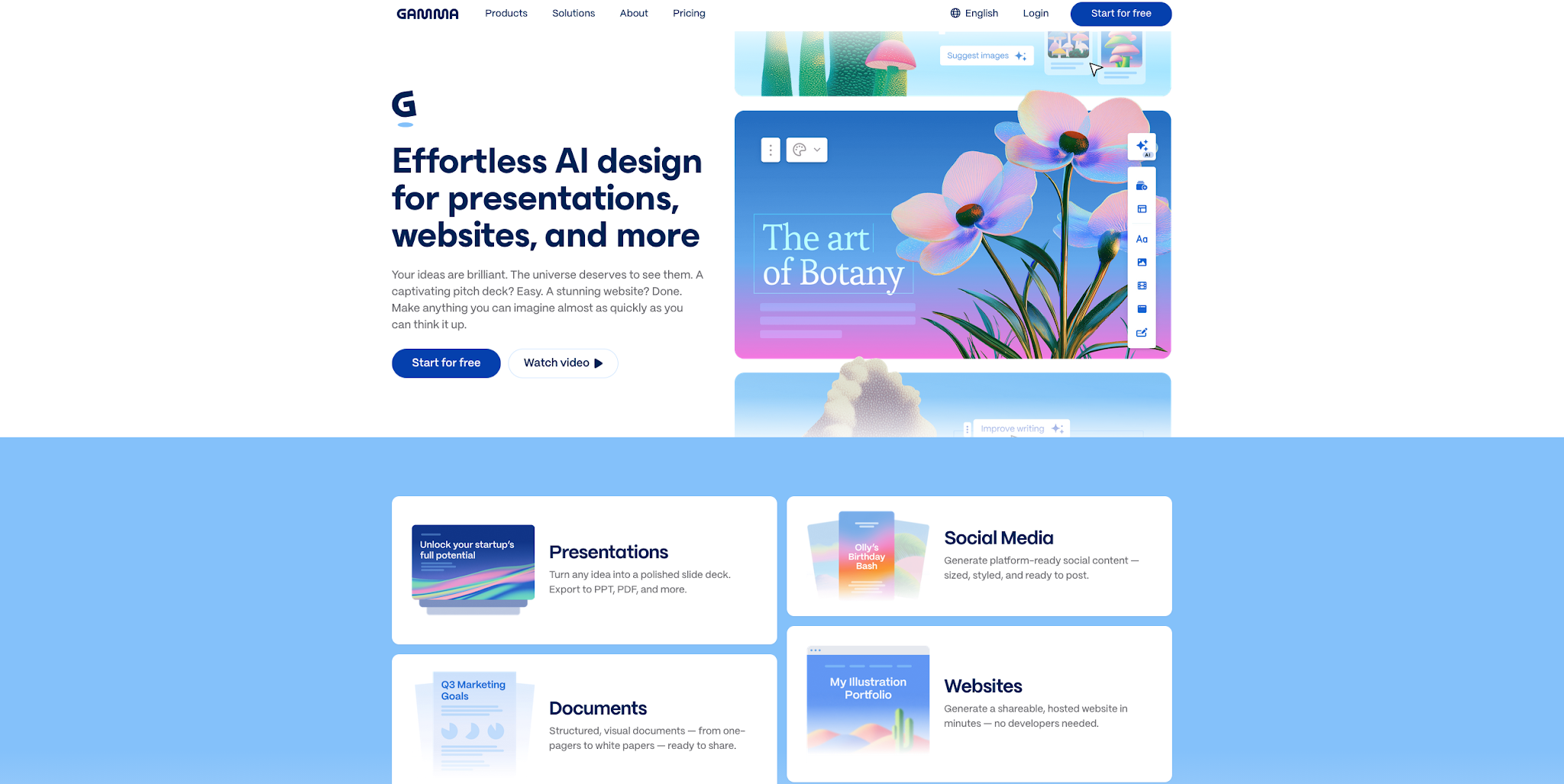
11. Gamma – best for presentations
Gamma generates polished presentations, documents, and webpages from a text prompt or outline. It applies design automatically, so you can focus on the content while slide layouts and font sizes happen for you.
Why we like it
What we actually got out of Gamma was the recovery of an afternoon. We rebuilt one of our recurring internal status decks, holding content and brand cues constant. The version Gamma produced from a text prompt landed at roughly the same quality as the manual Slides build, in a fraction of the time. Slides refine with natural language, too. Just ask for "more visual" or "add a comparison table here," and you don't have to open a separate design tool. Gamma supports brand assets (fonts, colors, logos) as a theme, so generated decks line up with what the rest of your company is shipping. The outputs are good enough for internal presentations and client updates. For a board deck, you'll still want a designer. Gamma handles roughly 80% of the effort, and PowerPoint/PDF export means no platform lock-in.
Key features
- AI-generated presentations from text prompts or outlines
- Built-in design engine that handles layout and typography
- Natural language editing for individual slides
- Export to PowerPoint, PDF, or share as a live webpage
- Embed charts, videos, and interactive elements
Pros
- Dramatically reduces time from idea to finished deck
- Design quality is strong for internal and client presentations
- PowerPoint export avoids platform lock-in
Cons
- Less control over design details than manual tools
- Limited template variety compared to Canva or Pitch
- Best for content-driven decks, less suited for heavy data visualization
Gamma pricing: Free → Paid plans start at $10/month
12. Cursor – best for AI-assisted coding
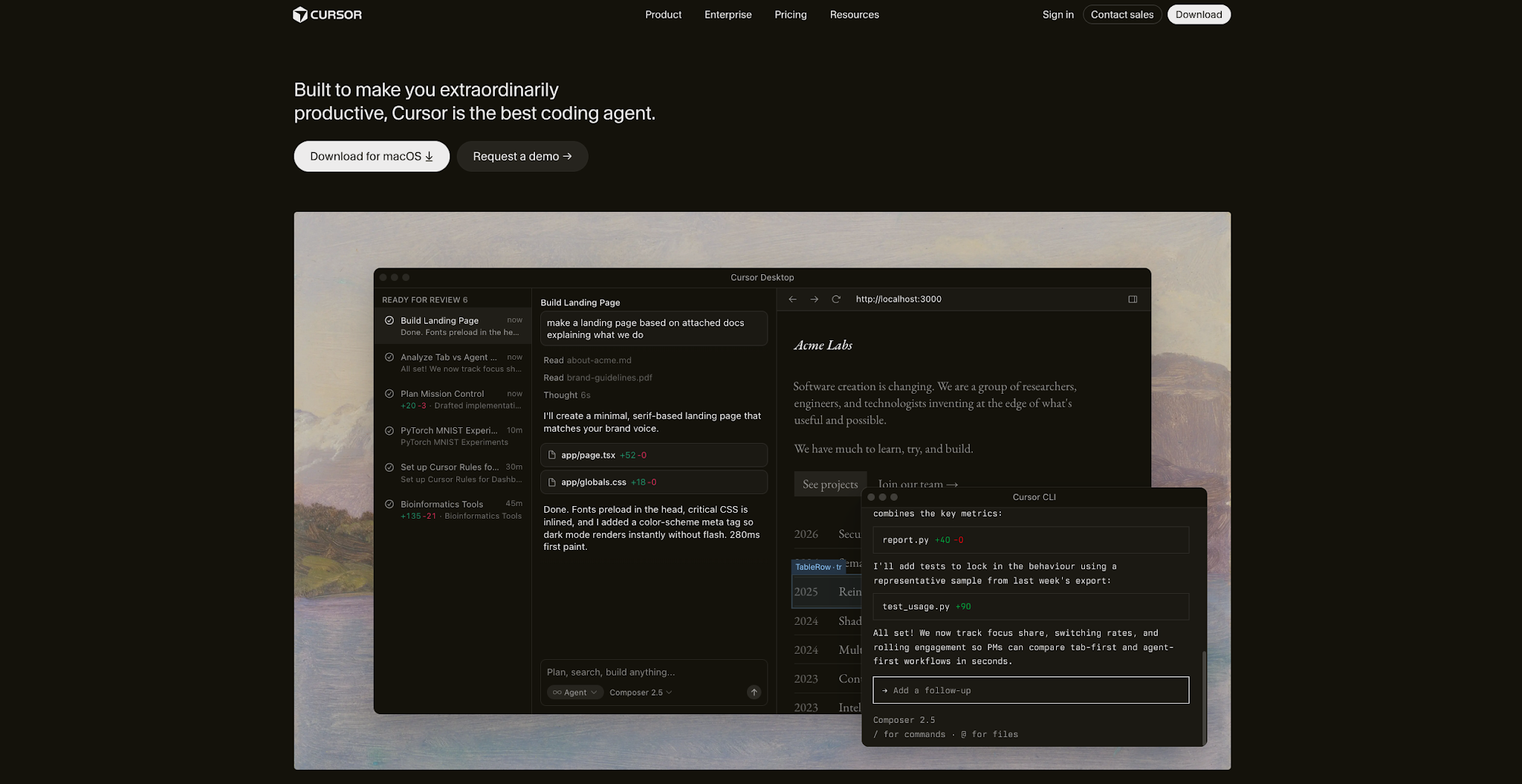
Cursor is an AI-first code editor built on VS Code that offers tab completion, inline chat, and an autonomous coding agent.
Why we like it
Cursor's website undersells the thing that won our engineering team over on day one: it feels like pair programming with an AI that has full context on your codebase. Tab completion predicts multi-line blocks informed by your project's structure and conventions. The chat window understands your repo without you re-explaining it. Agent mode can scaffold features and iterate across files on its own. What keeps it usable on real production code is the trust scaffolding around Agent mode (diff previews before any file change, Git as the safety net underneath, and a clear accept/reject loop on every edit). Privacy Mode keeps your code out of training, which matters for any team working on proprietary code. Cursor strains in a few places: Agent mode occasionally needs course correction on complex, multi-file tasks, and heavy AI usage chews through your context window quickly. The free tier is real but limited. Once you're working in it daily, the paid plan pays for itself.
Key features
- AI tab completion with multi-line code prediction
- Inline chat for debugging, refactoring, and explanations
- Agent mode for autonomous multi-file coding tasks
- Background Agents that run autonomously in the cloud on a separate branch
- Bugbot for AI-powered code review on every pull request
- Full VS Code compatibility (extensions, keybindings, settings)
- Codebase-aware context with @-mentions for files, docs, and symbols
Pros
- Deeply integrated AI that understands your full codebase
- Agent and Background Agent modes handle complex, multi-step work
- Familiar VS Code interface with zero learning curve
Cons
- Multi-tier pricing (Pro, Ultra, usage-based) takes some learning to navigate
- Agent mode occasionally needs course correction on complex tasks
- Heavy AI usage can consume context window quickly
Cursor pricing: Free → Paid plans start at $20/month
13. Midjourney – best for image generation
Midjourney generates high-quality images from text prompts, producing outputs that are consistently more polished and aesthetically refined than competing image generators. It's the tool of choice for marketing visuals, concept art, and presentation graphics.
Why we like it
We ran Midjourney head-to-head against DALL-E and Stable Diffusion on the same blog-campaign prompts to create images for marketing campaigns, blog headers, and concept boards. Midjourney produced the most usable outputs, with renders that came back more polished and aesthetically consistent. There was much less of the uncanny-valley weirdness that still creeps into generated images. On our test runs, it cut the time from brief to usable blog header by roughly half versus a stock-image search and edit. The workflow runs through Discord (and now a web app), which has a learning curve if you're not already a Discord user. Once you're comfortable with the prompt syntax, the iteration speed is the whole point: four variants per prompt, upscale the best, refine with inpainting. Two things to know before you adopt it. Public images are visible to other users by default on lower tiers, so anything you generate is searchable unless you upgrade. And Midjourney excels at stylized and editorial imagery, but it's less suited if your brand requires exact composition or color matching every time.
Key features
- High-fidelity image generation from text prompts
- Style tuning and consistent character/style generation
- Inpainting and variation controls for iterative refinement
- Web app and Discord-based workflows
- Pan, zoom, and remix for extending or modifying outputs
Pros
- Highest aesthetic quality among mainstream image generators
- Strong at stylized, editorial, and concept art imagery
- Fast iteration with multiple variants per prompt
Cons
- No free tier (paid subscription required)
- Discord-based workflow has a learning curve
- Less control over precise composition than manual design
Midjourney pricing: Paid plans start at $10/month
14. Todoist – best for AI task planning
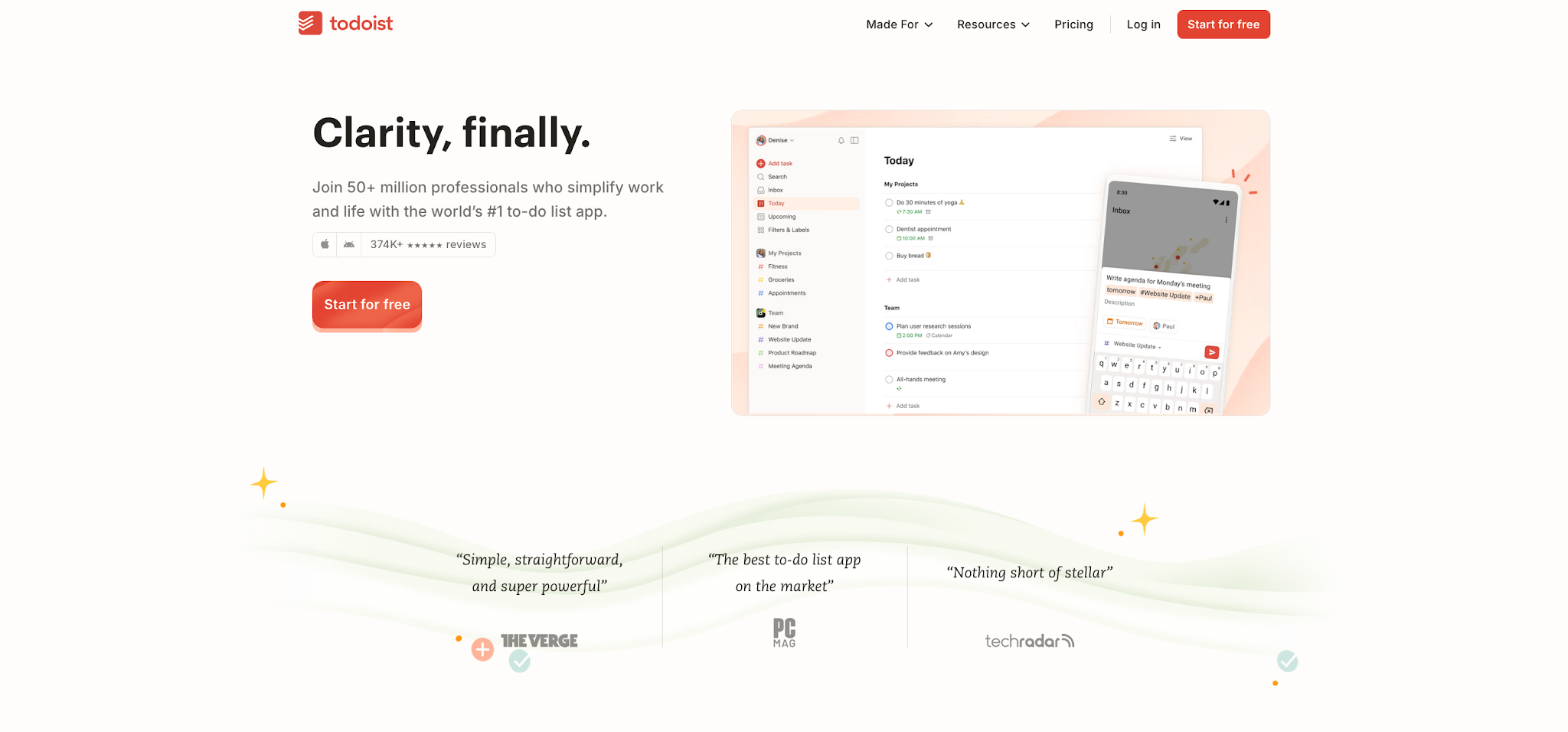
Todoist is a task management app with AI features that help you capture, organize, and prioritize work using natural language. It turns scattered to-do lists into a structured system where AI handles the overhead of organizing, while you focus on doing.
Why we like it
The gap between "I know what I need to do" and "I have a structured plan to do it" is where most personal productivity breaks down, and Todoist is built to close it. ICs complete only 53.5% of their planned tasks each week, so tools that make capture frictionless are the ones that actually move the number. Type "Call Sarah about the Q3 budget tomorrow at 2pm #work p1" and Todoist parses the task name, date, time, project, and priority in a single shot. No menu-hunting required. The AI Assistant goes a step further, breaking complex tasks into subtasks and rewriting vague entries into actionable ones. Suggestions land as drafts you can accept, edit, or discard before they commit. Todoist stops being enough on its own when you need time-blocking or time tracking, since your tasks live in a list and not on a calendar. Pair it with Reclaim (it integrates natively) to get them time-blocked automatically.
Key features
- Natural language task input with auto-parsed dates, priorities, and labels
- AI Assistant for breaking down tasks, suggesting next steps, and rewriting
- Projects, sections, and filters for organizing work
- Recurring task patterns with flexible scheduling
- Cross-platform sync (web, iOS, Android, macOS, Windows, browser extensions)
Pros
- Natural language input makes capturing tasks nearly frictionless
- AI Assistant helps plan complex projects without manual breakdown
- Clean, fast interface that doesn't get in your way
Cons
- AI features are limited to Pro tier and above
- No built-in time tracking or time-blocking (pair with a calendar tool)
- Team collaboration features are lighter than full project management tools
Todoist pricing: Free → Paid plans start at $5/month
15. Granola – best for meeting notes
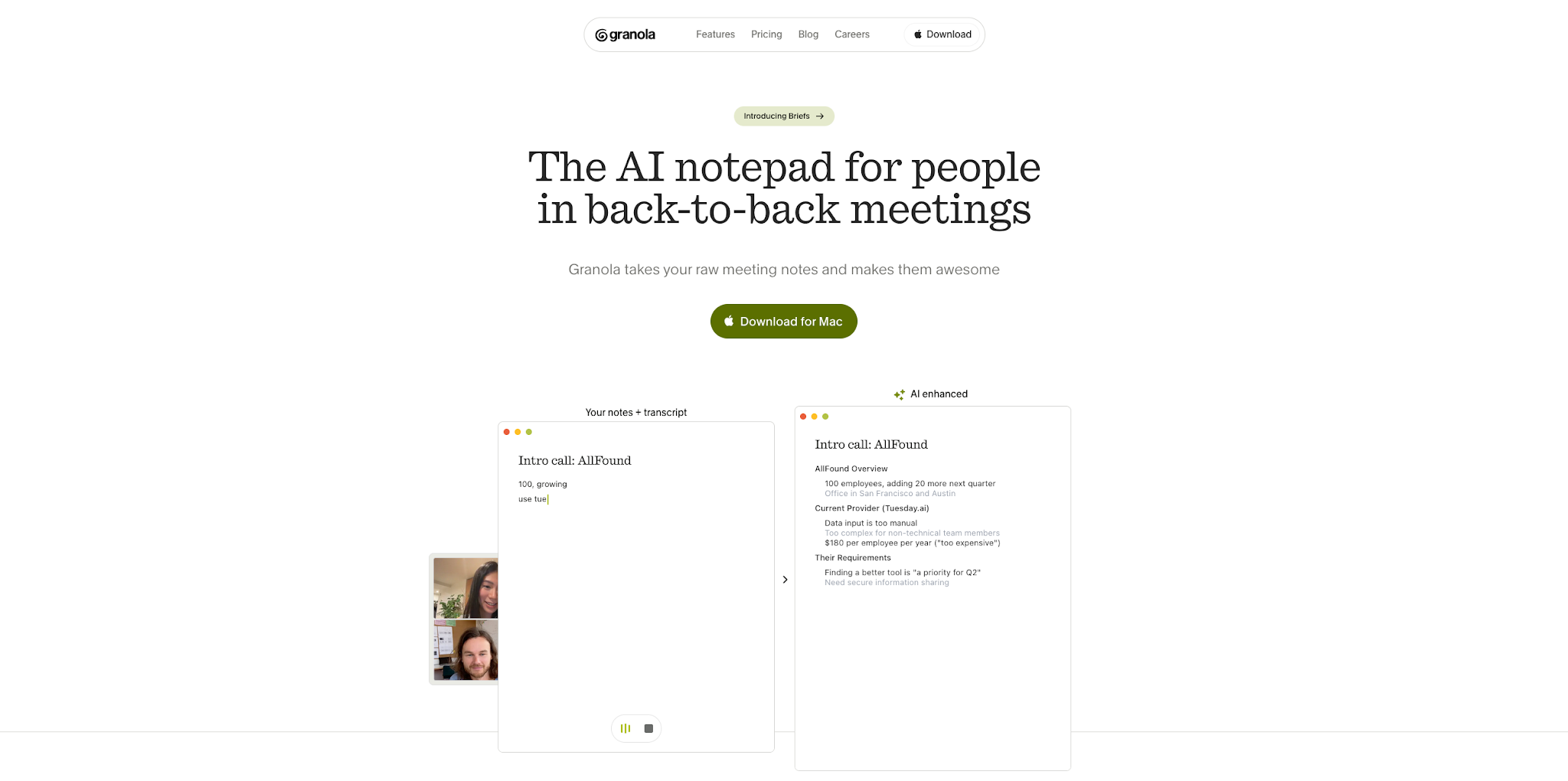
Granola is a privacy-first AI notepad for meetings that captures audio directly from your device with no recording bot. It pairs that audio with any notes you type during the call and generates structured notes once the meeting wraps.
Why we like it
Granola sits in our stack alongside Otter, doing a different job. There's a class of meetings where a visible recording bot changes the conversation, like 1:1s, performance reviews, sensitive customer calls. Granola is built for exactly those. Audio is captured on-device with no visible recording indicator, transcribed in real time, and the raw audio is automatically deleted after transcription is complete. The resulting transcript and your typed notes are stored encrypted on AWS so summaries can be regenerated and shared (Granola is SOC 2 Type 2 certified). The output is templated notes you can shape to your preferred format (decisions, action items, follow-ups, key quotes).
However, Granola never gives you the audio file back (text only, no playback or export), and AI processing happens in the cloud rather than fully on-device. If you need full transcription playback or platform-level meeting bots, Otter is the better fit.
Key features
- Bot-free audio capture from system audio and microphone
- Real-time transcription with raw audio deleted automatically afterward
- Customizable note templates (decisions, action items, follow-ups)
- Merges your typed notes with AI-generated content
- Mac, Windows, and iOS apps with one-click sharing to Notion, Slack, or email
Pros
- Bot-free capture, so no extra "attendee" appears in your meetings
- Raw audio is deleted automatically after transcription, shrinking the data trail
- Customizable templates for different meeting types
Cons
- Transcription and AI processing run in the cloud, not fully on-device
- Only the text transcript is retained — no audio playback or export
- Free plan caps in-app history at the last 30 days of meetings
Granola pricing: Free → Paid plans start at $14/month
16. Spark Mail – best for AI email management
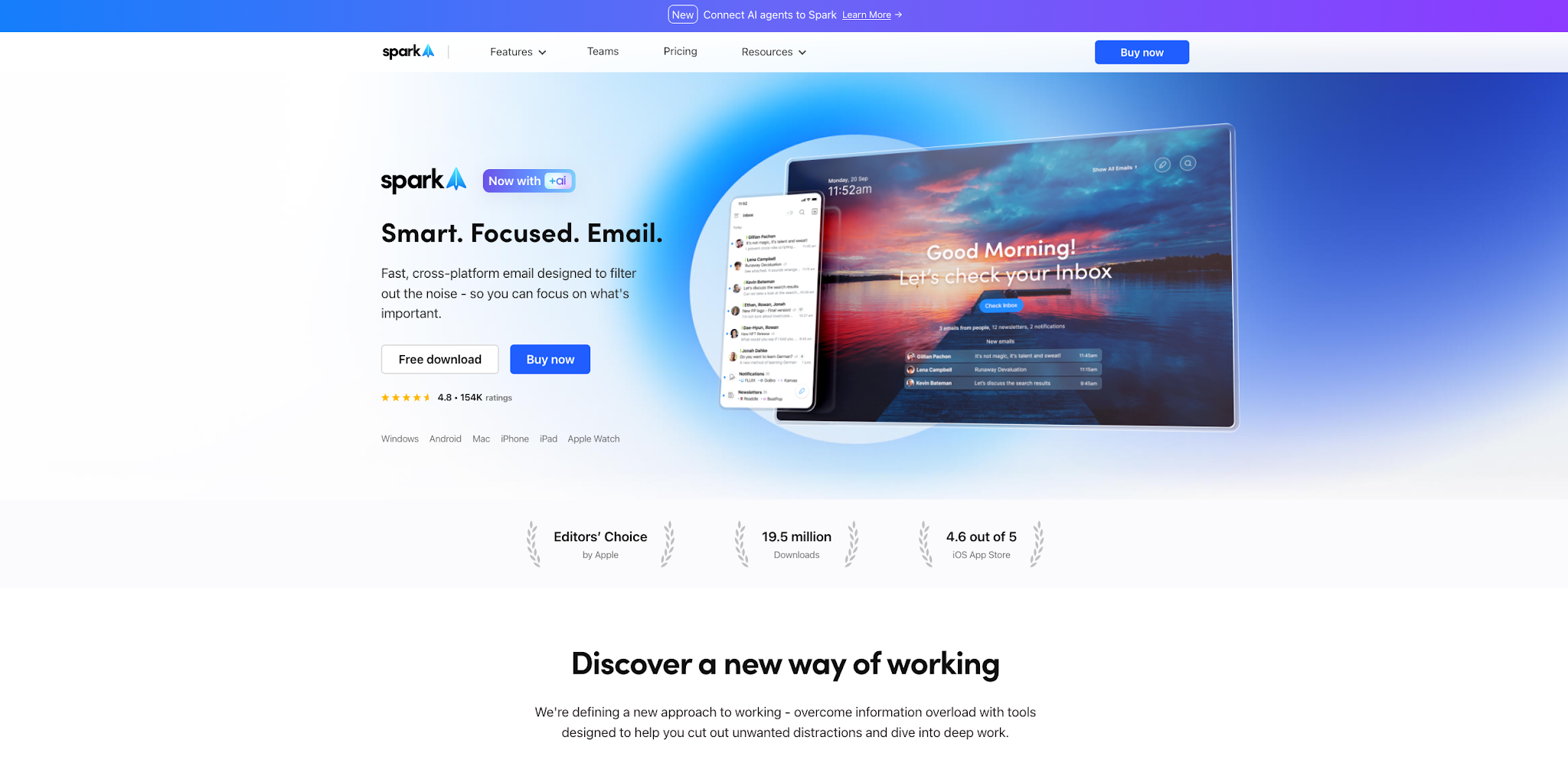
Spark Mail is an AI-powered email client for Gmail, Outlook, and iCloud that drafts replies, summarizes threads, prioritizes your inbox, and helps you reach inbox zero faster. It works across all major email providers, which sets it apart from Gmail-only alternatives.
Why we like it
We tested Spark Mail across a Gmail account and an Outlook account in parallel, because the thing that sets it apart from Gmail-only AI tools is exactly that: it works across providers. AI makes people faster at sending messages, which then generates more messages in return. So the real question is whether your AI email tool fits the inboxes you actually have. Spark's AI replies pull from thread context, so you're editing a solid starting point rather than starting from scratch. The +AI sidebar summarizes long threads and adjusts tone. Smart prioritization pushes newsletters to the background while surfacing messages from real people who need a response.
Smart prioritization occasionally buries time-sensitive messages, premium AI features sit behind a paid plan, and Spark can feel heavy if your email needs are simple.
Key features
- AI-generated reply drafts with thread context awareness
- Thread summarization and email digest via +AI sidebar
- Smart Inbox with priority-based sorting across all providers
- Shared drafts, team comments, and email delegation for collaborative inboxes
- Cross-platform apps (Mac, iOS, Android, Windows)
Pros
- Works with Gmail, Outlook, iCloud, and IMAP (not locked to one provider)
- AI drafts and thread summaries reduce email processing time
- Team email features (shared drafts, assignments) go beyond solo productivity
Cons
- Premium AI features require paid plan
- Can feel heavy for users with simple email needs
- Smart prioritization occasionally buries time-sensitive messages
Spark Mail pricing: Free → Paid plans start at $8.25/month
17. Canva – best for AI-powered design
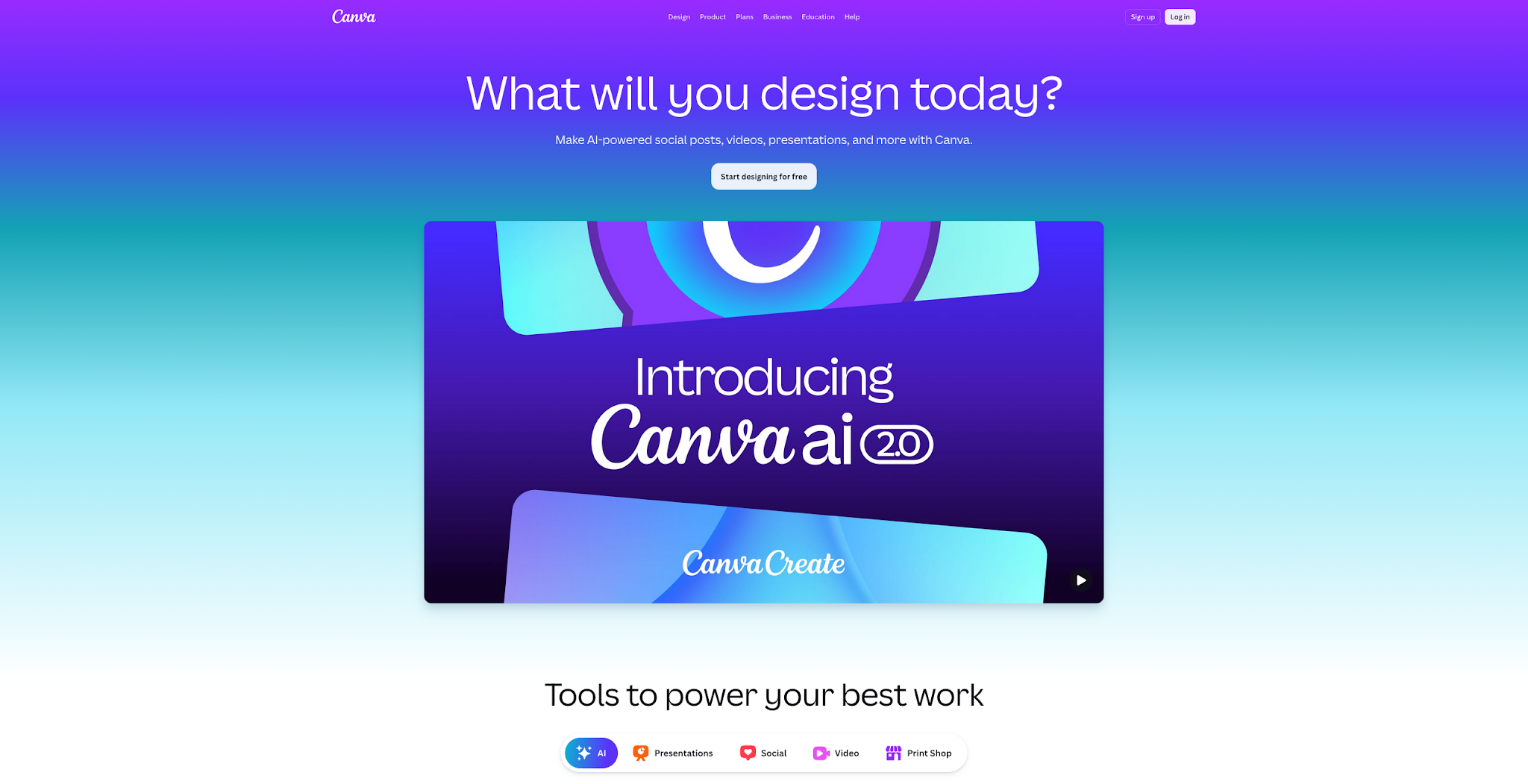
Canva is a design platform with AI features that help non-designers create professional graphics, presentations, videos, documents, and end-to-end social media management content. While Midjourney excels at generating images, Canva covers the full design workflow from concept to finished, branded asset.
Why we like it
Canva answers a question every non-design knowledge worker eventually asks: how do I produce visual content that looks like a designer touched it, without actually hiring one? Slide decks, social posts, one-pagers, event graphics, internal announcements: Canva covers all of them. Canva's own usage research shows non-design knowledge workers shipping visual content several times faster once Magic Design and Brand Kit are configured. The AI features sit on top of an already enormous template library (1.6M+ on Free, 3.6M+ on Pro). Magic Design generates layouts from a text prompt. Magic Write handles in-design copy. Background Remover and Magic Expand absorb most of what used to require Photoshop. Brand Kit keeps the intern's social post on-brand with the VP's keynote. Advanced features (Brand Kit, background remover) require Pro, and Canva is built for everyday visual content. Complex professional design still belongs to dedicated tools.
Key features
- Magic Design for AI-generated layouts from prompts or images
- Magic Write for AI copywriting within designs
- Brand Kit for enforcing visual identity across all content
- 3.6M+ templates on Pro across social, print, presentation, and video formats
- Real-time collaboration with commenting, version history, and shared folders
Pros
- Covers the full design workflow, from layout to finished branded asset
- Brand Kit keeps output consistent across teams and formats
- Massive template library gives you a strong starting point on every project
Cons
- AI-generated designs can look templated without customization
- Advanced features (Brand Kit, background remover) require Pro plan
- Not a replacement for professional design tools on complex projects
Canva pricing: Free → Paid plans start at $12/month
18. Loom – best for async video communication
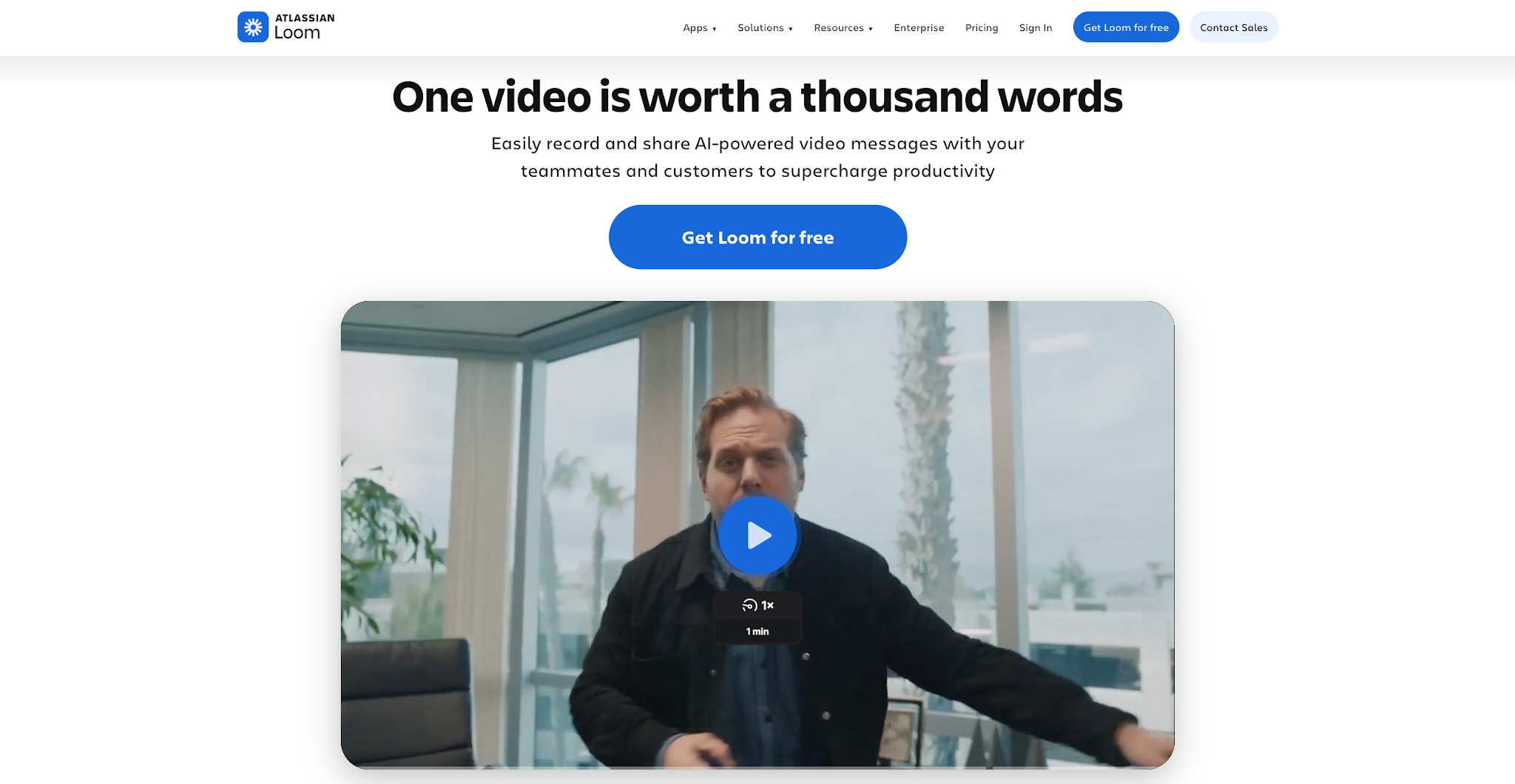
Loom lets you record quick screen-and-camera videos and share them instantly via link. AI features auto-generate titles, summaries, chapters, and action items, turning a 5-minute recording into a scannable, shareable document.
Why we like it
Loom slotted into our virtual-first workflow the fastest of any tool on this list, even before the AI features kicked in. Some things are just faster to show than to type. A bug report, a design review, an onboarding explainer: that's 15 minutes to write as a Slack thread, or 2 minutes to record as a Loom. The recipient watches at 1.5x, jumps to the chapter that matters, and reads the AI summary if they're short on time. The AI layer turns each raw recording into something a viewer can actually navigate, with auto-generated titles, a written summary, timestamped chapters, and extracted action items. Viewer comments anchored to specific timestamps come about as close as async work gets to a real back-and-forth.
Still, viewer engagement drops on recordings over 5 minutes, the free tier caps at 25 videos with a 5-minute limit each, and the swap from meetings-by-default to async-by-default is a culture shift.
Key features
- Screen + camera recording with one-click sharing via link
- AI-generated titles, summaries, chapters, and action items
- Viewer comments at specific timestamps for threaded discussions
- Automatic transcription and closed captions
- Integrations with Slack, Notion, Jira, Linear, and most project management tools
Pros
- Replaces meetings that could have been a video
- AI summaries let viewers skim or deep-dive based on their time
- Timestamp comments create context-rich async discussions
Cons
- Viewer engagement drops on recordings longer than 5 minutes
- Free tier limits to 25 videos with a 5-minute cap each
- Requires a culture shift from meetings-by-default to async-first
Loom pricing: Free → Paid plans start at $15/month
19. Microsoft Copilot – best for Microsoft 365 users
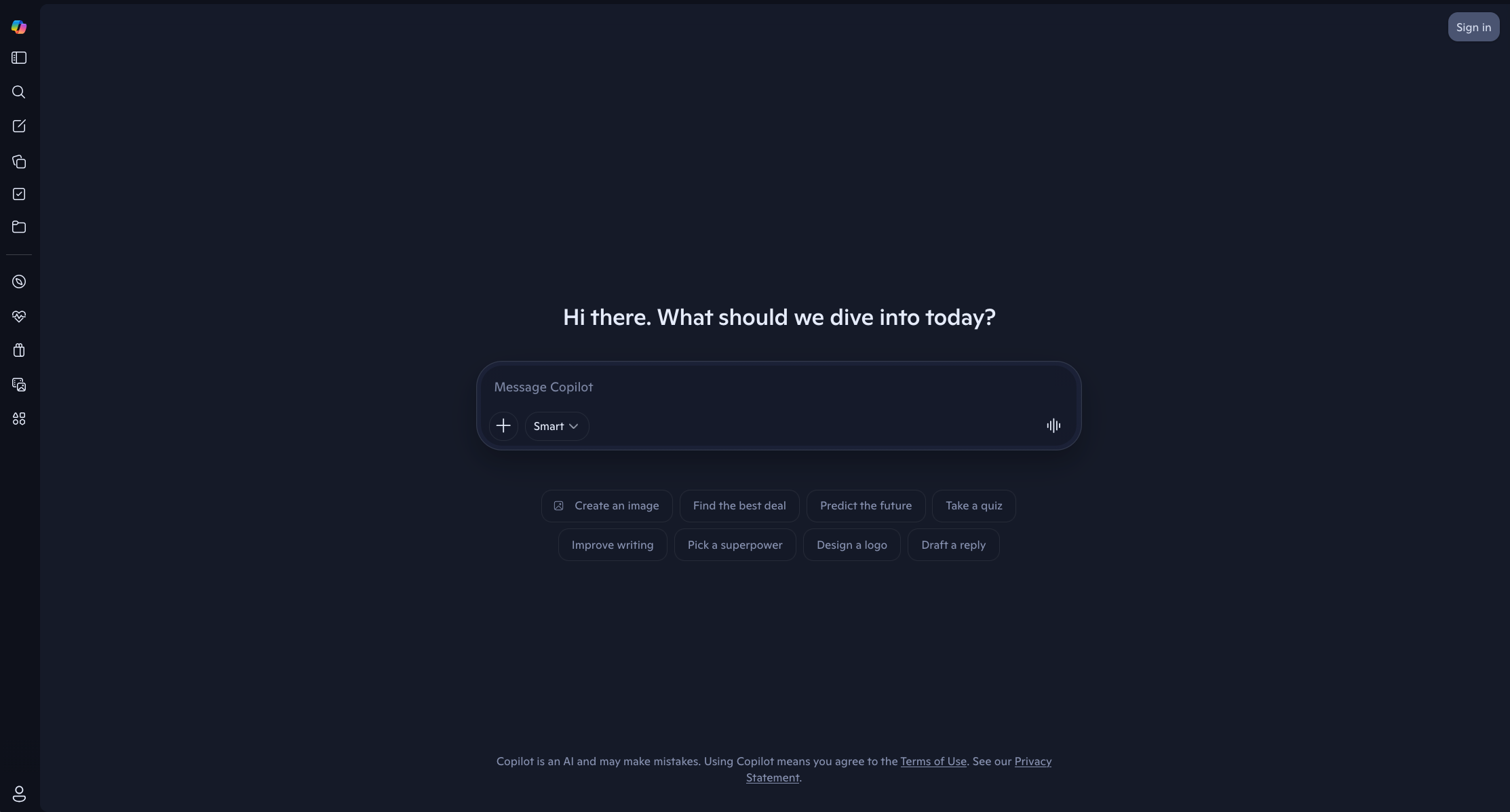
Microsoft Copilot embeds AI across Word, Excel, PowerPoint, Outlook, Teams, and the rest of the Microsoft 365 suite. If your organization lives in the Microsoft ecosystem, Copilot is the most integrated way to add AI to your existing workflow.
Why we like it
The honest verdict on Microsoft Copilot is a split one: if your organization already lives in Microsoft 365, the integration is unbeatable. If it doesn't, it becomes an awkward way to add AI. But, Copilot's strength is integration depth: access to your emails, calendar, files, chats, and documents across the Microsoft ecosystem through Microsoft Graph. Every output lands as a draft inside the host app, which you can accept, edit, or discard before it ships. The weakness is cost. At $30/month on top of your existing M365 subscription, it's a hard sell for individuals or small teams. Output quality also varies by app (stronger in Word and Outlook, weaker in Excel), and the full value only materializes if Microsoft is already the backbone. For enterprise rollouts where M365 is the default, the integration justifies the price.
Key features
- AI assistance embedded across Word, Excel, PowerPoint, Outlook, and Teams
- Meeting recaps and action items in Teams
- Data analysis and formula generation in Excel
- Researcher and Analyst agents for deep research and data analysis
- Copilot Pages for collaborative AI canvases shared with your team
- Cross-app context awareness through Microsoft Graph
Pros
- Deeply integrated across the full Microsoft 365 suite
- Cross-app context means AI draws from your emails, docs, chats, and calendar
- Enterprise-grade security and compliance controls
Cons
- Expensive ($30/month on top of M365 license)
- Output quality varies by app (stronger in Word/Outlook, weaker in Excel)
- Full value requires organizational commitment to the Microsoft stack
Microsoft Copilot pricing: Free → Paid plans start at $30/month
How to choose the right AI productivity tool
The best AI productivity apps depend on your primary bottleneck, whether that's writing, scheduling, project management, meetings, or workflow automation. With so many AI tools competing for attention, the framework below helps you cut through the noise and pick the ones that will actually move the needle.
Here's a practical framework for making the right choice:
1. Start with your biggest time sink
If meetings eat your day, look at scheduling and transcription tools (Reclaim, Otter, Granola). If writing consumes hours, start with ChatGPT, Claude, or Grammarly. If you're evaluating AI productivity tools for business, focus on tools with team features and admin controls (Asana, Notion, Zapier, Microsoft Copilot) so the rollout works for the whole team. Avoid trying to fix everything at once.
2. Check integration depth
A tool that lives outside your existing stack creates more coordination work for the team. Before committing, check whether it integrates with the apps your team already relies on.
3. Watch for the 7-10% rule
ActivTrak's research shows that employees spending 7-10% of their total work hours in AI tools achieve the highest productivity. Above that window, productivity plateaus or drops. Quality of AI usage matters more than quantity.
4. Pilot before you pile on
McKinsey's Superagency report finds only 1% of leaders believe their company has reached full AI maturity, while sizing the total AI productivity opportunity at $4.4 trillion. The gap between potential and reality is workflow design. Tools rolled out without redesigning the work around them won't unlock the headline numbers. Pick one tool, integrate it well, measure the impact, then move on to the next.
5. Choose tools that reduce "work about work”
Asana's Anatomy of Work research found that knowledge workers spend 60% of their day on "work about work," which displaces the skilled work they were hired to do, and U.S. workers miss 36% of all deadlines each week. The most valuable AI tools cut that coordination overhead by automating status updates and surfacing information across apps. One more thing to watch: within organizations that have rolled out AI tools, Gallup data shows 67% of leaders use AI frequently compared to just 46% of individual contributors. If you're a manager rolling out tools for your team, adoption support matters as much as tool selection.