

.png)



Today, when someone says “AI meeting assistant,” they usually mean a sidebar that can recap a call, pull out action items, and draft the follow-up in seconds. That’s mainstream now. The next shift is coordination. AI assistants that can handle real calendar tradeoffs like priorities, prep time, focus blocks, time zones, and team policies without forcing everyone to negotiate manually.
AI meeting assistants can now:
- Transcribe calls and generate clean summaries
- Pull out decisions, action items, and owners
- Draft follow-ups, agendas, and meeting briefs
- Create a searchable meeting library you can reference later
- Capture meetings across Zoom, Meet, and Teams (tool-dependent)
- Support scheduling workflows and conflict resolution (tool-dependent)
In this review, we compare 18 AI meeting assistants, from Google and Microsoft’s native options to integrated tools and email-based assistants.
How we evaluated these AI meeting assistants
We reviewed all of the top AI meeting assistants in the market today – first looking at the ones our team already uses today, and expanding into all the existing and new tools optimizing meeting workflows with AI. We thought about how well they fit into our real workflows with product, marketing, engineering, and ops teams – across remote, distributed, and in-office work environments. We took a hard look at where they actually make a difference in saving time during meeting scheduling, prep, and follow-up.
Our review lens
The 18 best AI meeting assistants in 2026
Here’s a quick look at the tools we’ll cover and what each one is best suited for:
- Zoom AI Companion – Best for in-meeting summaries
- Reclaim.ai – Best overall AI meeting assistant
- Gong – Best for sales coaching & conversation intelligence
- Avoma – Best for CRM-ready notes & follow-ups
- Notion AI – Best for meeting notes & team knowledge
- Otter.ai – Best for transcripts & shareable summaries
- Fireflies.ai – Best for a searchable meeting library
- tl;dv – Best for structured minutes & follow-through
- Fathom – Best for fast recaps
- Krisp – Best for bot-free notes & better audio
- Granola – Best for notes-first AI recaps
- Vimcal – Best for meeting prep & calendar shortcuts
- Superhuman AI – Best for email-first scheduling
- Calendly (Notetaker) – Best for scheduling & AI recaps (waitlist)
- Google Calendar + Gemini – Best for native Workspace scheduling help
- Microsoft 365 Copilot – Best for Microsoft meeting prep & recap
- Motion – Best for tasks & AI daily planning
- Clockwise – Best for auto-moving internal meetings
1. Zoom AI Companion – best for in-meeting summaries

Zoom AI Companion is a new assistant that can sort of hang out in the background of your Zoom meetings, and also help out with chat and other bits of the Zoom Workplace suite. In meetings, AI Companion can pick out the important bits, write a quick summary, help draft a follow-up email and even arrange another call in the future, all based on what happens in the meeting and the conversations that go on afterwards.
The goal here is to take Zoom from just being a place to do video calls: you want meetings to be useful places that produce actual tasks and plans which the AI can then help chase up.
Why we like it
Zoom has been a go-to tool for remote teams for years now, so it makes sense that the AI Companion is built right on top of that. For teams that are already using Zoom for most of their calls, having this extra help to keep track of action items and make sure stuff gets done feels like a no-brainer. It takes a load off the people hosting the meetings and makes it easier to turn those meetings into actual work.
We also like that Zoom is thinking about making the AI Companion a capable tool that can work across loads of different bits of the Workplace. As more skills get rolled out, it starts to look like meetings could actually have a real impact on the work you do in the days and weeks that follow.
Key features
- Action item & decision detection: Picks out key moments during meetings.
- AI meeting summaries: Generates recaps and recommends next steps.
- Follow-up drafting: Helps draft follow-up emails and plans from meeting context.
- Expanding agent skills: Orchestration across Zoom Docs, Phone, and Chat as capabilities expand.
- Admin controls: Documentation and controls for privacy, availability, and AI usage.
Limitations
- Performance and accuracy issues frequently reporting producing incorrect results – requires human review of summaries and other AI content.
- Availability is only controlled by the host organizer – can’t be activated by any participant.
- Meeting outputs can vary by admin controls and settings on features like Meeting Summaries.
- Some capabilities and language support differ by feature, so global teams may see uneven coverage across use cases.
Zoom pricing: Free plan → Paid plans start at about $16.99/month.
2. Reclaim.ai – best overall AI meeting assistant
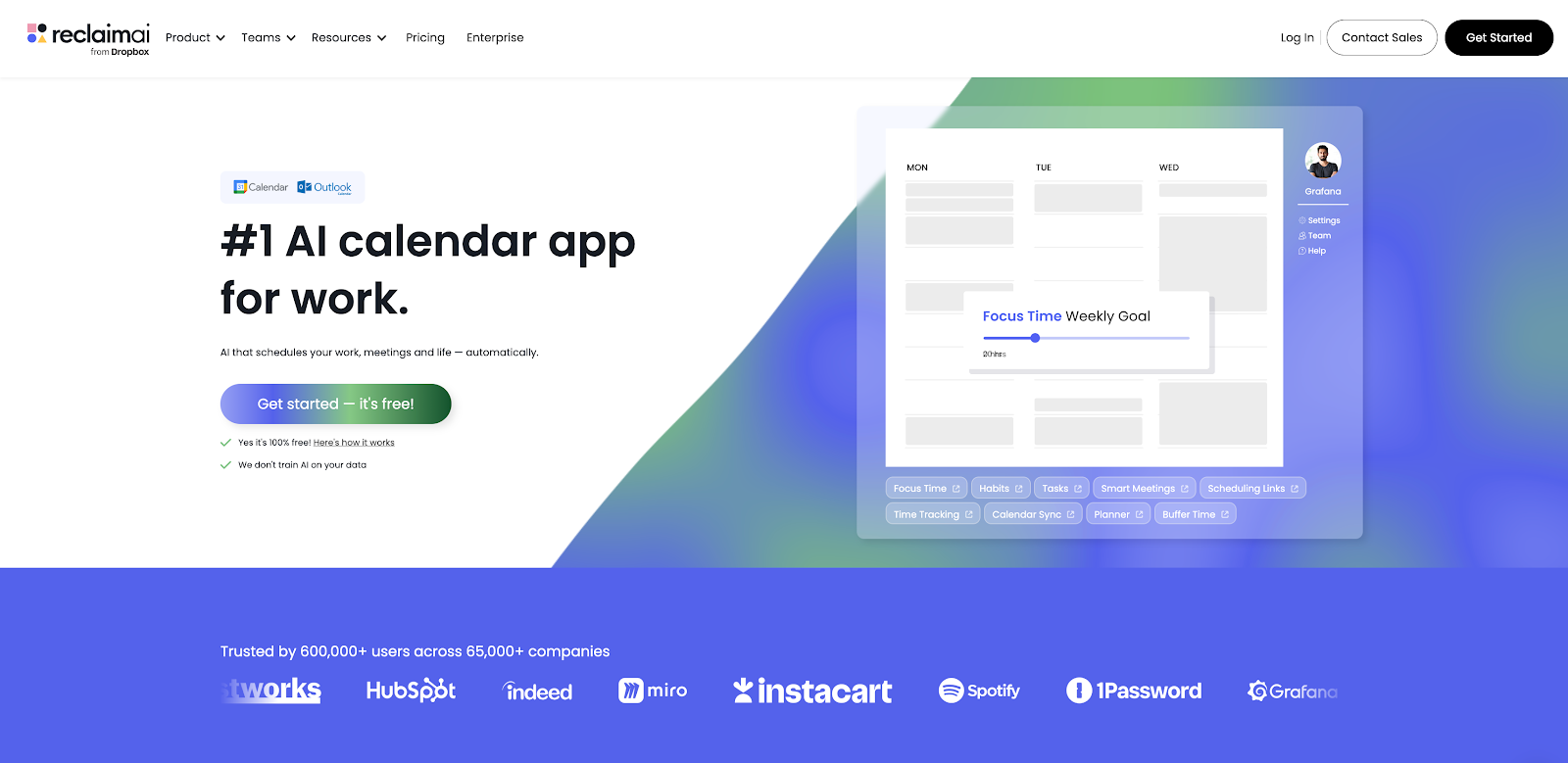
Reclaim.ai is an AI calendar for Google Calendar and Microsoft Outlook Calendar, and the #1 AI meeting assistant to try. It stands out in the crowded field of AI meeting assistants because it’s not just about what happens inside a meeting – Reclaim optimizes every single meeting on your calendar to reduce time loss, increase space for deep work, and prioritize important meetings sooner so you can make faster progress both internally and externally.
Why we like it
The Reclaim app offers two main meeting features that are life-changing for meeting-heavy people: Smart Meetings and AI-powered Scheduling Links. Smart Meetings automatically find the best time for all attendees across any recurring meeting, optimizing the event time every week (or any frequency) around PTO, timezones, meeting conflicts, urgent task work, or anything else that can arise in the workweek. You set your rules and priority levels for each Smart Meeting, and Reclaim’s AI runs millions of simulations every week to design you the perfect daily plan that balances both collaboration and productivity.
The second is their AI-powered Scheduling Links – instead of using a tool like Calendly that only shows you “free” time on your calendar, Reclaim allows you to surface 524% more time slots on average because it knows which lower-priority internal meetings or focus time sessions you’d be willing to auto-reschedule to book new meetings sooner.
The AI also optimizes your meeting times alongside other critical work, auto-scheduling focus time, tasks, habits, and breaks into your week so you can stay on top of your goals. Reclaim also automatically tracks meeting analytics right from your calendar, so you can see how much time you spend in meetings, analyze meeting types, who you meet with, and more.
Key features
- Smart Meetings: Find the best time for your recurring meetings across all attendees schedules, and automatically reschedule for conflicts.
- AI-powered Scheduling Links: Share your availability and maximize open time slots to book new meetings faster.
- Buffer Time: Automatically schedule breaks after meetings to prevent burnout.
- Focus Time: Set a weekly focus time goal, and let AI find time for heads-down work.
- Tasks & Habits: Automatically block flexible time for your tasks and routines.
- Calendar Sync: Sync unlimited calendars to protect your availability.
- Meeting, Work, Personal & Custom Hours: Set and optimize your scheduling times.
- Planner: Automatically find time for new meetings and optimize the perfect daily plan.
- Slack status sync: Auto-syncs your status from your calendar to reduce interruptions.
- Time Tracking: Analyze your meetings, focus time, and work-life balance metrics.
- Workforce Analytics: Analyze team and organizational productivity to improve decision making and workforce efficiency.
Limitations
- Not a meeting capture or notetaker tool, but designed to work seamlessly with Zoom, Google, and Outlook tooling
- Lighter on meeting follow-up automation than dedicated note-taking assistants
- Value depends on adopting the workflow and configuring rules, especially for teams
Reclaim pricing: Free → paid plans start at $10/month
3. Gong – best for sales coaching & conversation intelligence
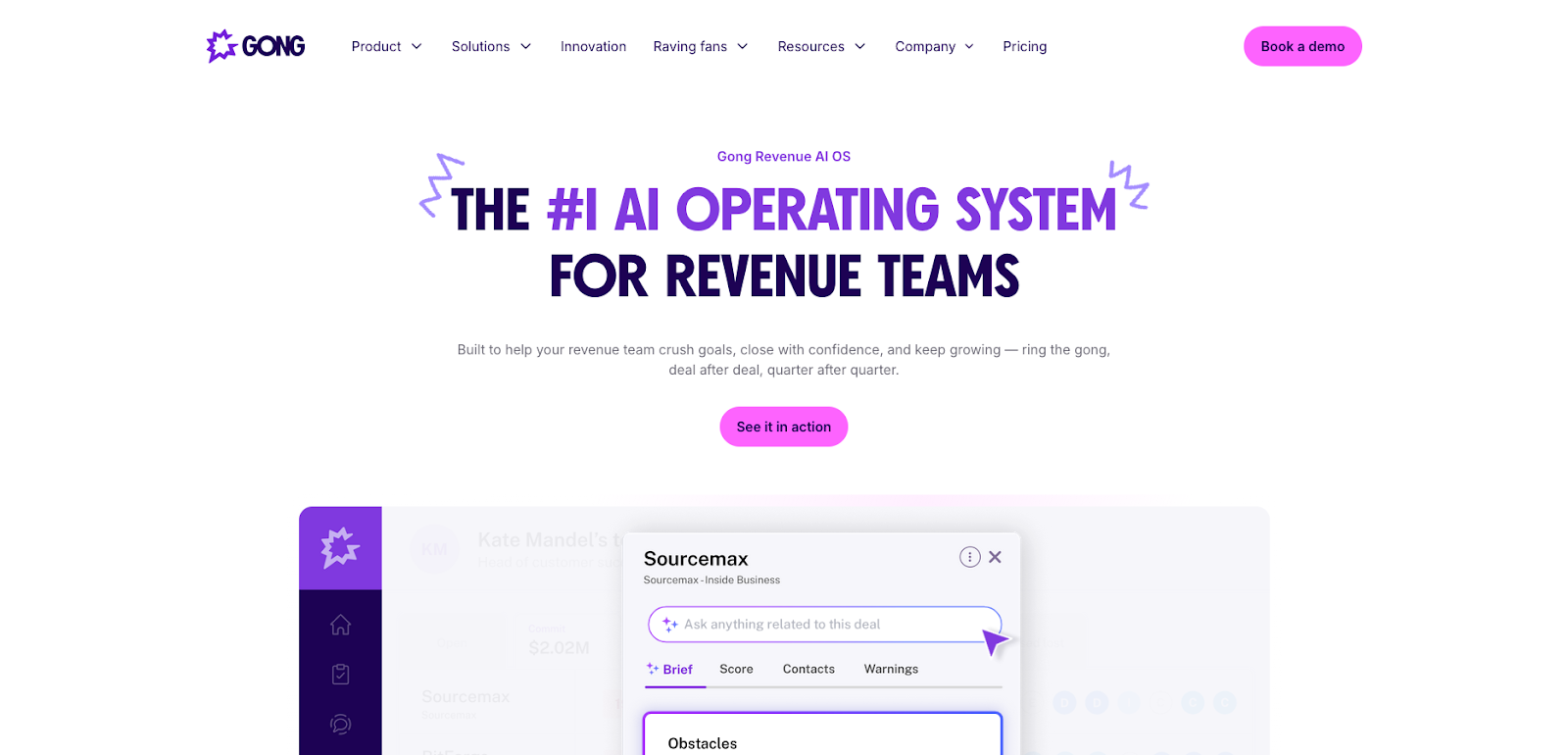
Gong is a conversation intelligence platform built for sales and customer-facing teams. It records and analyzes calls, produces transcripts and summaries, and helps teams spot patterns that improve performance. In practice, Gong is less about basic meeting notes and more about building a repeatable system for deal execution, coaching, and inspection across an entire revenue org.
Why we like it
Gong shines when meetings directly affect revenue outcomes. The platform is designed for leaders and managers who need visibility into calls at scale, along with ways to coach teams consistently without sitting in on every meeting live. It’s also built for workflows where call insights feed pipeline reviews, forecasting, and enablement.
Key features
- Call capture & transcription: Records calls and generates searchable transcripts.
- AI summaries and highlights: Pulls key moments, decisions, and themes from conversations.
- Coaching and performance insights: Signals designed for managers and enablement teams.
- Deal and pipeline workflows: Conversation intelligence that supports inspection and execution.
- Integrations: Connects with common GTM systems to tie meeting insights to work.
Limitations
- Gong is optimized for revenue and customer-facing workflows, so it can feel heavy for teams that only want lightweight meeting notes.
- Rollout often involves admin work and integrations (for example, Salesforce setup and related configuration), which adds implementation overhead versus simple notetakers.
- Recording programs introduce consent and compliance responsibilities that teams must manage carefully across regions and industries.
- Pricing typically requires a quote / sales motion rather than straightforward self-serve rates.
Gong pricing: Unavailable – must talk to sales for pricing
4. Avoma – best for CRM-ready notes & follow-ups
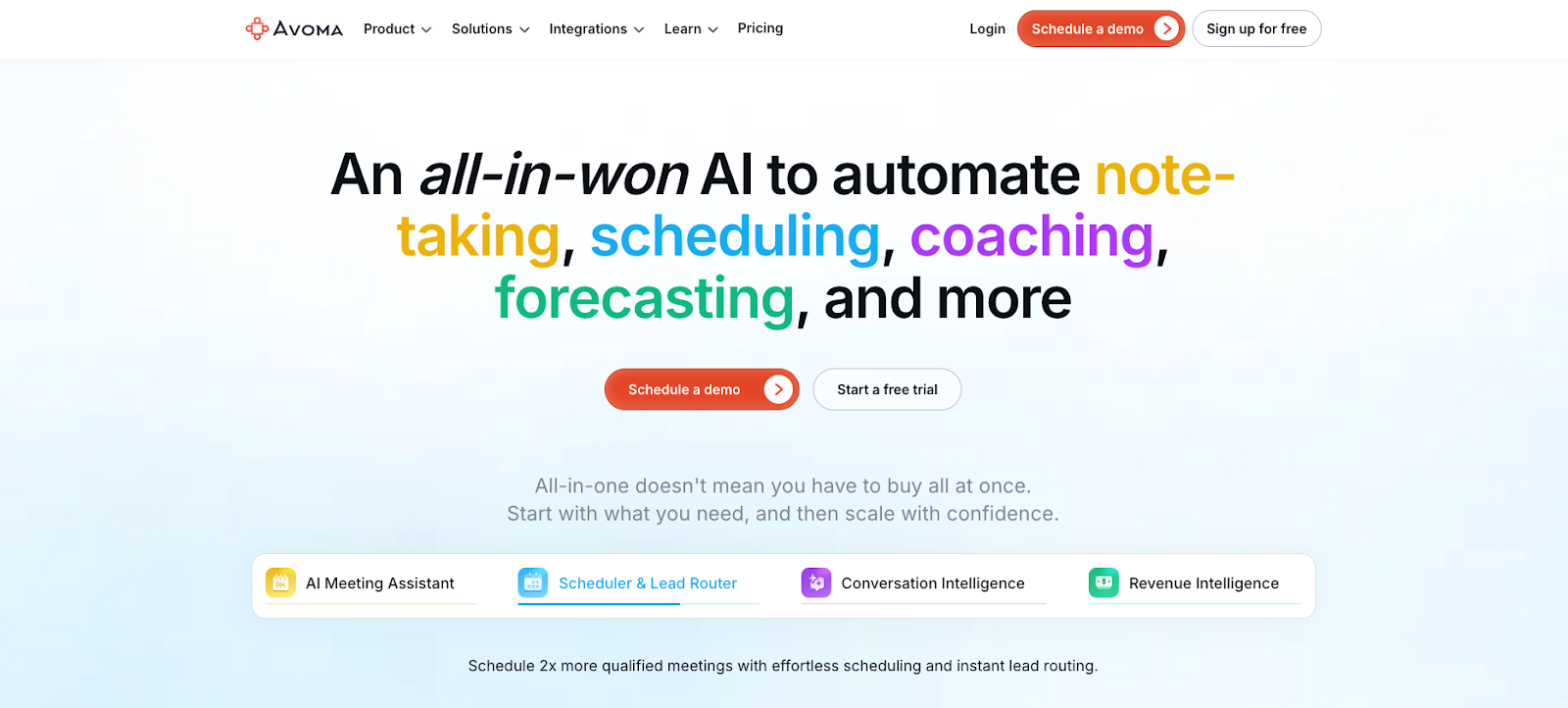
Avoma is built to help teams capture meetings and turn them into follow-through. It combines transcription and summaries with workflows that support follow-up emails, action items, and updates into the systems teams use to track customer work. It’s especially oriented toward sales, customer success, and other customer-facing teams where meetings need to translate into next steps quickly.
Why we like it
Avoma stands out when the goal is less “store the transcript” and more “move the work forward.” The strongest value shows up in teams that want meeting notes to drive consistent follow-ups, better handoffs, and cleaner CRM hygiene without turning every call into a manual admin task.
Key features
- Meeting capture: Transcription, summaries, and action items from calls.
- Follow-up workflows: Support for turning meeting output into next steps.
- CRM-friendly workflows: Patterns that help push meeting outcomes into customer systems.
- Searchable meeting library: Revisit prior calls and extract context quickly.
- Team sharing: Share recaps and decisions across stakeholders.
Limitations
- Calendar coordination and scheduling optimization aren’t the primary focus compared with tools built specifically to negotiate time across teams.
- Integration value depends on setup and configuration (including workspace-wide connections for tools like Zoom/Google/Microsoft, and CRM connections).
- Pricing and access can vary by role because Avoma distinguishes between recording/transcription users and view-only users, which affects rollout planning.
Avoma pricing: Paid plans start at $29/month
5. Notion AI – best for meeting notes & team knowledge
Notion AI brings the power of AI into Notions all-in-one workspace, making meetings a whole lot more productive and easy to manage. Its AI Meeting Notes feature not only gives you transcripts and summaries, but also action items to get everyone on the same page. With one click search across meetings, email, slack and docs , you can get the context you need in a snap and even get some valuable insights to help drive your team forward.
For teams that are already using Notion as their go to spot for all their projects, notes and wikis Notion AI can take meeting content and make it a valuable part of your connected knowledge graph.
Why we like it
Notion has built a reputation for being brilliant at blending documents, tasks and structured data and with the addition of AI on top it's just gotten a whole lot easier to capture the essence of a meeting and turn it into actionable information that can be used to drive projects forward. All this is done without having to leave the space where all your projects live.
We also love how Notion AI makes it easy to search not just meetings but documents and other content too , which for organisations that are drowning in unstructured notes and documents is a lifesaver
Key features
- AI meeting notes: Transcripts, summaries, key points, and action items.
- AI search across workspace content: Pulls context across notes, docs, and related sources.
- Follow-up support: Helps turn meeting output into tasks and next steps in Notion.
- Calendar connection: Basic integration with Google Calendar for scheduling support.
- Enterprise controls: Admin and security features for Notion AI (plan-dependent).
Limitations
- AI Meeting Notes currently doesn’t label or identify speakers, which can make transcripts harder to scan in multi-person meetings.
- AI Meeting Notes requires you to confirm participant consent before recording/transcribing, which adds an extra step for some teams.
- Notion AI can’t access files or images already on Notion pages, which limits analysis when key context lives in attachments or screenshots.
- Calendar support is primarily via integrations/connectors rather than being a full scheduling and negotiation engine.
Notion pricing: Free plan → Paid plans start at $10/month
6. Otter.ai – best for transcripts & shareable meeting library
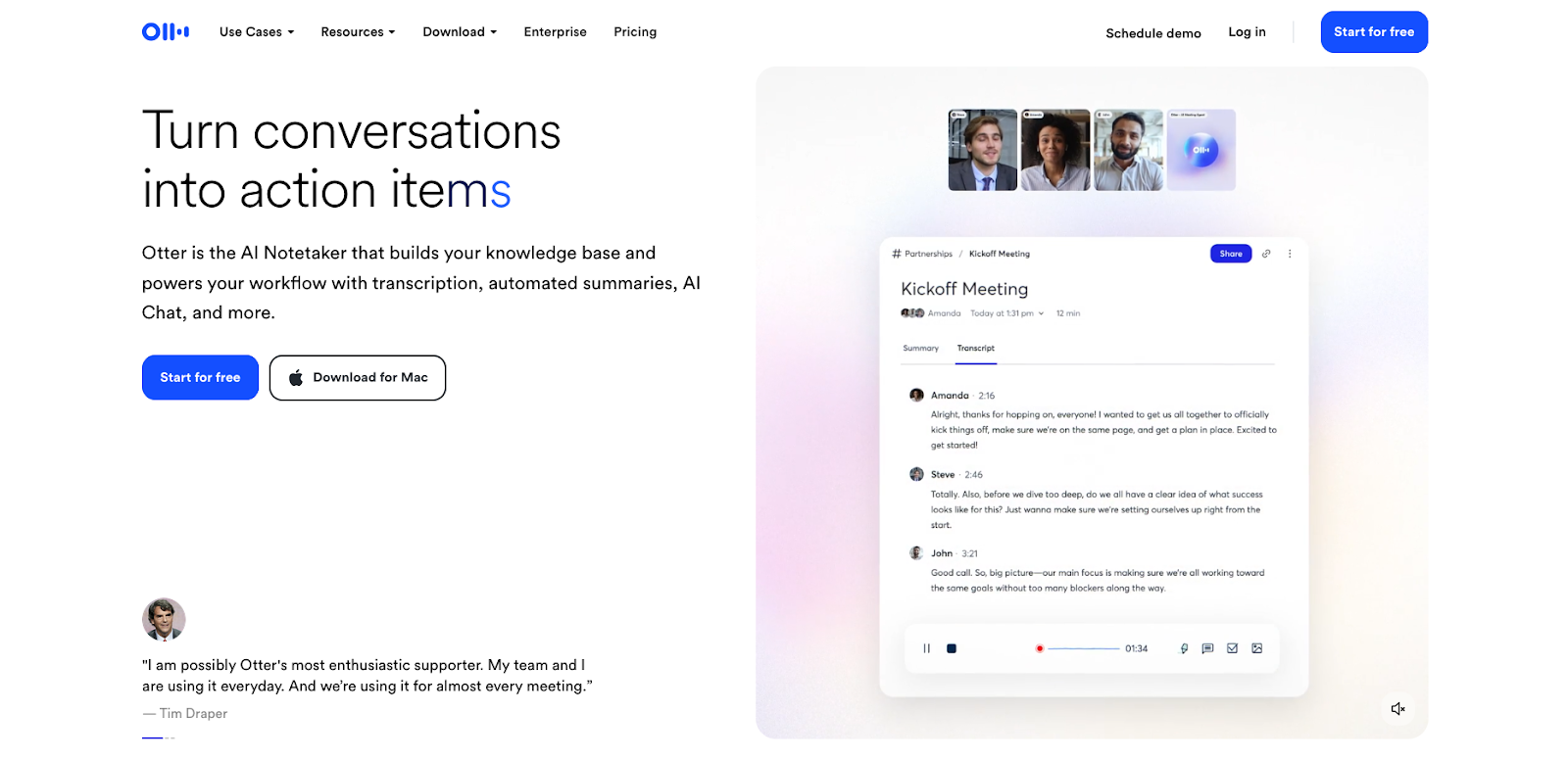
Otter.ai is one of the best-known AI meeting assistants in the “bot joins the call” category. It focuses on capturing what was said during a meeting, turning that audio into a usable transcript, and packaging the highlights into summaries and action items that teams can share right after the call.
Why we like it
Otter is a strong baseline tool for teams that want meeting capture to run in the background and produce a consistent recap. It’s easy to introduce across a team because the output is simple: searchable transcripts, clean summaries, and a fast way to pull context back up from past meetings.
Key features
- Live transcription: Captures meetings in real time across common video platforms.
- AI summaries: Highlights key points and moments from the conversation.
- Action items: Pulls out next steps and follow-ups from discussion.
- Searchable meeting library: Makes past meetings easy to find and reference.
- Sharing workflows: Quickly share recaps with teammates who couldn’t attend.
Limitations
- Otter is primarily a meeting capture and notes tool, so deep scheduling coordination and conflict negotiation live outside the core product.
- Bot-based capture can create adoption friction in some orgs because the notetaker may auto-join meetings unless settings are managed carefully.
- Admin, governance, and enterprise rollout capabilities vary by plan tier, so the right level of control may require an enterprise setup.
Otter.ai pricing: Free plan → paid plans start at $16.99/month
7. Fireflies.ai – best for a searchable meeting library
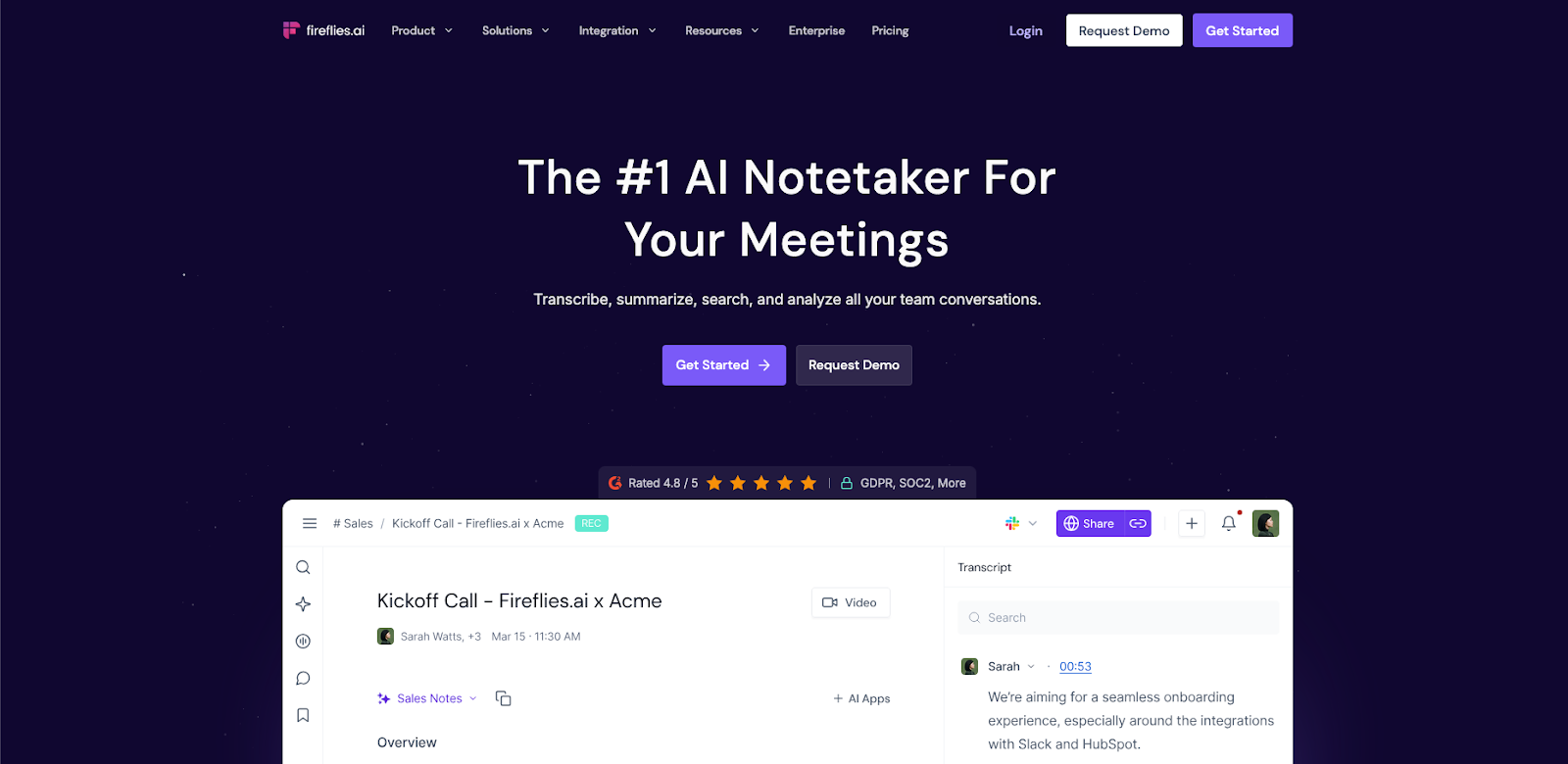
Fireflies.ai is an AI meeting assistant that joins your calls, records them, and turns conversations into transcripts, summaries, and action items. It’s often positioned as a meeting knowledge base: capture meetings consistently, then make the content searchable so teams can find decisions, commitments, and context later.
Why we like it
Fireflies gets more valuable over time. As your library grows, it becomes easier to answer questions like “when did we decide this?” or “what did the customer say about that requirement?” without digging through old recordings. For cross-platform teams that bounce between Zoom, Meet, and Teams, that searchable archive is the main unlock.
Key features
- Automated meeting capture: Records calls and generates transcripts.
- AI summaries & action items: Produces recaps with key points and next steps.
- Searchable meeting library: Find topics, moments, and decisions across past meetings.
- Sharing and collaboration: Share recaps and highlights with stakeholders.
- Integrations: Connect meeting output to downstream tools where work gets tracked.
Limitations
- Adoption can hinge on recording consent norms because Fireflies follows each meeting platform’s consent model and teams still need consistent practices.
- Coverage can be inconsistent when meeting settings block bots or when the assistant fails to join, which requires troubleshooting per platform.
- Admin and governance depth varies by plan, with the fullest control set tied to Enterprise.
Fireflies pricing: Free plan → paid plans start at $10/month
8. tl;dv – best for structured minutes & follow-through
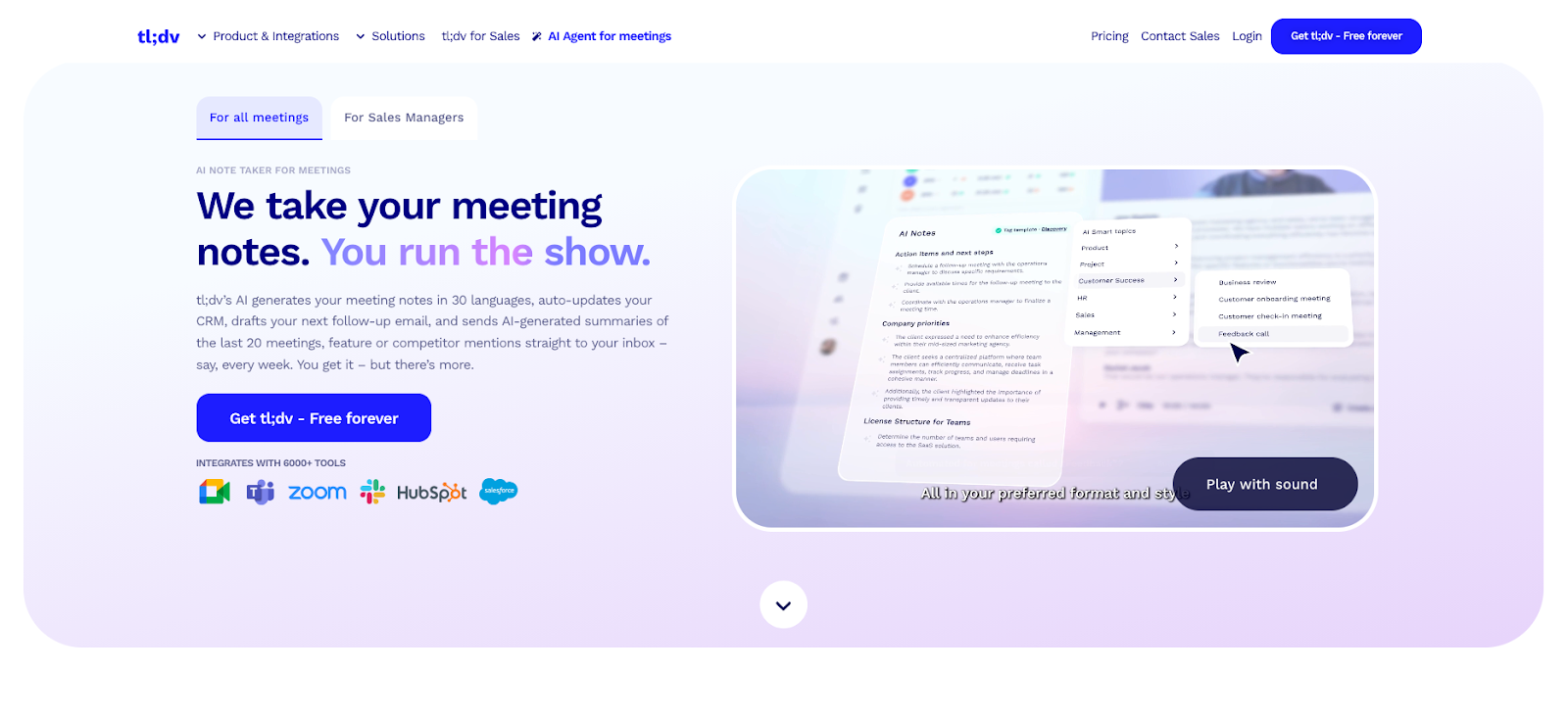
tl;dv is an AI meeting assistant that focuses on turning meetings into usable minutes, searchable context, and follow-through workflows. It captures meetings, produces summaries and highlights, and emphasizes collaboration patterns that help teams share decisions and next steps without forcing everyone to rewatch recordings.
Why we like it
tl;dv is built for teams that want more than a raw transcript. The product leans into “meeting minutes that actually get used,” with a focus on turning discussions into clear takeaways and making it easy for stakeholders to catch up quickly.
Key features
- Meeting capture and transcription: Records meetings and generates transcripts.
- Summaries and highlights: Produces fast recaps with key moments.
- Meeting minutes workflows: Structure for decisions, action items, and next steps.
- Search and retrieval: Find key topics across meetings over time.
- Sharing and collaboration: Share clips, highlights, and minutes with teammates.
Limitations
- Calendar coordination and scheduling optimization aren’t the product’s core focus compared with dedicated scheduling assistants.
- The workflow often relies on a bot joining meetings as an attendee, which can run into org policies or participant expectations.
- Some advanced capabilities (like deeper AI allowances and certain sales/CRM-style features) are gated to paid tiers, so rollout value can vary by plan.
tl;dv pricing: Free plan → paid plans start at $29/month
9. Fathom – best for fast recaps
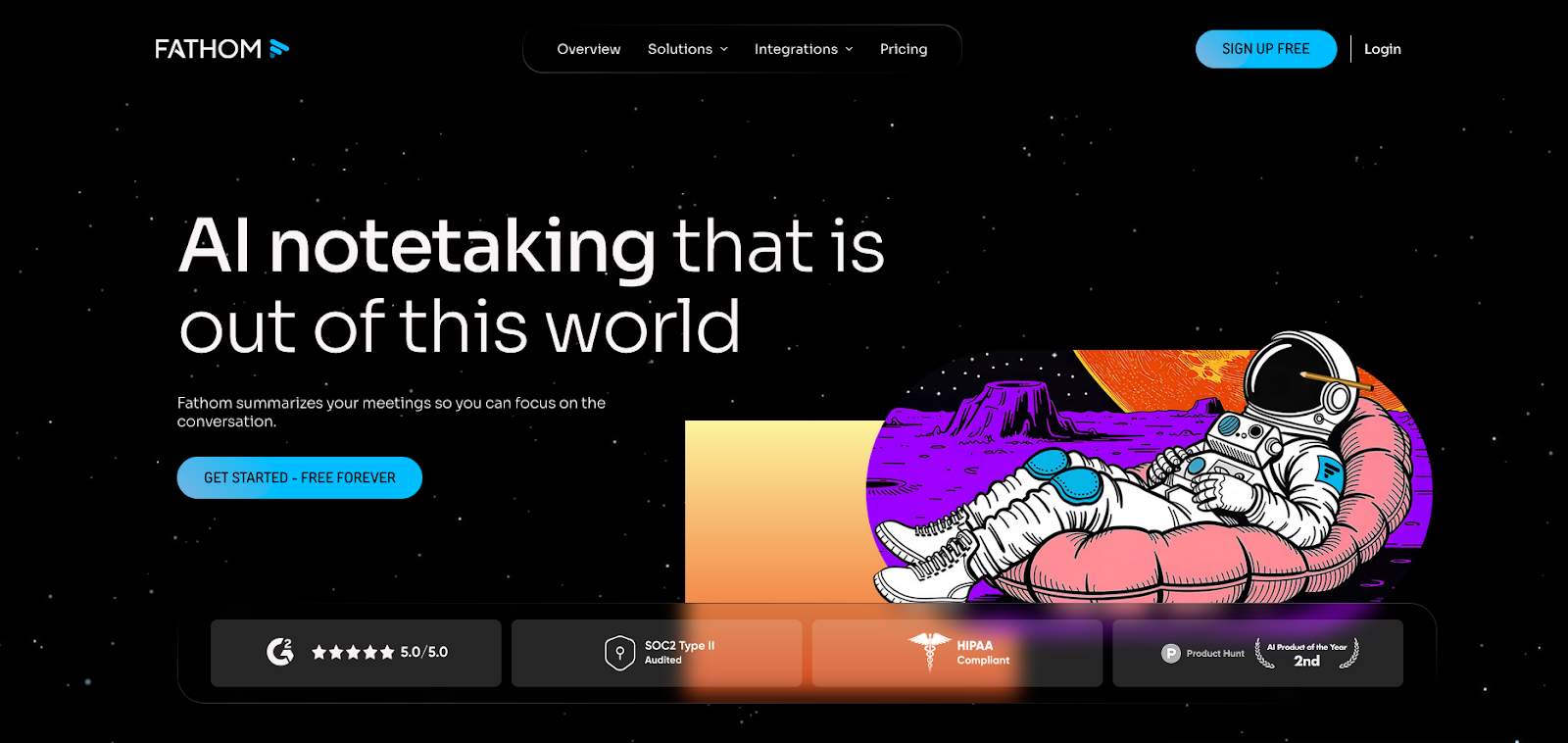
Fathom is a popular AI meeting assistant built around a simple promise: generate fast, shareable meeting summaries and action items without a lot of setup. It’s often positioned as an easy starting point for teams that want meeting notes to “just work,” especially when the goal is quick follow-through rather than deep workflow automation.
Why we like it
Fathom is strong for teams that care about speed and adoption. The recaps are easy to share, the output is easy to scan, and it tends to fit naturally into how teams already run meetings. For many teams, that lightweight feel makes it easier to roll out than heavier meeting intelligence platforms.
Key features
- AI meeting summaries: Quick recaps that highlight key takeaways.
- Action items: Pulls out next steps from the conversation.
- Shareable output: Easy to distribute summaries to teammates.
- Searchable history: Revisit prior meeting notes when context is needed.
- Low-friction setup: Designed to be quick to start using.
Limitations
- Admin controls and enterprise governance are tier-dependent, so larger rollouts may require Team/Business plans for features like SSO and advanced controls.
- Scheduling coordination isn’t the focus, since Fathom is built around capture, summaries, and downstream sync rather than optimizing calendars across attendees.
- Paid team tiers have a two-user minimum, which can add friction for very small deployments that want shared workspace features.
Fathom pricing: Free plan → paid plans start at $20/month
10. Krisp – best for bot-free notes & better audio
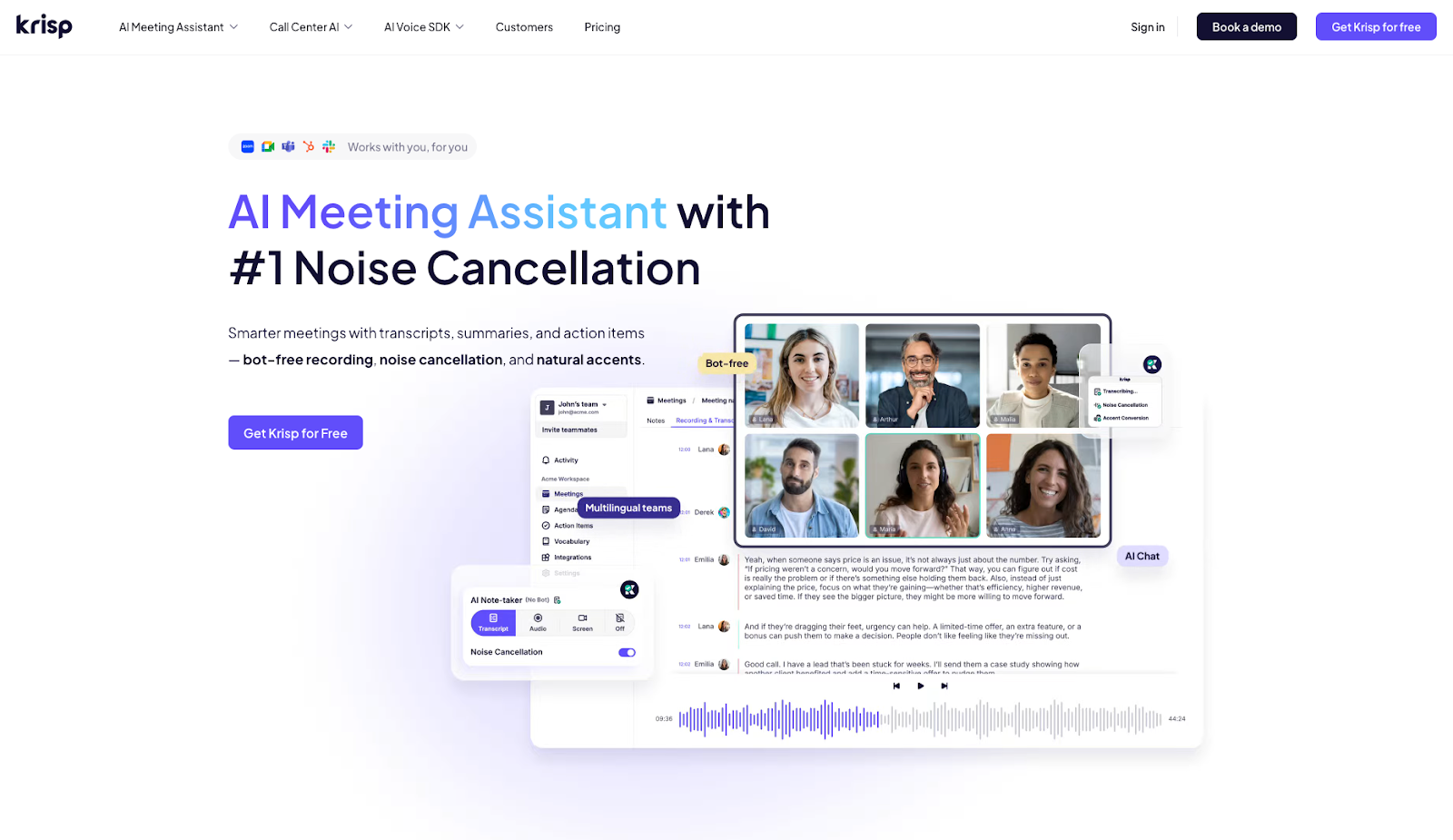
Krisp is best known for audio cleanup, and it has expanded into AI meeting notes with a bot-free approach. Instead of sending a recording bot into every call, Krisp focuses on capturing and summarizing meetings in a lighter-weight way while also improving audio quality in real time.
Why we like it
Bot backlash and consent concerns are real, and Krisp’s bot-free positioning matters for teams that don’t want an extra participant joining every meeting. The audio cleanup is also a genuinely useful layer for remote and hybrid calls, especially when someone’s environment is less than perfect.
Key features
- Bot-free meeting notes: Capture and summarize without a meeting bot joining the call.
- Transcription and summaries: Meeting output that includes key points and action items.
- Audio cleanup: Noise cancellation and voice enhancement during calls.
- Lightweight workflow: Designed to fit into existing meeting habits.
- Sharing: Easy to pass notes to teammates after the meeting.
Limitations
- Krisp’s note-taking workflow depends on correct audio device setup (selecting Krisp Microphone/Speaker), which can create capture gaps if people don’t configure it consistently.
- Video recording may still involve inviting a bot, which can run into org policies that restrict bots in meetings.
- Data handling controls matter because some deletion behaviors are coupled (for example, you can’t always delete recordings separately while keeping transcription/notes).
Krisp pricing: Free → paid plans start at $16/month
11. Granola – best for notes-first AI recaps

Granola takes a hybrid approach to meeting capture. Instead of relying on a meeting bot to do everything, the workflow starts with lightweight notes that you jot down during the meeting, and then AI enriches those notes with transcript context. The result is meeting output that’s easier to shape, more intentional, and often more readable than a raw transcript dump.
Why we like it
Granola is a great fit for people who already take notes and want AI to make them better. It keeps you in control during the meeting, then uses AI to fill gaps, structure the recap, and pull out the key moments afterward. That lighter experience can also reduce resistance from teams that dislike “bots joining calls.”
Key features
- Notes-first capture: You take lightweight notes as the meeting happens.
- AI enrichment: Adds structure and context based on transcript support.
- Summaries and action items: Produces clean takeaways and next steps.
- Readable output: Notes feel more like real minutes and less like raw transcript.
- Low-friction workflow: Designed for quick adoption without heavy process change.
Limitations
- The workflow depends on someone taking at least lightweight notes during the meeting to get the best results.
- Teams still need to manage consent practices across participants and regions, since Granola emphasizes user responsibility around consent.
- Transcription quality can be sensitive to audio/device setup, so inconsistent configurations can reduce accuracy.
- It isn’t designed as a scheduling or calendar coordination engine, since the core value is capture and recap rather than time negotiation.
Granola pricing: Free → paid plans start at $14/month
12. Vimcal – best for meeting prep & calendar shortcuts
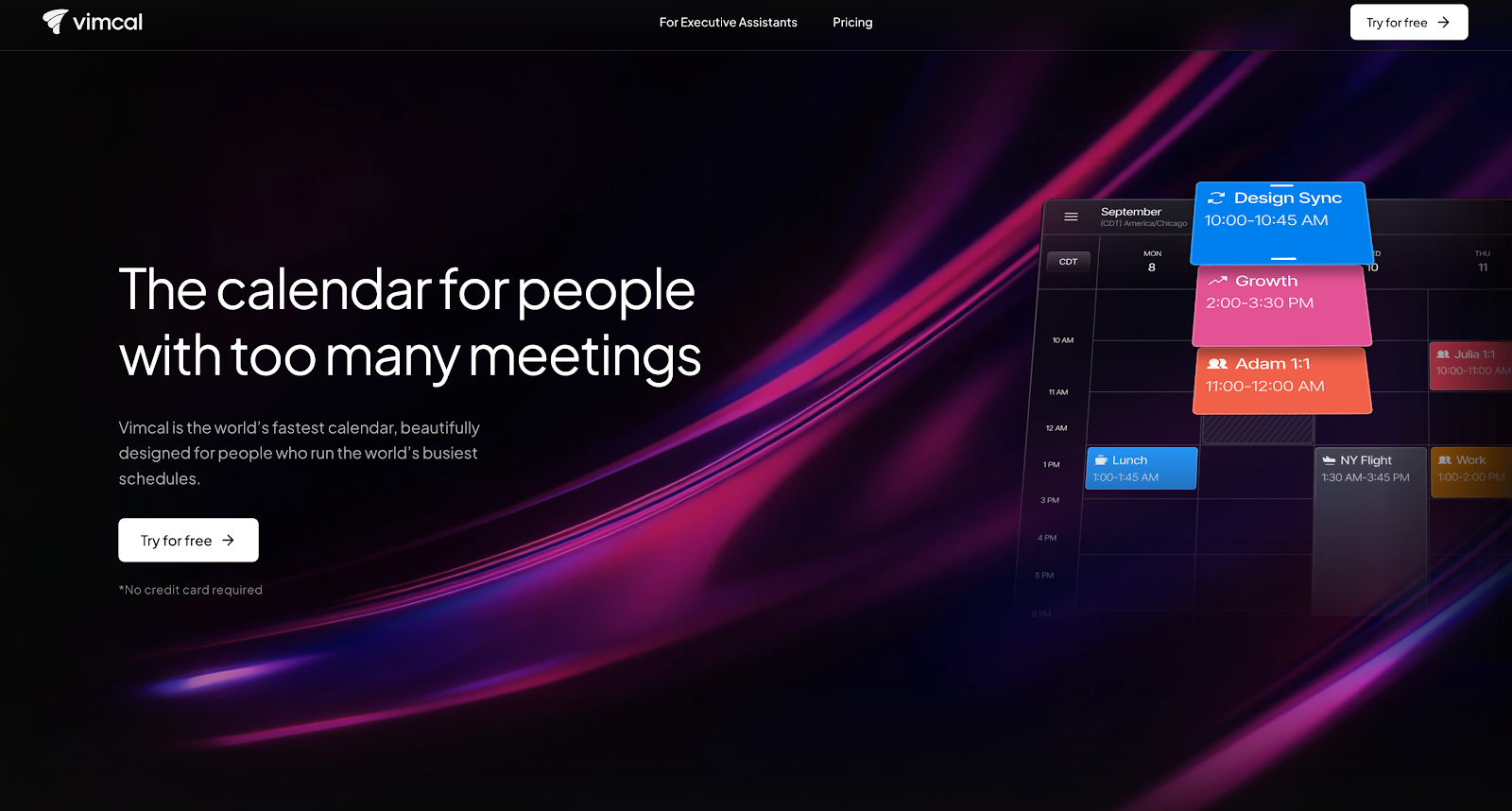
Vimcal is a calendar designed for speed and executive workflows. Its AI features focus on pre-meeting research and summaries, helping users prepare for calls quickly. Vimcal emphasizes quick keyboard shortcuts, multi-calendar controls, and efficient workflows for people who schedule and attend many meetings.
“EA Mode” aims to make the tool feel like a digital executive assistant, offering automation and shortcuts more than fully autonomous scheduling.
Why we like it
Vimcal’s emphasis on speed and keyboard-driven workflows makes it appealing to people who live in their calendars. AI that pulls context for meetings, from prior interactions, notes, or other sources, to help busy executives and operators enter meetings better prepared without digging around manually.
The framing around an “assistant” that behaves like an EA also resonates with users who want a sense of control and transparency over what the tool does.
Key features
- GPT-powered pre-meeting research: Summaries and context to prep for upcoming calls.
- Fast calendar workflows: Keyboard-driven interface optimized for power users.
- Multi-calendar controls: Designed for complex executive schedules.
- EA Mode: Assistant-style workflows and delegation-friendly features.
- Team support: Options designed for teams and assistant relationships.
Limitations
- Vimcal’s AI is framed more around meeting prep context and “smart actions” than continuous multi-stakeholder schedule optimization across a team.
- Team-wide policy enforcement and org-level scheduling governance aren’t positioned as the core product compared with enterprise scheduling engines.
- Many of the most compelling workflows are geared toward exec/EA use cases, which can be less compelling for teams that don’t run that operating model.
Vimcal pricing: Paid plans start at $20/month.
13. Superhuman AI – best for email-first scheduling
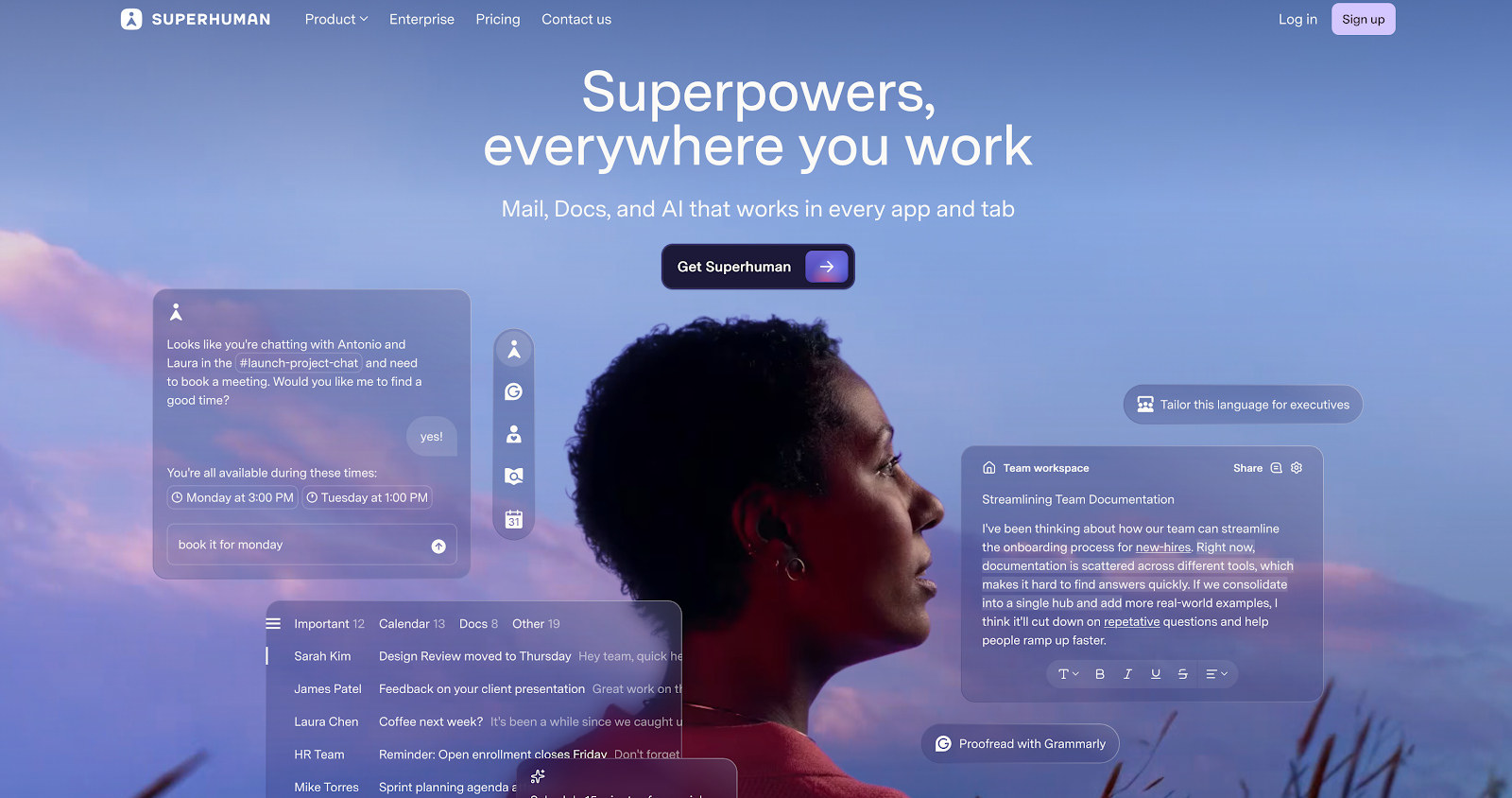
Superhuman AI extends Superhuman’s fast email experience with assistance for scheduling meetings, reviewing inboxes, and organizing workflow. Its AI chat can help find meeting times with multiple team members, draft emails, and analyze threads. The “Ask AI” feature uses inbox, calendar, and web context to plan and prioritize, with meeting scheduling as one of several workflows.
Calendar and scheduling capabilities are newer for Superhuman compared to its email core, but it’s an area they’re looking to evolve.
Why we like it
For users who already rely on Superhuman for high-speed email, having AI assistance in the same command palette makes scheduling feel less like a separate job. Instead of copying times into different tools, users can ask AI to find time, propose slots, or generate follow-ups directly from the inbox. That reduces friction in one of the most common sources of meeting requests.
Superhuman’s focus on performance and responsive UX also translates well into its AI features, helping them feel like integral parts of the experience rather than bolted-on chatbots.
Key features
- Ask AI command palette: Scheduling, planning, and analysis directly from the inbox.
- Meeting time suggestions: Calendar-aware proposals and availability sharing.
- Email drafting and follow-ups: AI writing support tied to thread context.
- Inbox triage and organization: Helps prioritize and summarize email threads.
- Enterprise posture: Security and admin features for organizations using Superhuman.
Limitations
- Superhuman only supports Gmail and Microsoft 365 hosted accounts, so teams on other email systems can’t use it.
- Calendar and scheduling capabilities are still evolving relative to Superhuman’s core email strengths, so it’s less of a “calendar optimization engine” than dedicated scheduling tools.
- The entry price is premium for an email client, with paid plans starting at $30/user/month.
Superhuman pricing: Paid plans start at $30/month
14. Calendly (Notetaker coming soon) – best for scheduling & AI recaps
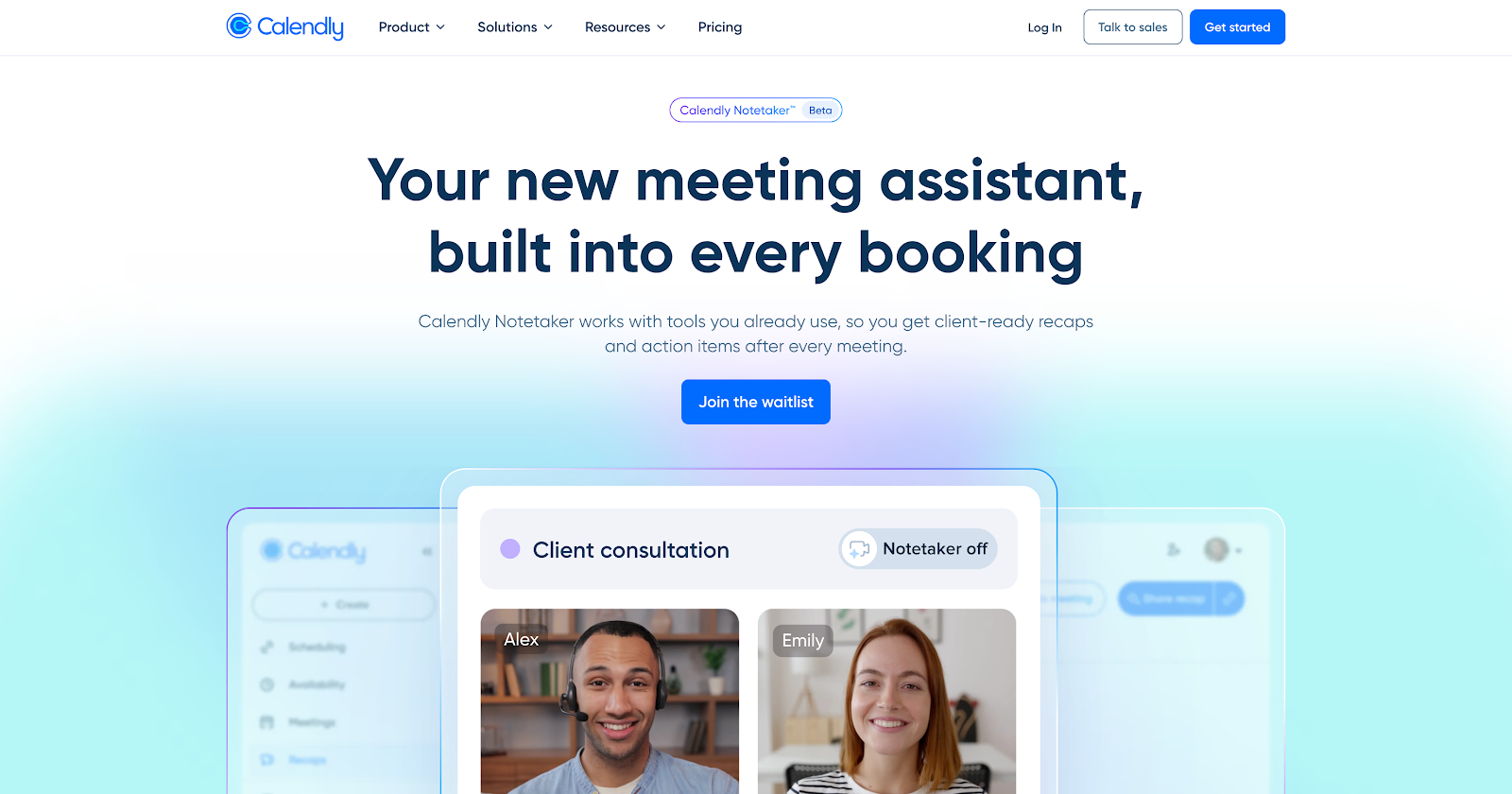
Calendly is a name you probably know well, and for good reason, it's been doing a fantastic job of making scheduling links and routing workflows easier to handle. And now the company is taking that same ease to the next level with its upcoming AI Notetaker, which is not available in beta yet (only waitlist), but they say it can generate summaries, transcripts and even action items from recorded sessions. It plans to use vertical specific summary templates to make the process even smoother, as well as help you draft follow-up emails and lets you search through all your meeting transcripts too.
Right now the AI Notetaker is focusing its attention on meetings set up through Calendly that are also using Google Calendar for Zoom and Google Meet.
Why we like it
Calendly already takes care of so much when it comes to external scheduling, and with the upcoming AI Notetaker, you may get a more complete workflow from booking a meeting to following up afterwards. It may be handy tool for revenue teams, recruiters and anyone who deals with customers on a regular basis.
Key features (coming soon)
- AI meeting recaps: Summaries, transcripts, and action items from recorded meetings.
- Vertical templates: Industry-specific recap formats for sales, recruiting, and other use cases.
- Search & Q&A: Searchable meeting transcripts and quick retrieval of key moments.
- Follow-up drafting: Draft emails with takeaways and next steps.
- Recording controls: Controls for which meetings are recorded and summarized.
Limitations
- Notetaker is still being rolled out via a waitlist experience, so availability and access may not be universal yet.
- Platform coverage is currently focused on Zoom and Google Meet, which can be limiting for Teams-heavy orgs.
- Because Notetaker appears as a meeting participant and requests consent, it can be blocked by meeting settings (waiting rooms/admission) or organizational recording norms.
- Recaps aren’t generated for very short meetings (under 4 minutes) or meetings without audio, which can create gaps in coverage for quick syncs.
Calendly pricing: Free plan → Paid plans start at $10/month
15. Google Calendar + Gemini – best for native workspace scheduling help
Google’s Gemini assistant brings light AI assistance to scheduling inside tools many teams already use, but today it functions more as a convenience layer than a true AI scheduling assistant. Google’s most mature capability lives in Gmail, where Gemini can detect scheduling intent in emails and suggest available meeting times pulled from your calendar. In beta, Gemini also appears directly inside Google Calendar, allowing users to create or edit events using natural language. These updates reduce friction for simple, one-on-one scheduling, but they stop well short of automating coordination across people, priorities, and constraints.
Why we like it
Gemini’s scheduling features feel thoughtfully integrated into existing Gmail and Calendar workflows, making them easy to adopt with little to no setup. For individuals who mostly schedule straightforward meetings, Gemini can save time by eliminating some manual copy-paste work and basic back-and-forth. It’s also a strong signal of where Google is heading with AI inside Workspace — even if the current execution is still early.
Key features
- Help Me Schedule (Gmail): Detects scheduling intent and suggests available meeting times.
- Automatic event creation: Creates calendar events once a time is selected.
- Natural-language event creation (in limited beta): Schedule or edit events via conversational prompts in Calendar.
- Calendar availability awareness: Uses your existing calendar to avoid conflicts.
- Native Workspace integration: Works directly inside Gmail and Google Calendar.
Limitations
- Help me schedule is 1:1 only, and additional guests must be added afterward in Calendar.
- Suggested-time booking can only schedule onto your primary calendar, which can be limiting for users who rely on multiple calendars.
- Feature access depends on having an eligible Workspace/Gemini plan, so coverage can vary across orgs and tiers.
- It’s still a convenience layer compared with dedicated schedulers because it doesn’t continuously optimize multi-attendee tradeoffs, recurring meeting constraints, and team policies.
Google Gemini pricing: Free plan → Paid plans start at $5.88/month
16. Microsoft 365 Copilot – best for Microsoft meeting prep & recap
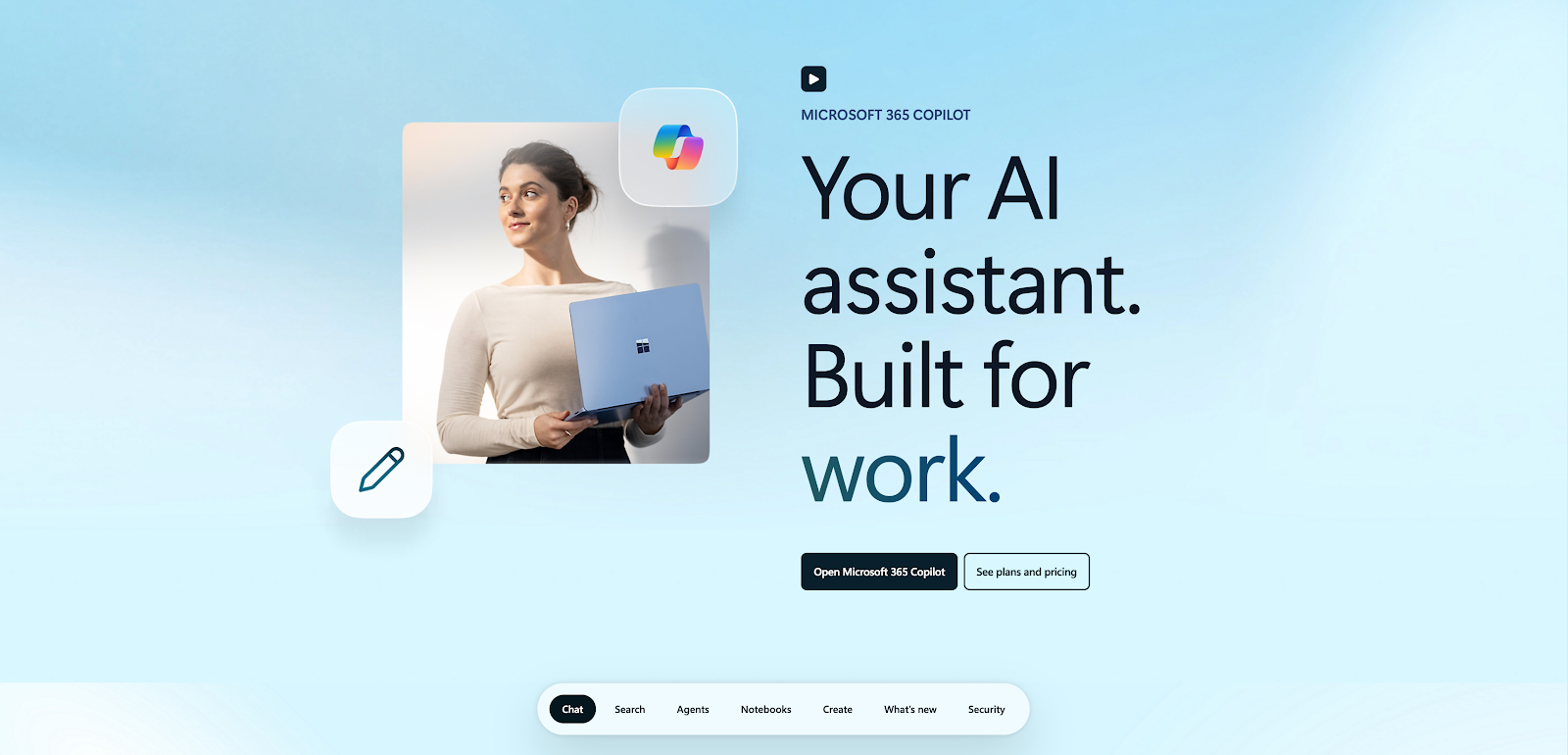
Microsoft 365 Copilot brings AI assistance into Outlook, Teams and the rest of the Office suite. In Outlook, Copilot can come up with some suggested meeting times, draft out meeting invites and agendas, and summarize the main points of an email thread just to help you figure out if a meeting is even worth having. It can also advise you when it's time to head into the office based on your hybrid work habits and team plans.
From a meeting point of view, one of Copilot’s key strengths lies in its Prepare feature. It gathers together all the relevant info from related documents, old emails and chat history to bring up the key points, potential questions and action items that you'll need for the upcoming meeting.
Why we like it
If you're already heavy into Microsoft 365, it feels like Copilot just slots in with what you're already doing. It doesn't feel like yet another separate tool to learn. You can send an email thread over to turn it into a meeting invite, generate an agenda based on past conversations and pull in relevant files all without leaving Outlook. That kind of continuity is a real bonus when you've got a big team using Outlook, Teams and OneDrive as their main workspace.
We also really like that Microsoft doesn't hide away the limitations of Copilot. The product makes it clear that you should always check over and verify what the AI has generated. It's a lot better to be upfront about what the tool can do, rather than just claiming 'magic'.
Key features
- Invite & agenda drafting: In-composer assistance for proposing times and drafting invites and agendas.
- Prepare briefs: Summarizes context from emails, chats, and documents into a meeting brief.
- Office day recommendations: Suggestions based on meeting patterns and hybrid habits.
- Suite integration: Deep ties across Outlook, Teams, and the wider Microsoft 365 ecosystem.
Limitations
- The “Prepare” insights experience can be limited by meeting type and available related content, and the exact experience varies across Outlook/Teams clients.
- Feature availability depends heavily on licensing and tenant configuration because Copilot is an add-on and deployment is often tied to admin controls and information governance.
- Scheduling help is strongest for meeting prep and event drafting, with less emphasis on deep multi-team scheduling optimization compared with dedicated coordination engines.
Microsoft 365 Copilot pricing: Paid plans start at $9.99/month
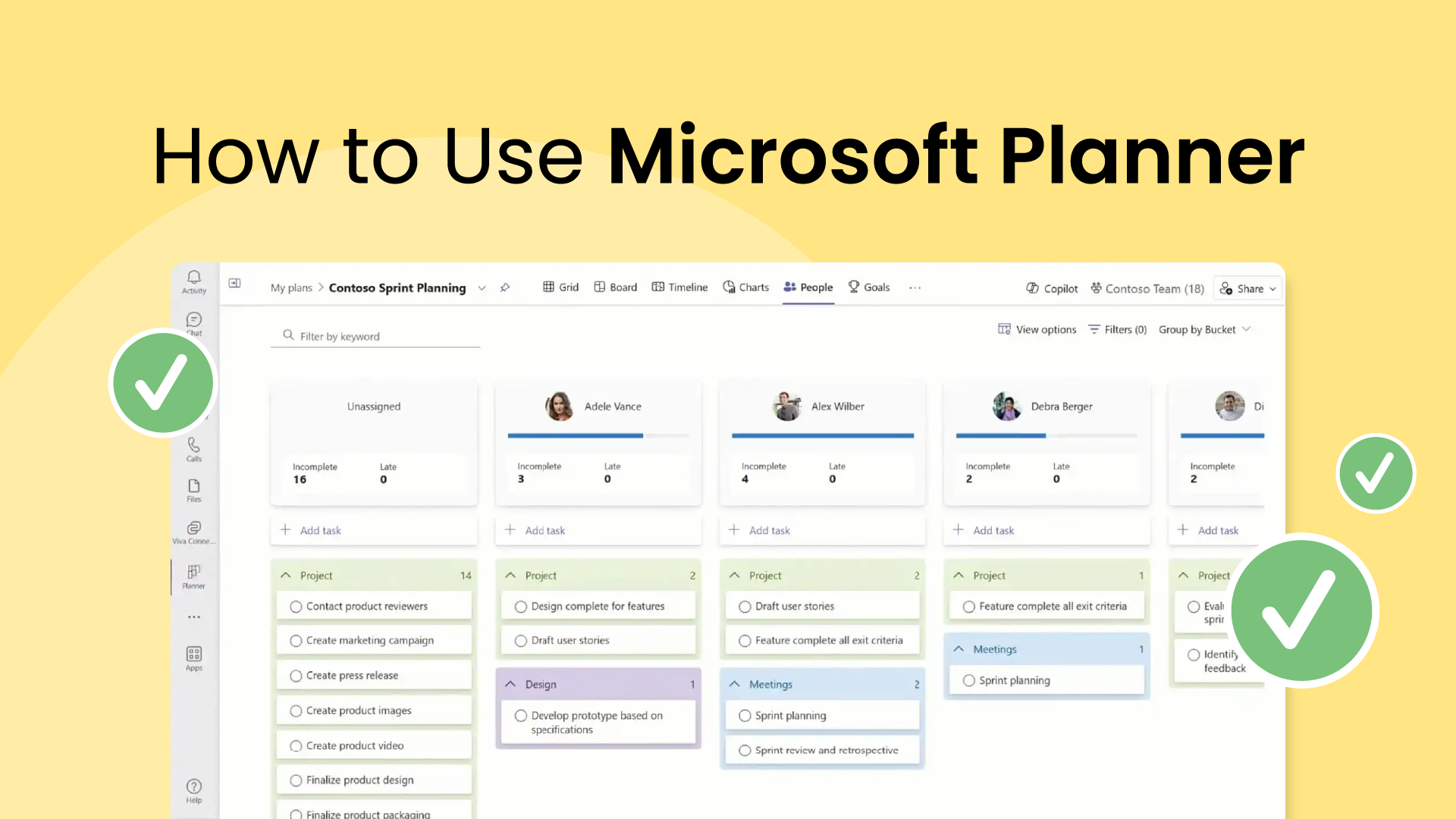
17. Motion – best for tasks & AI daily planning
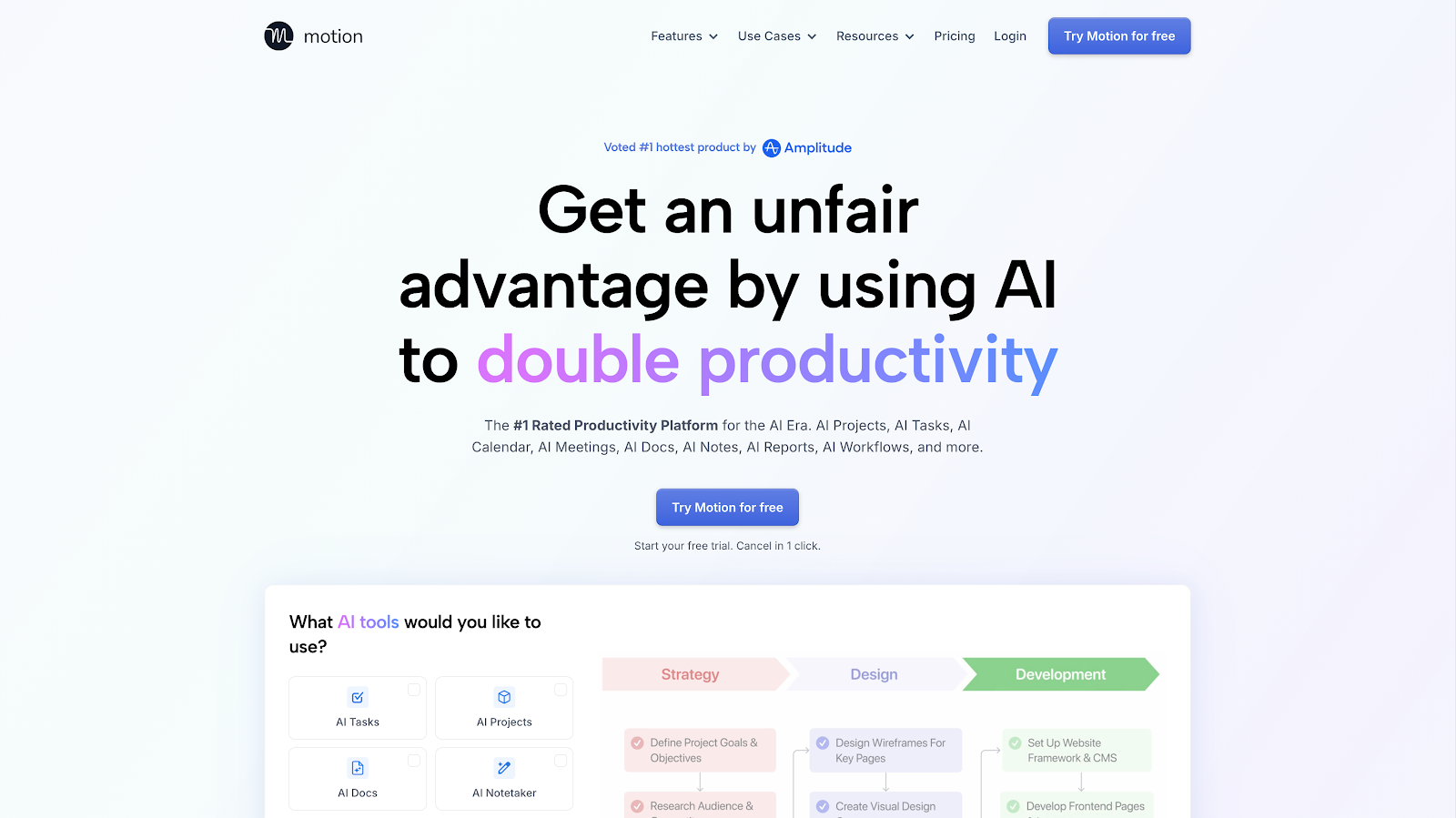
Motion positions itself as an “AI productivity platform” that bundles calendar planning, task management, and meeting workflows into one system. Meetings sit inside that broader workspace: a notetaker can capture key points and action items, and the platform can translate outcomes into tasks that show up in the plan alongside deadlines and existing work.
Why we like it
Motion’s strength shows up when a team wants meeting output to land somewhere concrete. Notes can turn into tasks quickly, and the daily plan updates as work shifts. For small teams that plan work inside Motion, this creates a tighter loop between what gets discussed in meetings and what actually gets done afterward.
However, compared with Reclaim, Motion leans more toward work management and a planned day than calendar-first scheduling optimization. Reclaim’s core advantage comes from team-aware scheduling controls and availability optimization across calendars, plus deeper coordination mechanics around recurring meetings and shifting constraints. Motion can feel lighter on calendar governance and multi-stakeholder negotiation, especially when the goal is to protect focus time across a team while juggling changing meeting priorities.
Key features
- AI notetaker: Key points and action items from meetings.
- Task creation & assignment: Turns meeting outcomes into structured work.
- AI calendar planning: Builds and rebuilds daily plans around tasks and meetings.
- Meeting effectiveness insights: Coaching-style reporting on participation and communication.
- Pre- and post-meeting workflows: Connects notes to emails, tasks, and system updates.
Limitations
- Motion is more of an all-in-one planning system than a calendar-first coordination engine, so it’s less focused on multi-team scheduling governance and time negotiation across complex org policies.
- The best experience depends on teams committing to Motion as the system of record for tasks and planning, which can add rollout friction compared to standalone notetakers.
- Pricing is very expensive and often overpriced against value users received compared to competitors.
Motion pricing: Paid plans start at $29/month
18. Clockwise – best for auto-moving internal meetings
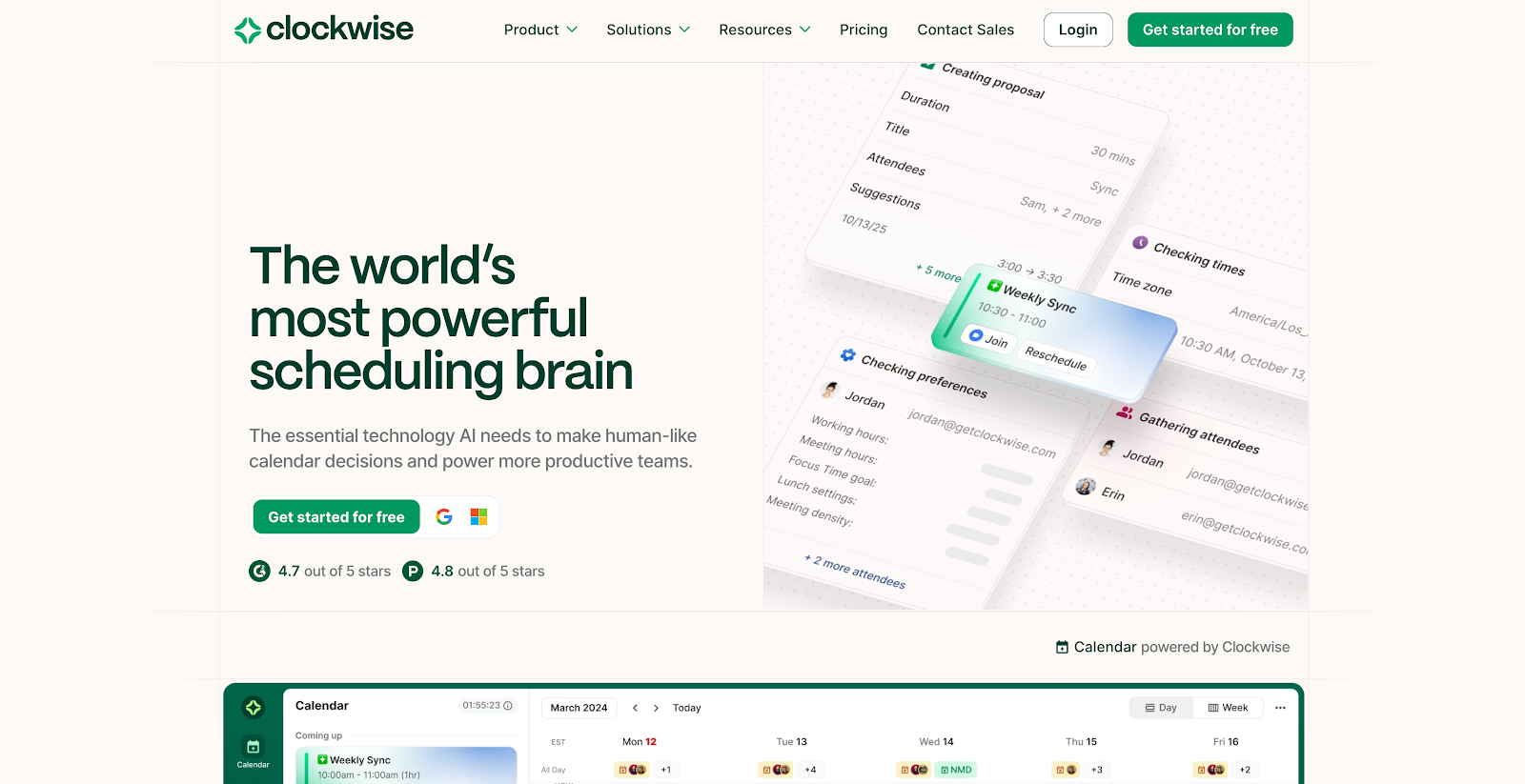
Clockwise is positioning itself as an "intelligent calendar sidekick" that actually moves meetings around and protects your precious Focus Time. Their Prism UI is a GPT-powered natural-language interface that's supposed to help you reschedule meetings, deal with scheduling conflicts, and make the most of your Focus Time. What they're really going for is a deep understanding of how your team works, and what they're really after is an intuitive way to suggest some smart schedule tweaks.
A lot of this stuff is still in beta, as Clockwise's help docs will point out, which means you can get a taste of the Prism UI and some AI features for free until the product is officially out of beta.
Why we like it
Clockwise helps you create more time for heads-down work outside of meetings, and they've pushed the conversation about making your calendar work for you, rather than the other way around. For small teams with a lot of internal meetings, Clockwise's AI-powered scheduling is a pretty natural next step.
Key features
- AI-driven Focus Time protection: Smart no-meeting blocks that help defend deep work.
- Prism UI: Natural-language prompts for scheduling and rescheduling.
- Conflict resolution: Support for bulk rescheduling, cancellations, and schedule adjustments.
- Slack assistant: Scheduling and rescheduling workflows through DMs.
- Team insights: Visibility into meeting habits and schedule patterns.
Limitations
- Clockwise is primarily optimized for internal calendar flexibility, so it’s less helpful for external scheduling than link-first tools (like Calendly-style booking pages).
- The “auto-move meetings” benefit is strongest when most attendees are also on Clockwise, reviewers note the impact can feel limited.
- Some users say the automation can feel a bit too eager (moving things in ways that don’t match their preferences), which means you may still end up manually re-tuning your week.
- Focus Time blocks can sometimes create coordination friction. They show you as busy, which can confuse coworkers who don’t understand what’s movable vs. truly unavailable.
- Reviews also mention occasional integration friction (e.g., Slack/Calendar workflows not behaving exactly as expected) and a learning curve around how the system prioritizes changes.
- Clockwise’s Microsoft/Outlook experience is still described as beta in its own documentation, which may matter for Microsoft-heavy teams where reliability and edge cases are non-negotiable.
Clockwise pricing: Free plan → Paid plans start at $6.75/month
How to choose an AI meeting assistant for your team
Choosing an AI meeting assistant comes down to one thing: where you lose the most time today. Across our research and user surveys, the same themes show up again and again: scheduling drag, focus-time erosion, recurring conflict churn, and meetings that fail to turn into outcomes.
1. Start with the job you need the assistant to do
Most teams fall into one primary need. Pick the one that feels most urgent.
- You need calendar relief: Your schedule stays packed, focus time keeps getting squeezed, and important work gets pushed into nights and weekends.
- You need coordination to stop being a daily tax: Rescheduling causes Slack threads, email loops, and constant negotiation across time zones and competing priorities.
- You need meeting memory & follow-through: Decisions get lost, action items don’t stick, and people waste time searching for what was agreed on last week.
Once the job is clear, the right category of tool becomes easier to spot.
2. Pick the assistant category that matches that job
AI meeting assistants cluster into a few patterns. The trick is picking the one that actually solves your problem.
- Coordination-first scheduling engines
These tools optimize when meetings happen, not just what happens inside them. They’re built to negotiate real calendar tradeoffs, like working hours, time zones, priorities, focus blocks, buffers, recurring meeting stability, and team policies. - Meeting capture & notetaker tools
These focus on transcripts, summaries, decisions, and action items. The best ones create a searchable meeting library and help teams share outcomes fast. - Suite-native assistants
These live inside Google Workspace, Microsoft 365, or Zoom-style suites. They shine in lightweight flows like drafting invites, suggesting times, creating events, and generating basic recaps with minimal setup.
Many teams end up combining categories: a notes layer for meeting memory with a scheduling engine for coordination and focus protection.
3. Map how the tool will fit into the apps your team already uses
The best assistant is the one people actually use. Fit matters as much as features.
Start by mapping your default workflow:
- Where meetings are scheduled (Google Calendar, Outlook, both)
- Where meetings happen (Zoom, Meet, Teams)
- Where follow-through lives (Docs/Notion, task tools, CRM, Slack)
Then look for integration depth that holds up in day-to-day usage. A tool that only works in one calendar, one meeting platform, or one workspace can create uneven adoption across teams.
4. Validate that it can handle real team complexity
Demos often show single-user prompts like “schedule a meeting next week.” Real calendars add friction fast.
Test the assistant against the scenarios that break most tools:
- Multi-time-zone scheduling with tight working hours
- Recurring meetings that need stability over time
- Competing priorities across stakeholders
- Personal calendar protection that still keeps work scheduling accurate
- No-meeting windows, buffer rules, prep time, and focus blocks
If the tool looks great in simple scenarios but falls apart here, it won’t scale beyond a few enthusiastic users.
5. Assess explainability, guardrails, & analytics
Agentic features only work when teams trust the system. Trust comes from control and transparency.
During evaluation, look for:
- Clear logs of what changed and why
- Controls over which meetings can move, and under what conditions
- Admin policies for consent, retention, and access boundaries
- Reporting that shows impact on meeting load, focus time, and schedule health
If you can’t answer “why did this move?” in seconds, adoption slows the first time something important gets disrupted.
6. Pilot where the pain is strongest, then expand
Rollouts succeed when the first group feels the problem every week.
Strong starting points include:
- Leadership teams buried in recurring meetings and 1:1s
- Engineering teams defending focus time
- Sales and recruiting teams scheduling externally all day
- Cross-functional groups that need consistent prep and follow-through
Run a short pilot with clear success criteria: time-to-schedule, reschedule churn, recap adoption, and how consistently the assistant protects focus time. Once the workflow feels predictable, expand into the next team with a similar pain profile.
Why AI meeting assistants matter more in 2026
A few years back when people talked about an "AI meeting assistant", the idea usually boiled down to some sort of transcription robot that would automatically join your calls, grab audio from meeting recordings, and send a digest afterwards. Those tools still do their job and make a difference. But by 2026, the stakes around getting meetings on track are a lot higher.
Scheduling meetings is getting more and more complicated. Software suites like Google Workspace, Microsoft 365 and Zoom are all attempting their own AI-driven sidebars, but meetings and scheduling are not a priority for their AI developments. And it seems like every other meeting tool or platform is touting some sort of "assistant" that claims to make things easier by surfacing insights from past meetings.
Under the hood, most of these "assistants" still focus on the basics:
- Creating and editing meeting invites
- Cobbling together a summary of a meeting and any relevant action items
- Propping up a draft of a follow-up email or task list
Not many can figure out how to juggle competing priorities across a group of stakeholders, enforce clear policies, or even explain what happened to a meeting that got moved or a block of uninterrupted work time that somehow vanished. That gap really shows up in our own internal testing. We've got an ongoing survey of over 2,000 of our own Reclaim users and it's clear that people are seeking more from AI across all areas of time management. They want:
- AI to schedule time for important tasks and routines
- AI to summarize how they spent their time each week
- AI to reduce their calendar fragmentation and time loss
- AI to find more time for deep work and focus time
- AI to help resolve meeting conflicts and suggest better alternatives
- AI to find the next available time for a meeting across multiple busy calendars
- AI to prioritize their meetings and recommend which could be canceled, delegated, or shortened
The tools in this guide fall all over the map. Some are still mostly about taking notes and writing up recap, or do you need to coordinate them better, or do you want to rework your entire calendar around what really matters? Some live in the sidebars of the software you already use. And then there's a smaller group that's slowly evolving to become actual team-aware scheduling engines. The right one for you will depend on what your biggest pain point is.
Productivity Trends Reports