



External meeting scheduling has grown far more complex than simply sharing a link and picking a time. Sales calls, customer check-ins, interviews, and partner meetings now span time zones, busy calendars, internal availability rules, and increasingly high expectations for a seamless experience.
The best scheduling apps have evolved to handle this complexity behind the scenes – coordinating stakeholders, respecting real availability, and removing friction for both sides – so booking a meeting feels effortless, even when it isn’t.
In this guide, we review the very best online scheduling apps for 2026 so you can start optimizing your bookings faster this year.
- Calendly: Best for external meeting booking
- Reclaim.ai: Best overall scheduling app
- YouCanBookMe: Best for simple booking pages
- Cal.com: Best for custom infrastructure
- Acuity Scheduling: Best for client appointments
- OnTheClock: Best for shift scheduling
- Google Calendar: Best for simple Google workflows
- Outlook Calendar: Best for simple Microsoft workflows
Our review lens
We put this together to help you pick the tool that works best for your workflow, not to crown some app as the absolute best for everyone. Every product in this list has been put through the same wringer, looking at the things that really make a difference in your calendar from week to week. The goal is to simplify scheduling without adding more complexity behind the scenes.
Top 8 scheduling apps at a glance
1. Calendly – Best for external meeting booking
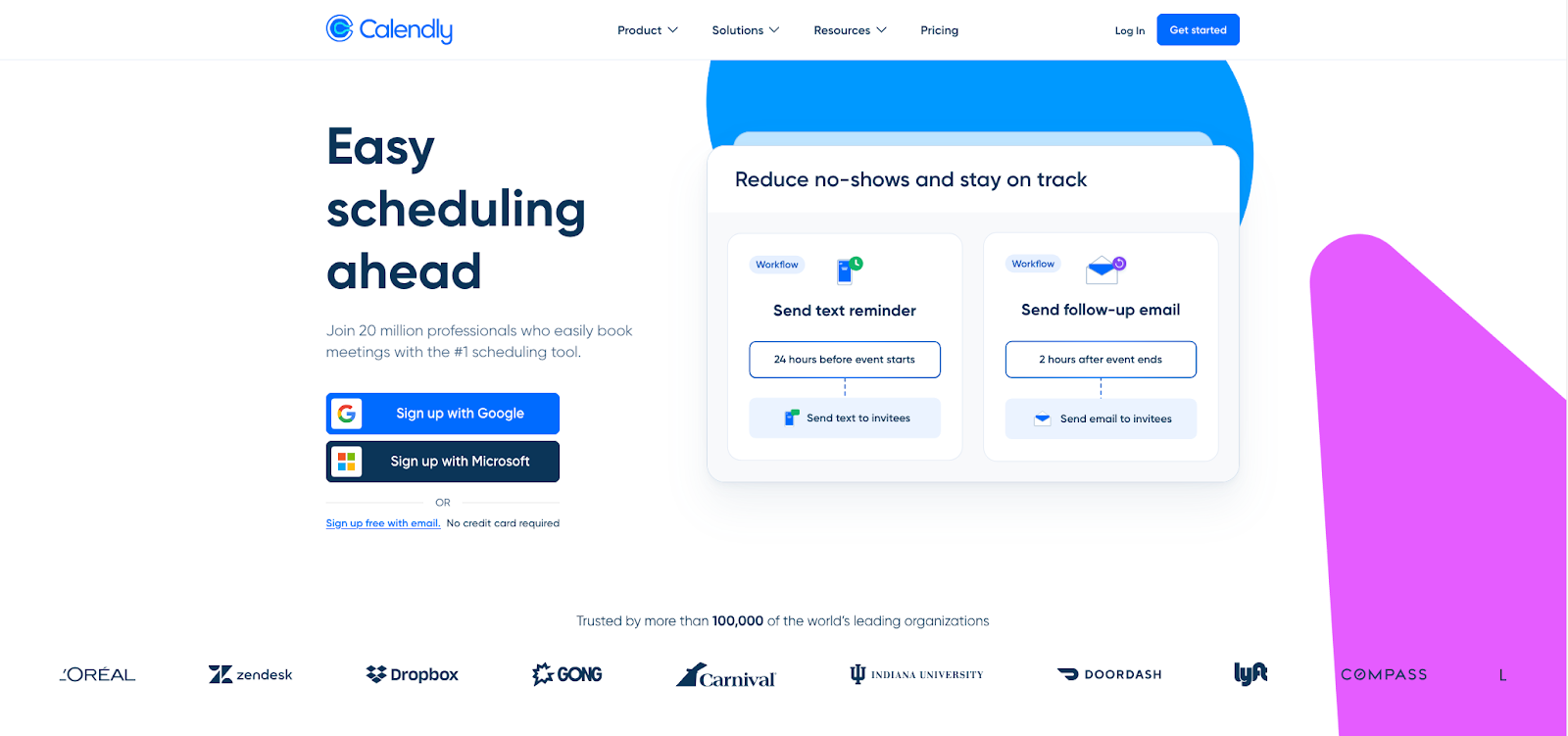
Calendly is the go-to option when you just want to send out a link and let people pick a time that works for them. It starts off simple and easy to use, and then adds in team scheduling when you need to have multiple people's calendars in the mix.
Why we like it
Calendly earns its place because it saves you from having to go back and forth with people over and over again. It also keeps on working even when scheduling starts to get a bit more complicated than just one person's calendar. The tell for a good scheduling tool is actually what happens after the first booking. That is, time zones, reschedules, cancellations, and your day staying intact when meetings stack up.
Calendly's booking process is nice and straightforward for the people you're trying to schedule with, and the rules that keep your calendar from getting overbooked (like setting times when you're not available and rules about who can book what time) start to really make a difference when things get busy. The tradeoff is that the “team-ready” moment is when things start to get a bit more complicated. So it’s worth checking that fit before you build your process around it.
Key features
- Scheduling links & event types: Share your availability through a simple booking link to avoid back and forth scheduling.
- Availability controls: Fine-tune availability rules, including meeting start-time increments.
- Buffers: Add time before/after meetings to reduce back-to-backs.
- Meeting limits: Cap bookings to avoid overloading a day/week/month.
- Round Robin team scheduling: Distribute meetings across a team, including modes like “maximize for availability.”
- Team scheduling options: Tools like Routing Forms, Meeting Polls, and group scheduling for more complex flows.
- Integrations: Calendly highlights integrations like Zoom, Salesforce, Zapier, and Microsoft Teams.
- SSO (org controls): Supports SAML single sign-on for teams that need centralized access management.
Limitations to keep in mind
- Limited AI scheduling: Calendly offers an AI Assistant, but booking availability is still primarily based on free time in your connected calendar (no “flex” availability over lower-priority holds).
- Availability experience: Calendly can only show availability over free space in your calendar (no AI capabilities to maximize availability over lower-priority events).
- Buffers are event-type based: They protect availability for meetings booked through that Calendly link/event type, and results can feel unintuitive when buffers interact with slot intervals and existing calendar holds. Meetings created outside Calendly also won’t automatically get the same buffer protection.
- More setup at team scale: Moving from solo links to team distribution adds settings, permissions, and tier considerations.
Calendly pricing: Free plan → Paid plans start at $10/month
2. Reclaim.ai – Best all-around scheduling app
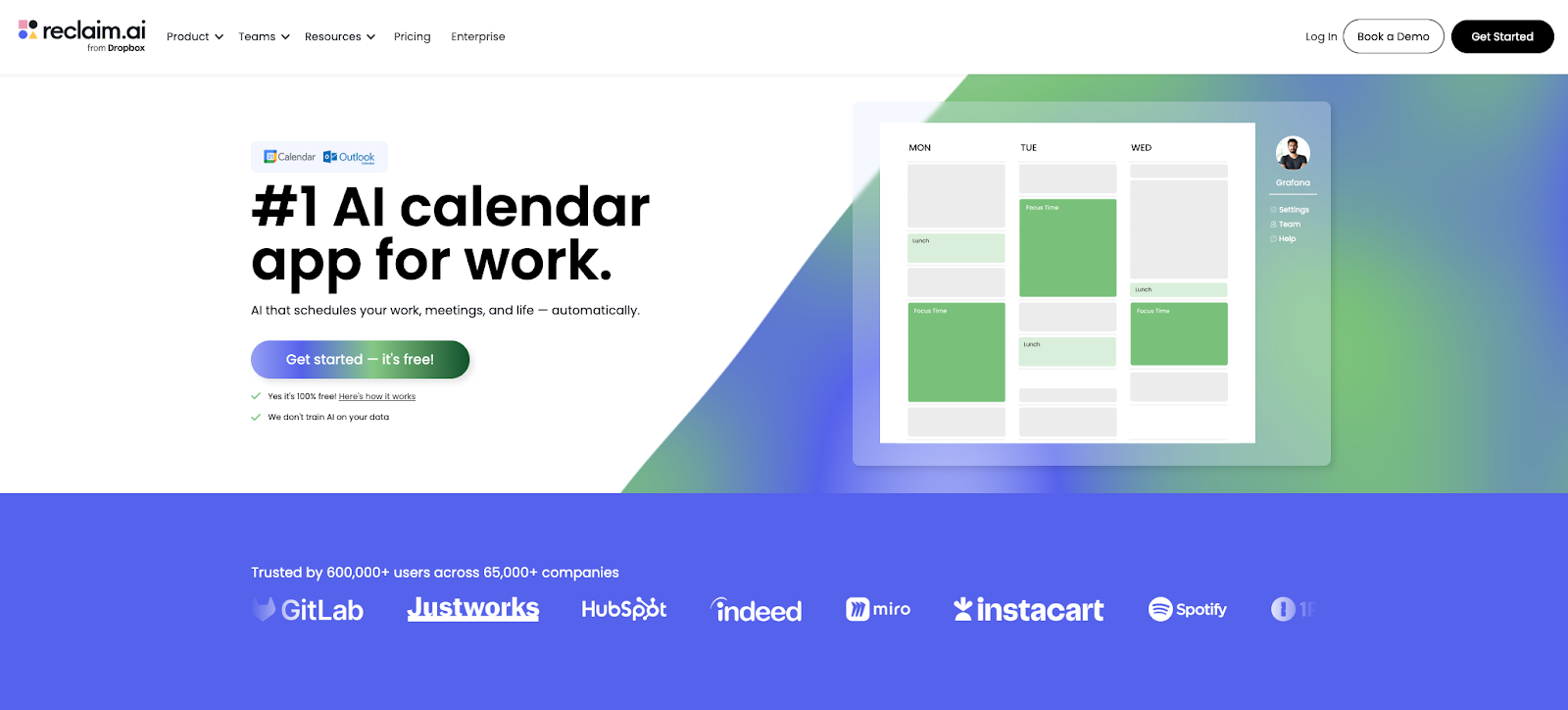
Reclaim is the #1 all-around scheduling app because it improves the two areas that usually break calendars: getting external meetings booked quickly and keeping your week usable when plans shift.
And what’s most incredible is you can share 524% more open time slots for meetings on your booking links, using AI to show availability over lower-priority events you’d be willing to reschedule. This helps you book more important meetings sooner, and create a way better scheduling experience for your invitees (no more crappy booking links with no openings this week).
Reclaim also goes beyond solo booking. It supports team links and round robin scheduling so bookings can be distributed across a group, while still maximizing real availability. Link-level controls (like duration options and questions) help you tune the booking experience without rebuilding your setup.
Beyond links, Reclaim’s smart calendar blocks are designed to re-balance automatically as your week changes. Focus Time, Habits, Tasks, and Smart Meetings shift when conflicts appear, so protected work time doesn’t disappear the moment meetings move. And because scheduling breakdowns often come from multi-calendar chaos, Calendar Sync helps keep availability accurate across Google and Outlook with policies that prevent double-booking and protect privacy.
Why we like it
Reclaim shines on booking experience for both organizers and invitees because it shows more availability through AI. Its Scheduling Links can surface earlier meeting times by flexing lower-priority, reschedulable holds, so invitees can pick a workable slot sooner instead of seeing “nothing this week.” When plans change, the system is designed to keep things stable: reschedules don’t quietly wipe out your week because smart blocks can rebalance around new meetings.
It also performs well on time protection. Focus Time, Tasks, and Habits aren’t just blocks you place once. They’re designed to be defended and re-slotted so focused work and routines stay on the calendar as meetings move.
And for multi-calendar reality, Calendar Sync helps prevent conflicts across schedules while keeping personal details private through policies that control what gets blocked versus what stays hidden.
Key features
- AI Scheduling Links (priority-based availability): Set a priority per link so it can surface more availability by flexing lower-priority, reschedulable holds while protecting higher-priority commitments.
- Link-level controls (not just event types): Customize each link with settings like meeting location, questions, confirmations, and booking rules so you can tune the experience without rebuilding everything.
- Multiple durations per link: Offer different meeting lengths from a single scheduling link when you want one link to cover several formats (quick sync vs deeper call).
- Team Links & Round Robin links: Create team scheduling links for group availability and round robin links that distribute bookings across a team.
- Buffer Time: Add buffer time around meetings and enforce minimum notice so bookings don’t create back-to-backs or last-minute chaos.
- Calendar Sync (Google & Outlook): Sync multiple calendars to prevent double-booking and control what gets blocked vs. what stays private through Calendar Sync policies.
- Smart Meetings: Auto-schedule recurring meetings at the best time for attendees, then auto-reschedule when conflicts appear (including PTO).
- Focus Time goals: Set a weekly Focus Time goal, and Reclaim defends smart blocks for independent work on your calendar.
- Tasks & Habits (AI time blocking): Automatically schedule tasks and recurring routines on your calendar with flexible rules, so they can shift as your week changes.
- AI Priorities (control what flexes): Assign priority levels across your calendar so Scheduling Links can surface more availability by flexing lower-priority events while protecting higher-priority commitments.
- Task integrations: Sync tasks from Todoist, Asana, ClickUp, Linear, Jira, and Google Tasks.
- Time tracking & weekly reports: See weekly totals and trends across all events on your calendar (meetings, focus blocks, and personal time), with a forward-looking preview.
- Workforce analytics: Organization-level visibility into time and meeting patterns to support better decisions and roll out productivity policies at scale.
Limitations to keep in mind
- No Apple Calendar support: Reclaim supports Google and Microsoft calendars, but doesn’t connect to Apple Calendar/iCloud.
- No payment collection: Scheduling Links don’t include built-in payment collection for paid appointments.
Reclaim pricing: Free → paid plans start at $10/month
3. YouCanBookMe – Best for simple booking pages
YouCanBookMe is a super straightforward way to make a booking page: just hook up your calendar, set some basic rules for when you're available, and off you go. That's the kind of simplicity that makes it perfect for when you need a bit of control over your bookings, but don't want to end up building your own scheduling system from scratch.
Why we like it
YouCanBookMe is a solid option when you're after a clean, easy to use booking page that lets you set the rules - but not so many that it becomes a full-on project. It's easy to get a basic link up and running, then tweak it and add to it as you need to: add another booking page, tighten up your availability, and keep things flowing smoothly for the people you're inviting to book time with you.
Just keep in mind, you'll likely run into the same issue as with most of these rule-based schedulers - the more you start layering on settings (availability rules, multiple booking pages, etc.), the more you might need to fiddle around to get the exact outcome you're after. And yes, rescheduling is available, but you should probably double-check the rules around things like rescheduling limits and the like to make sure you've got everything set up the way you intend to before you roll it out to the masses.
Key features
- Calendar connections: Connect Outlook 365, Google, iCloud, or Fastmail so availability reflects free/busy time and bookings create calendar events.
- Multiple booking pages: Create (or copy) multiple booking pages for different appointment types, team members, locations, or rules.
- Availability controls: Set and refine availability rules for a booking page (their docs walk through it step-by-step).
- Buffers / break time: Add buffer time between meetings as part of availability setup.
- Multi-calendar checks (mutual availability): Check multiple calendars for conflicts (useful if you juggle more than one calendar).
- Calendar-managed availability: Option to control availability by placing “availability blocks” on your linked calendar (more control, but it’s a different mental model).
- Integrations: Integrations with tools like Zoom, HubSpot, Stripe, Zapier, Gmail, and more.
Limitations to keep in mind
- No AI scheduling: Availability and booking behavior are rule-based (not AI-driven optimization).
- Calendar-managed availability can trip people up: It’s powerful, but it’s a different workflow than “set availability in the app,” and it’s a paid feature.
- iCloud has a hard constraint: Calendar-managed availability isn’t supported for iCloud because events can’t be set to “Free.”
- Rules can get fiddly at scale: Once you stack availability rules + multiple booking pages & multiple calendars, expect some tuning (they maintain a dedicated troubleshooting section for a reason).
- Rescheduling limits have edge cases: If you rely on strict reschedule/cancel windows, test your exact scenario first.
YouCanBookMe pricing: Free plan → Paid plans start at $9/month
4. Cal.com – Best for customizable scheduling infrastructure
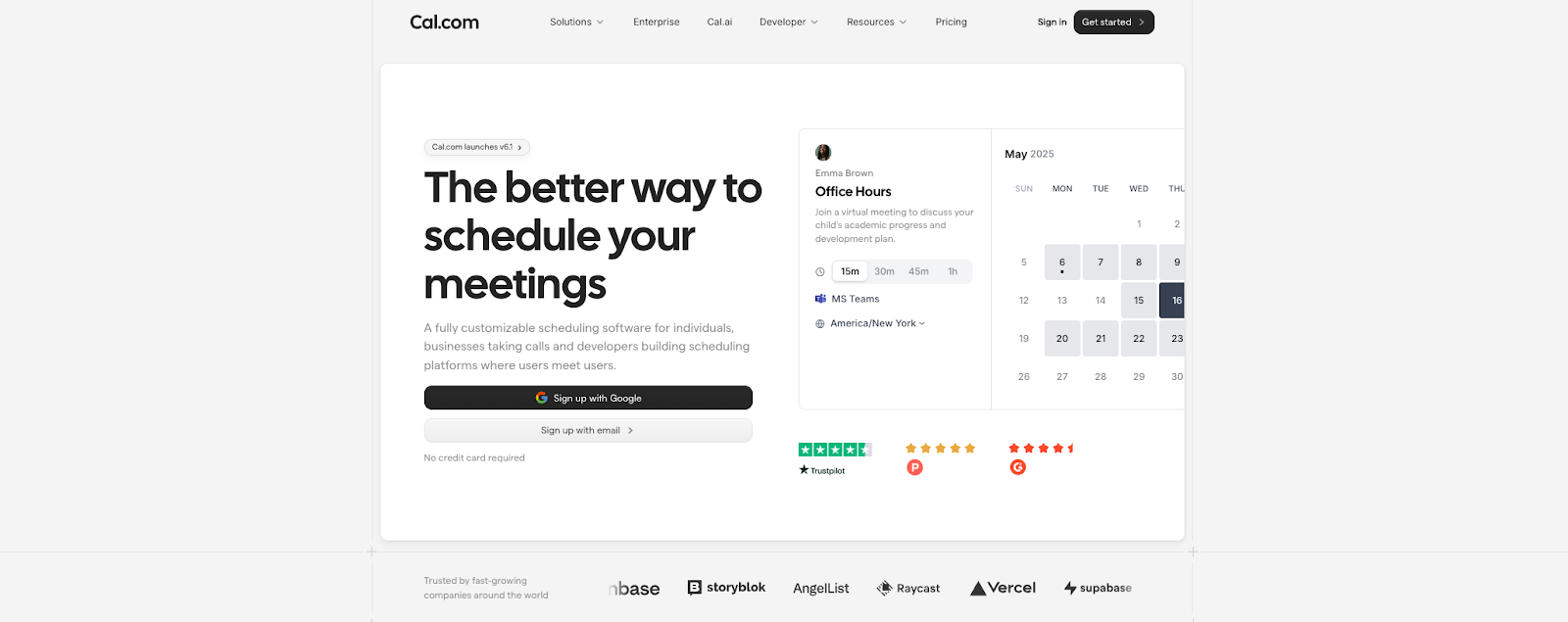
Cal.com bills itself as scheduling infrastructure - which is exactly what it is. You start off with a scheduling link - but from there, you can start to build out more complex stuff like team events, routing and all sorts of other workflow-y bits
Why we like it
Cal.com is the one to go with when "send out a link and get booked" just isn't enough for your organization. It's built around this idea of scheduling as infrastructure - so you get things like team meeting distribution, and routing - all the things you really need to make scheduling work properly for your business. You don't have to try to shoehorn your process into some pre-set template.
We also love that it's actually a proper open-source option - not just some footnote in the fineprint. If owning that workflow (and maybe even self-hosting or tweaking it to your heart's content) is important to you, then Cal.com is one of the few scheduling solutions out there that will cater to that right from the off.
The catch is that it takes a bit of setup. That flexibility that makes Cal.com so powerful can also make it a bit more complicated to get going - especially once you start to get beyond the simple stuff and into teams and routing and all that.
Key features
- Open-source scheduling infrastructure: Cal.com positions itself as “scheduling infrastructure” and publishes the product as an open-source project.
- Event types (personal & team): Supports personal event types and team event types (including booking one person from a team or multiple people at once), and checks connected calendars for conflicts.
- Round robin scheduling: Round robin event types distribute bookings across a team, with assignment logic that can use availability plus weights/priorities/least-recently-booked behavior.
- Collective events: Collective event types are designed for meetings that require multiple team members to attend, with availability evaluated across co-hosts.
- Routing forms: Routing is a first-class feature area, built around collecting booker inputs and routing accordingly.
- Attribute-based routing: Cal.com’s docs describe using “Attributes” (e.g., language, region, department) to filter/match team members in routing logic.
- Multiple schedules/availabilities: You can create multiple schedules and assign specific schedules to specific event types (useful when different booking pages need different hours).
Limitations to keep in mind
- AI is a separate layer: Cal.ai provides AI scheduling assistance/agent workflows, but it’s an add-on capability rather than the core “booking link logic” itself.
- Flexibility = more setup: Cal.com’s power is teams + routing + custom workflows, but it takes more upfront configuration than a basic booking link.
- Routing depth is plan-gated: Attribute-based routing requires Organizations or Enterprise plans.
- Self-hosting isn’t hands-off: The open-source path comes with real ops work (production requirements, cron jobs, upgrades).
- Team features are the “verify the plan” moment: The stuff you’re probably here for (team workflows, routing, admin/compliance) lives in higher tiers—confirm requirements and date-stamp them.
Cal.com pricing: Free plan available → Paid plans start at $15/month

5. Acuity Scheduling – Best for client appointments

Acuity Scheduling is built with appointment-based businesses firmly in mind: clients book your services, and you worry about getting everything in place for that meeting. The scheduling process can include all sorts of useful extras like getting clients to fill out forms beforehand, sending reminders, and handling payments - all of which tie in nicely with the appointments themselves. It's really all about delivering a top-notch "appointment as a service experience" - not just about sorting out the internal meetings.
Why we like it
The reason we like Acuity so much is that it treats scheduling as a key part of delivering your services, not just some boring "pick a time" exercise. It's built around what actually happens in an appointment workflow – from the client booking in to dealing with reminders and payments – so you don't end up having to cobble together loads of separate systems to make it work. There's no manual stitching together of various bits of software each time you do a booking.
It also holds up pretty well in the day-to-day reality of sorting out appointments. Clients do change their minds at short notice; you need to have policies in place to keep things on track and make sure that the client experience is seamless without you being constantly on top of it. And that's what tends to come out in reviews - people find it easy to use and a great fit for service businesses – it's the deeper dive into features like custom forms, policies, and notifications that sometimes throws up a few issues.
Key features
- Client-facing appointment booking: Built around services/appointments (not just “pick a meeting time”), with booking pages designed for client scheduling.
- Client management: Acuity positions client management as a core part of the product (tracking client details alongside bookings).
- Intake forms + agreements: Create custom intake forms and client agreements, and tie them to specific appointment types.
- Automated notifications + reminders: Built-in email notifications and text message reminders with templates you can customize (with tracking via appointment changelogs).
- Payments: Accept payments and configure how clients pay (pay in full at booking, deposits, collect card to charge later), with processor-dependent capabilities.
- Customization resources: A large help center + guides for customizing your scheduler and the client experience.
Limitations to keep in mind
- No AI scheduling: Acuity focuses on appointment booking workflows rather than AI-driven scheduling optimization.
- Service-first (can feel heavy for internal meetings): Acuity is built for client appointments and workflows. If you mostly schedule internal meetings, a scheduling-link tool is usually a cleaner fit.
- Notifications take tuning: Powerful templates and rules also mean you’ll spend time dialing in who gets what, and when.
- Payments add setup overhead: The exact flow depends on how you configure payments (deposits, pay-in-full, collect card to charge later).
Acuity Scheduling pricing: 7-day free trial → Paid plans start at $20/month
6. OnTheClock – Best for shift scheduling
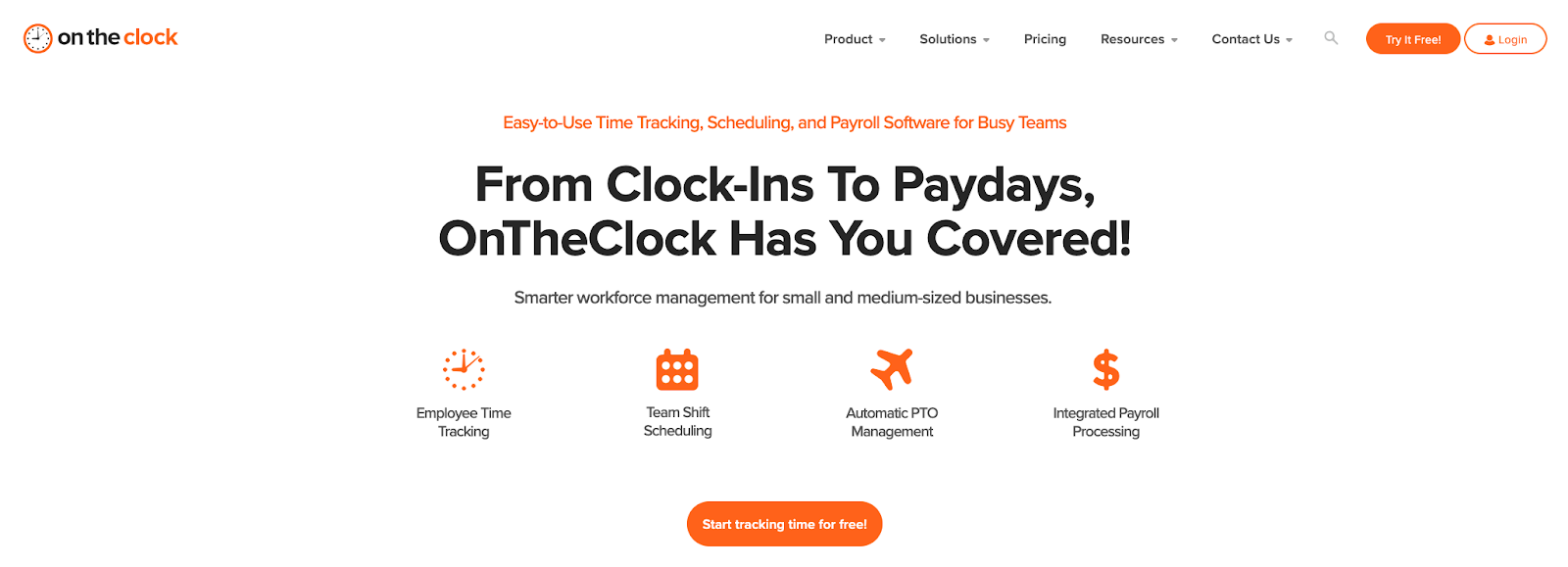
OnTheClock is a top choice for employee scheduling software for teams on the clock: managers create and share shift schedules, track PTO alongside employee availability, and give their team members a heads up when the schedule changes. It's built for getting coverage and sorting out staffing needs – not just wrangling calendar invites.
Why we like it
Working with OnTheClock makes creating shift schedules a breeze: knock out a schedule quick, spot any gaps, toss it up, and keep your employees in the loop when something changes. Users can take advantage of reusable templates, tying PTO into the schedule, notifications via email/text/app when schedules get updated or shifts get swapped - all exactly what most hourly teams live and breathe. It fits especially well for small teams that want practical workforce management without adopting an all-in-one enterprise suite.
It's also a good fit when a big-hitting workforce suite is just too much. OnTheClock is an approachable tool for small businesses, with scheduling that's straightforward and actually works. Of course, the predictable trade-off is that it might feel a little light if you need super-advanced scheduling rules or all the compliance-heavy rostering bells and whistles.
Key features
- Shift schedule builder: Create, adjust, and share schedules quickly, with drag-and-drop style editing called out in their scheduling pages.
- Schedule templates (fixed schedules): Supports fixed schedules so you’re not rebuilding the same shifts every week.
- Employee notifications: Can notify employees when schedules are published or updated (including via email and the mobile app; some pages also mention real-time updates).
- PTO tracking: PTO setup and tracking is a core feature area, with dedicated docs/guides, including workflows for time off requests.
- Coverage visibility: OnTheClock positions scheduling around spotting open shifts/coverage gaps and filling them before they become problems.
- Mobile access for staff: Employees can access OnTheClock via mobile apps (useful for checking schedules and updates on the go).
Limitations to keep in mind
- No AI scheduling: Shift scheduling is template and rules-based, not AI-optimized.
- Shifts, not meetings: OnTheClock is for workforce coverage. If you need external meeting booking, a scheduling-links tool will fit better.
- Can feel “basic” vs enterprise workforce suites: Great for predictable schedules, less ideal for advanced rostering rules or compliance-heavy needs.
- SMS can add cost: Text alerts may include a monthly fee plus per-message charges (email is free).
- Reliability complaints exist: Some users report slow loading or connectivity/clocking issues—worth sanity-checking in your environment.
- Employee mobile scheduling may be limited: Confirm whether staff can manage upcoming shifts in the app if that’s important to your workflow.
OnTheClock pricing: 30-day free trial → Paid plans start at $9/month
7. Google Calendar – Best base calendar for Google-first workflows
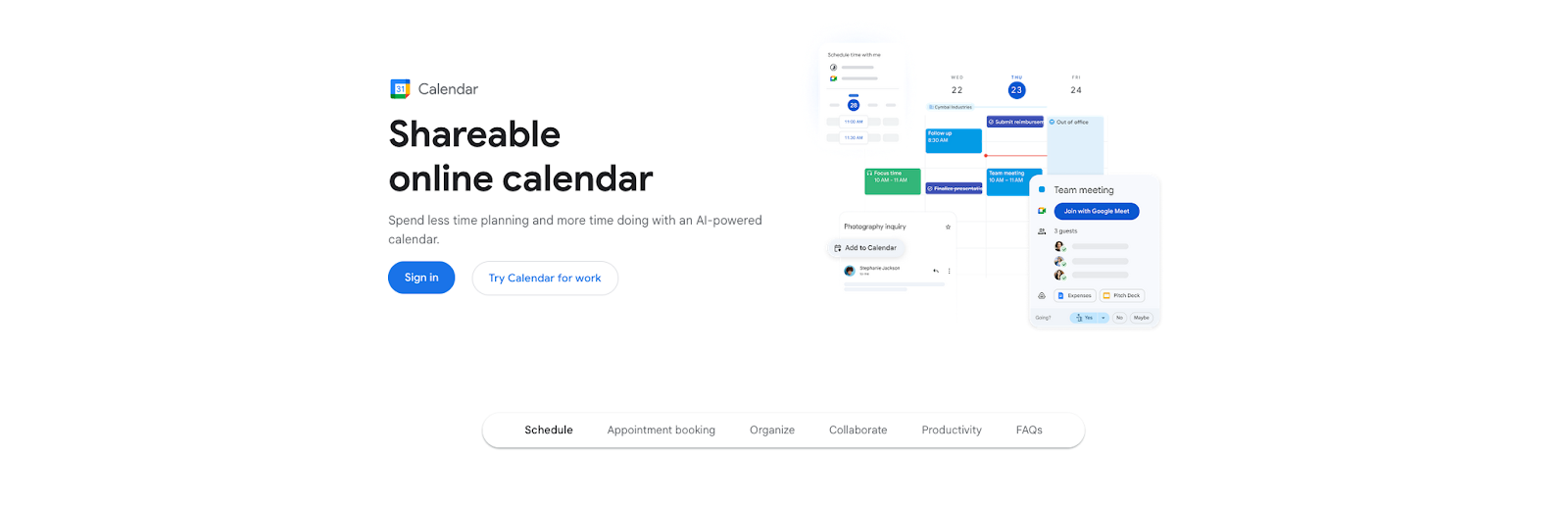
Google Calendar is a foundation calendar for Google-first teams: it’s where events, availability, and sharing live. It has some lightweight scheduling features outside of its basic calendar capabilities (like appointment schedules for eligible accounts), but it isn’t a full scheduling app with routing or team distribution. It’s the base layer most teams build on.
Why we like it
Google Calendar makes the list because it’s the default foundation for Google-first teams. When everyone’s on the same calendar layer, basic availability and sharing are predictable, and that consistency matters more than people admit.
It also covers a few lightweight scheduling needs without adding another tool. For eligible accounts, appointment schedules can publish a simple booking page that avoids conflicts with busy time. That’s useful for straightforward “pick a slot” situations—but it stops short of what most teams mean by “scheduling app,” like routing, team distribution, or protecting focus time when your calendar shifts.
In other words: Google Calendar is the base layer. If your problem is coordination and workflow, you’ll usually pair it with a scheduling tool rather than trying to force the calendar to do the whole job.
Key features
- Appointment schedules (booking page): Create a shareable booking page from Google Calendar (available on personal Google accounts and many Google Workspace plans)
- Working hours: Set working hours so your availability reflects real boundaries.
- Working location: Set and share work location (office/remote) for schedule context.
- Share or embed booking page: Google documents options for sharing an appointment schedule booking page.
- Google Meet auto-add (Workspace): Admins can control Meet video conferencing so events reliably include a Meet link in orgs that standardize on it.
Limitations to keep in mind
- No AI scheduling: Gemini is only available in free personal Google Calendars, and can only create basic solo events (no meeting scheduling).
- Not a full scheduling platform: Google Calendar is a foundation calendar. It doesn’t try to cover advanced scheduling needs like routing, round robin distribution, or workflow-heavy booking logic.
- Appointment schedules depend on your Google account plan: Personal accounts and Workspace Business Starter can create a booking page, but Frontline, Essentials, and some legacy Workspace plans can’t.
- Appointment schedule creation is desktop-only: Google’s help docs note creating appointment schedules is currently done on a computer, which can be annoying if you’re trying to set this up on mobile.
- Lightweight booking only: Appointment schedules are useful for simple “pick a slot” booking, but they don’t replace a dedicated scheduling layer when you need team distribution, routing logic, or more automation around scheduling workflows.
Google Calendar pricing: Free → Paid plans start at $5.88/month
8. Outlook Calendar – Best base calendar for Microsoft-first workflows
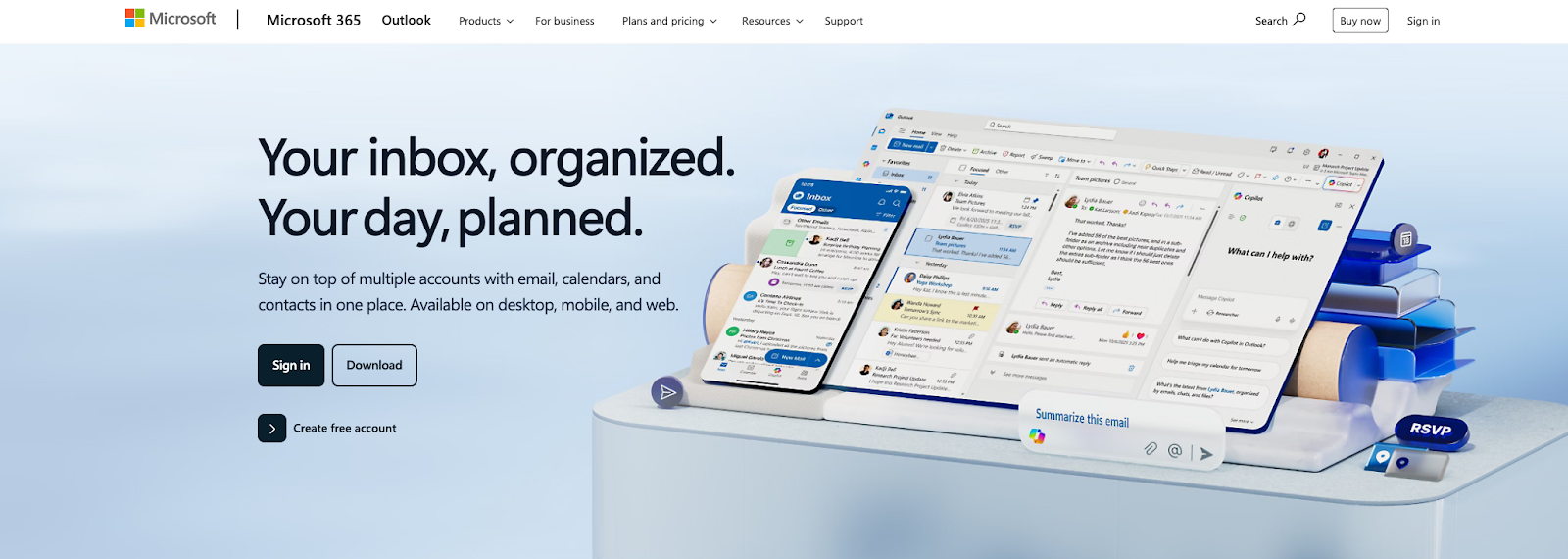
Microsoft Outlook Calendar is a foundation calendar for Microsoft-first teams: it’s where events, availability, and sharing live. It supports some lightweight booking through Microsoft Bookings (“Bookings with me”) in many orgs, but it isn’t a full scheduling platform with routing or distribution. It’s the base layer teams build on.
Why we like it
Outlook Calendar makes the list for the same reason Google Calendar does: it’s the foundation layer in Microsoft-first orgs. When everyone’s on the same system of record, availability and sharing are consistent, and Outlook’s time zone controls are solid enough for teams that schedule across regions.
It also gives you a reasonable “booking link” escape hatch when your org enables it. Microsoft’s Personal Bookings / “Bookings with me” is designed to share your availability based on free/busy, without pretending Outlook Calendar itself is a full scheduling platform.
Outlook Calendar is where the calendar truth lives. If you need richer booking workflows (intake questions, routing, distribution, etc.), that typically lives in Microsoft Bookings (or another scheduling layer), and what you can use depends on your Microsoft 365 setup and licensing.
Key features
- Personal booking page (Bookings with me / Personal Bookings): Create a personal scheduling page to share your availability and let others request/book time based on free/busy.
- Share your booking page: Copy a shareable link to your booking page so others can book time.
- Time zone controls: Manage time zone settings (and related meeting behavior), which matters if you schedule across regions.
- Work hours & work location: Set recurring work hours and update your work plan/location (new Outlook / Outlook on the web) so availability boundaries are clearer.
- Team booking pages (Microsoft Bookings): Publish a shared booking page for a team or department, with services, staff assignments, and availability rules you can customize.
Limitations to keep in mind
- No AI scheduling: Copilot is more powerful in Outlook email vs. calendar – it can only create a meeting with one other person, and doesn’t offer any ability to maximize your open time slots on booking pages with AI.
- Not a full scheduling platform: Outlook Calendar is the foundation layer for events and availability. It doesn’t natively cover advanced scheduling workflows like routing, round robin distribution, or intake-heavy booking logic.
- Booking features depend on your org setup: Personal Bookings / “Bookings with me” and Microsoft Bookings availability can vary based on Microsoft 365 configuration and licensing, so confirm what’s enabled before you build a workflow around it.
- Booking layers are separate products/features: When you need a booking link or richer booking workflows, that typically lives in Microsoft Bookings (and related Personal Bookings), not in the base Outlook Calendar experience.
Outlook Calendar pricing: Free → Paid plans start at $4.40/month
Choose the right type of scheduling app in 60 seconds
Most “best scheduling apps” lists mix very different tools. The fastest way to pick well is to start by naming the scheduling problem you want solved, then filtering tools based on a few non-negotiables.
1: Identify your scheduling problem
Use the prompt that sounds most like your day:
- “I’m busy – I need to schedule new meetings, coordinate recurring meetings, protect focus time, and balance my personal calendar.”
You need an AI scheduling tool. - “I need to stop the back-and-forth and let people book time.”
You’re looking for a scheduling link tool. - “Clients need to book services, and I need reminders (and sometimes payments).”
You’re looking for appointment scheduling. - “I’m managing shifts, coverage, and staffing changes.”
You’re looking for shift scheduling. - “I need a reliable home base for events and availability.”
You’re choosing a base calendar (often paired with one of the tools above).
2: Confirm your non-negotiables before you shortlist
These are the checks that prevent most “we picked the wrong tool” regrets:
- Multi-calendar behavior: Which calendars block availability, and how conflicts are handled.
- Time zones: Time zone display and booking logic stays clear for both parties.
- Buffers & minimum notice: Rules exist and are enforceable.
- Rescheduling reality: Cancellations/reschedules don’t create chaos or manual cleanup.
- Privacy & permissions: You control what others can see and what the tool can access.
- Integrations: Your core workflow tools connect without brittle workarounds.
3: Expect a “two-layer stack” in many real setups
In practice, many people use both a:
- Base calendar (Google Calendar or Outlook) to store events.
- Scheduling app layer (links, appointments, workforce tools) to manage booking rules and availability.
If your main pain is meeting optimization and protecting focus time, an AI scheduling layer can sit on top of that stack to protect time and keep plans flexible.
How to think about scheduling in 2026
Scheduling isn’t hard because you haven’t found the right link. It’s hard because calendars are now where work competes. Meetings, deadlines, routines, time zones, and “can we move this?” all stacked on the same grid.
So the goal of a scheduling app in 2026 isn’t to help you book more time. It’s to help you keep time usable.
If the scheduling app you use actually delivers on that - makes it feel like a lot less of a hassle to reschedule, cuts down on back-and-forth email, keeps your whole week from falling apart - you will notice a difference right away. Your calendar will stop being the graveyard where all our good intentions go to die.
Productivity Trends Reports